How to Create a Multi-Language QR Code
A Multi-Language QR Code allows one permanent QR code to detect the visitor's device and browser language and automatically redirect them to the correct localized destination.
Editable Permanent Multi-Language QR Code:
- $49 One-Time Payment: Permanent hosting with zero recurring subscription fees.
- Editable Language Destinations: Add languages or update destination URLs without reprinting the QR code.
- Unlimited Scans: Permanent QR codes remain active forever with no scan limits.
Before You Start
Have the following ready before creating your code:
- Language-specific URLs: Prepared destination links for your target languages (e.g., English, Hindi, Spanish, French, German).
- Fallback URL: A designated default destination URL for unconfigured or unsupported languages.
- Optional branding assets: Company logo and brand color preferences for custom styling.
- Smartphone/device for testing: Physical devices with different language settings to verify routing.
- Permanent QR Codes account: Sign in to your Permanent QR Codes account to create and manage codes.
Smart Language Detection
The system inspects browser and device language preferences in milliseconds and routes visitors automatically to the matching localized destination.
Single Print Run Simplicity
One QR code serves multiple languages worldwide without the need to create and print separate codes for each market, reducing packaging SKU complexity and reprint waste.
Step 1: Select Multi-Language QR Code
Log in to your Permanent QR Codes dashboard, click "Create QR Code", and select "Multi-Language" from the QR code type selection screen.
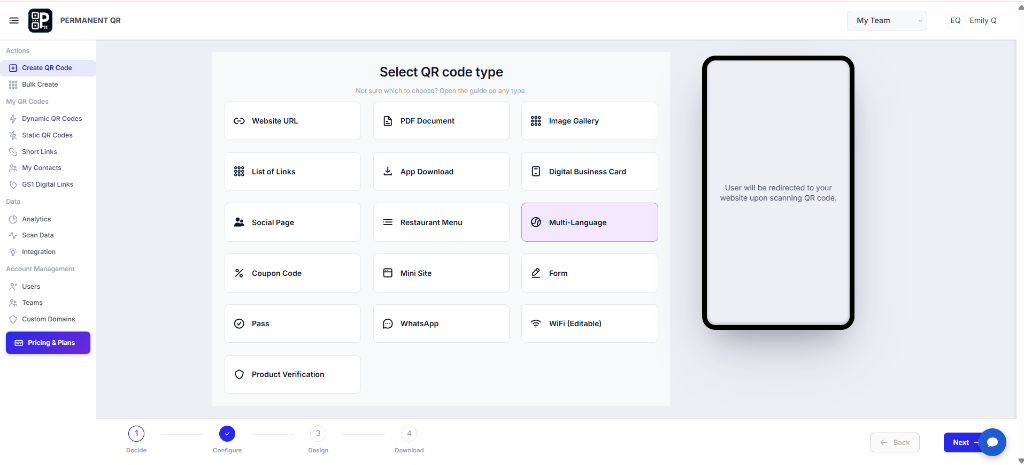
"Select Multi-Language from the QR code types."
Step 2: Add Language Destinations
Add the required languages you want to support, enter the destination URL for each, and select a fallback URL:
- English: e.g.,
https://example.com/en/ - Hindi: e.g.,
https://example.com/hi/ - Spanish: e.g.,
https://example.com/es/ - French: e.g.,
https://example.com/fr/ - German: e.g.,
https://example.com/de/
Fallback URL: Always designate a default destination URL so visitors scanning with unconfigured languages are routed gracefully without broken pages.
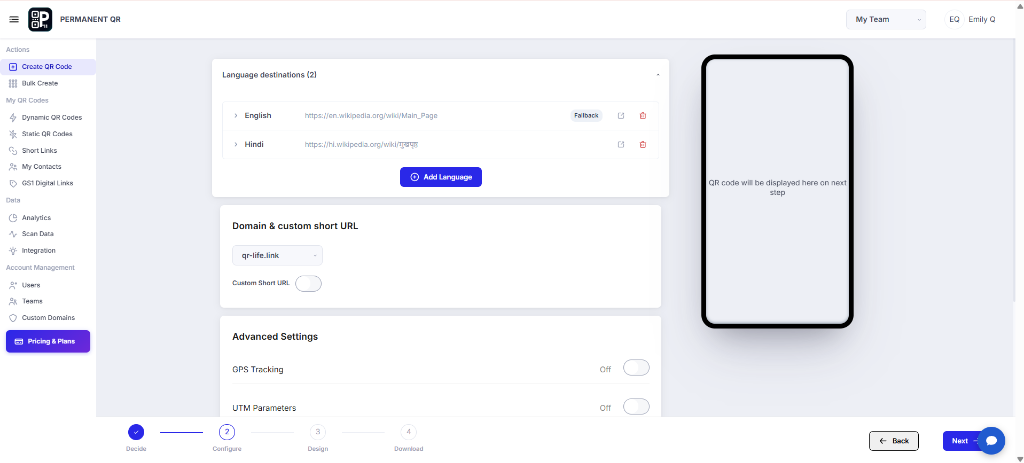
"Configure languages and assign destination URLs with a default fallback."
Step 3: Customize Your QR Code
Customize the template, logo, pattern, corners, eyes, background, frames, and QR options. Maintain strong contrast between the foreground and background for reliable scanning.
- Template / Frame
- Logo
- Pattern
- Corners
- Eyes
- Background
- Frames
- QR Options
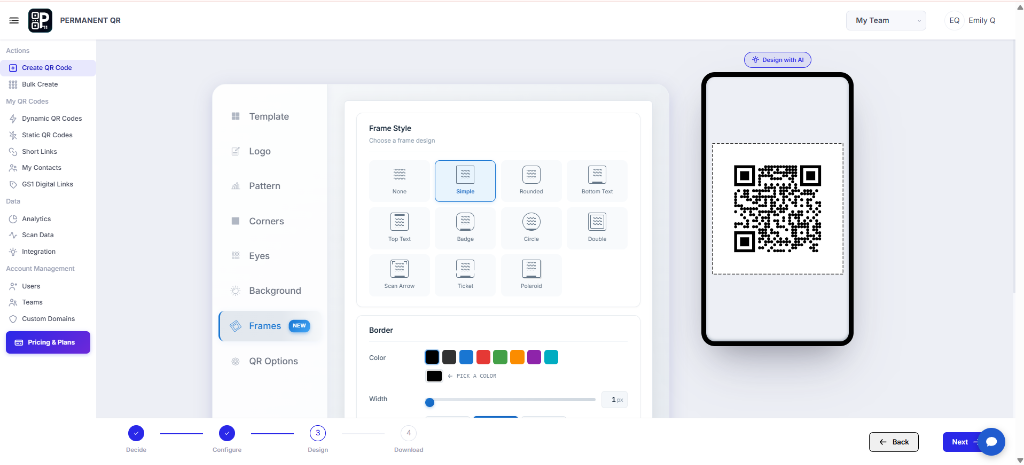
"Customize the appearance, logo, frames, and colors of your Multi-Language QR Code."
Step 4: Generate Your QR Code
Generate the QR code and quickly verify the design, language URLs, fallback URL, title, and shareable link:
QR Code Design: Confirm contrast, eye styles, and branding elements.
Language Destinations: Verify destination URLs for each configured language.
Fallback URL: Ensure the default fallback destination is active and reachable.
QR Code Title: Check the code name for easy management in your dashboard.
Shareable Link: Test the permanent short URL directly in a browser tab.
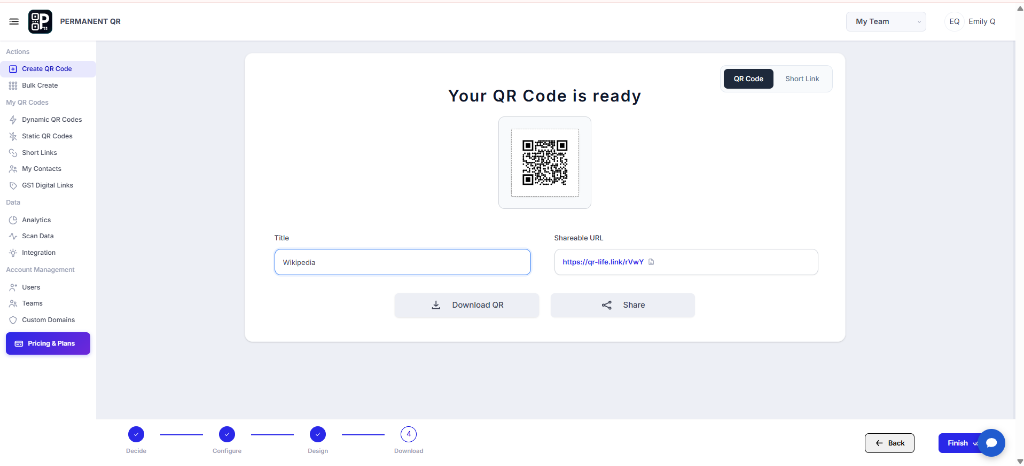
"Review your generated Multi-Language QR Code and verify destination routing."
Step 5: Download Your QR Code
Choose the required resolution and format such as SVG, PNG, WEBP, or JPEG, then download the QR code:
- High-Resolution Options: Select dimensions up to 4096 × 4096 px for crisp clarity on large-scale signage, posters, or packaging.
- Quiet Zone: Maintain sufficient white space around all edges to guarantee swift scanning.
- Error Correction: Select appropriate error correction to withstand scuffs or physical surface wear.
- SVG for Print: Use vector SVG format for lossless scaling in professional printing and manufacturing.
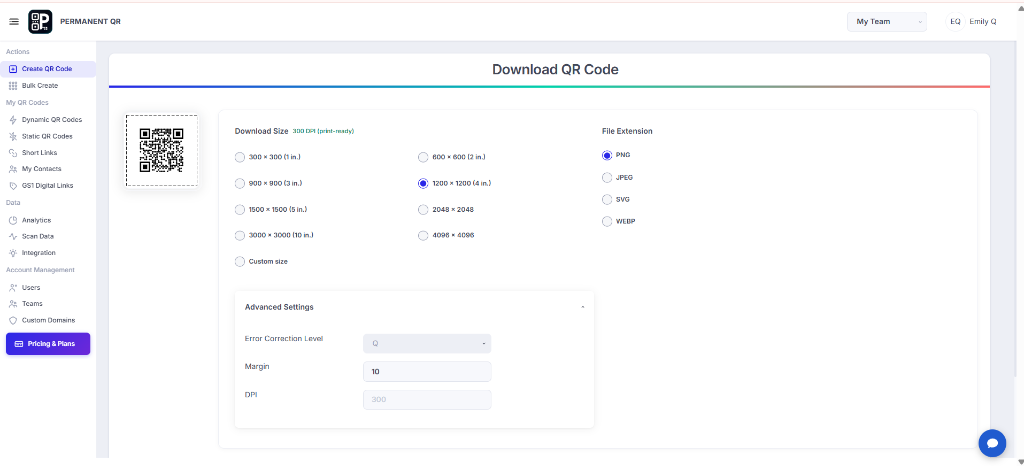
"Select your preferred resolution and file format, then download your QR code."
What Happens After Someone Scans a Multi-Language QR Code?
A seamless 5-step flow takes place in milliseconds:
Scan QR Code
Visitor scans the QR code using their smartphone camera.
Language Detection
The system detects the visitor's browser and device language.
Smart Routing
The visitor is routed to the matching language destination.
Fallback Protection
If the language is not configured, the fallback destination is used.
Localized Content
The visitor sees the appropriate localized webpage or content.
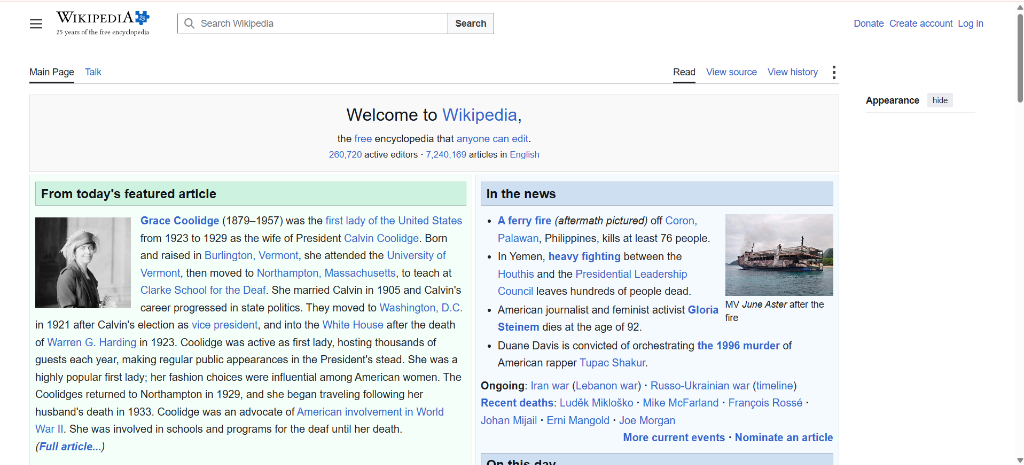
"Wikipedia page example for Multi-Language QR Code language routing"
Test Your Multi-Language QR Code
Complete this concise 7-point checklist before printing or publishing:
Scan with a real smartphone: Test scanning directly from your screen or a sample print proof.
Test fallback language: Confirm uncustomized scans route to your default destination.
Test every configured language: Switch phone language settings to verify each language individually.
Test unsupported language: Verify that unlisted languages load the fallback page smoothly.
Verify destination URLs: Ensure all destination links are active, secure (HTTPS), and mobile-optimized.
Test different devices/browsers: Confirm consistent behavior on iOS Safari, Android Chrome, and scanner apps.
Test the printed QR code: Ensure the printed asset scans instantly under varied lighting and distances.
Common Problems & Solutions
1. Device loads fallback language
Cause: Language is not configured in your dashboard.
Fix: Add the language destination or verify the fallback destination URL.
2. Destination link does not open
Cause: The destination URL contains a typo or is unavailable.
Fix: Check and update the destination URL in your dashboard without reprinting.
3. QR code will not scan
Cause: Low contrast, insufficient quiet zone, or print size is too small.
Fix: Improve contrast, simplify custom elements, increase print size, and maintain a clear quiet zone.
4. Need to add a language after printing
Cause: Expanding into new language markets after packaging distribution.
Fix: Add the language from the dashboard without reprinting. Existing printed codes update immediately.
5. Language detection behaves unexpectedly
Cause: Mixed device regional/dialect preferences.
Fix: Check language codes, review fallback settings, and include a manual language toggle on target pages.
Common Mistakes to Avoid
❌ Missing Fallback URL
Failing to specify a fallback URL leaves users with unconfigured languages without content access.
❌ Incorrect Language Codes
Entering invalid language identifiers prevents scanning devices from matching destinations.
❌ Low QR Contrast
Using pale colors makes cameras struggle or fail to recognize and decode the code.
❌ Too-Small Print Size
Printing smaller than 1 × 1 inch (25 × 25 mm) prevents reliable optical focus.
❌ Skipping Real-Device Testing
Relying solely on desktop previews without testing real smartphone cameras on physical prints.
❌ Using Subscription-Locked QR Codes
Using monthly subscription tools that deactivate printed QR codes once billing lapses.
Common Uses
Appliances & HVAC
Embed one QR code on units to serve user manuals in 15+ languages without packaging SKU variants.
Industrial Equipment
Route field technicians to localized maintenance guides, wiring diagrams, and safety protocols worldwide.
Water Filters & Consumables
Print one universal code on cartridges to deliver localized replacement and recycling steps.
Electronics & Packaging
Ship consumer goods globally with one QR code delivering localized quick-start guides and warranty info.
Campus & Museum Signage
Help international students and tourists access exhibits, directories, and audio tours in their preferred language.
Compliance & Safety Documentation
Deliver localized Safety Data Sheets (SDS), TDS, and regulatory compliance documents on equipment and chemical packaging.
Frequently Asked Questions
How does Multi-Language QR routing work?
When a visitor scans the QR code, our server inspects the browser and device language headers in milliseconds and instantly redirects them to the matching language destination URL.
Can I add languages later?
Yes. You can add new languages and destination URLs anytime from your dashboard. The printed QR code automatically routes to the new languages without reprinting.
Can I change destination URLs?
Yes. Destination URLs are editable anytime in your dashboard. Any updates take effect immediately for all subsequent scans.
Is there a scan limit?
No. Permanent QR Codes include unlimited scans with no expiration date, bandwidth limits, or scan caps.
What happens when a language is not configured?
If a visitor's language has not been explicitly configured, the QR code automatically routes them to your designated fallback/default destination URL.
Does the QR code need to be reprinted after changes?
No. Because Permanent QR Codes are dynamic and editable, you never need to reprint the QR code when you add languages or update destination links.