App Download QR code setup
An App Download QR Code lets you provide visitors with a single QR code that directs them to the appropriate app store for their device. Visitors can scan the code and choose the available app store to download the app.
Editable Permanent App Download QR Code:
- $49 One-Time Payment: Pay once and own your QR code forever with no monthly or annual subscription fees.
- Editable App Store URLs: Update or add app store links, change titles, or modify branding anytime without reprinting the physical QR code.
- Unlimited Scans: No scanning limits, no scan quotas, and no expiration date.
Before You Start
Before creating your App Download QR code, ensure you have gathered:
- App store URLs: Direct links to your published application listing in each app store (Apple App Store, Google Play Store, Amazon Appstore, Microsoft Store).
- App information and branding: Your exact app title, a compelling short description, and your high-resolution app icon or company logo.
- Smartphone for testing: A physical mobile device (iOS and/or Android) to scan and verify the landing page experience and store redirections.
- Permanent QR Codes account: Sign in to your Permanent QR Codes account to create and manage your editable QR code.
Verify Live App Store URLs
Test each app store link in a web browser before entering it to ensure your listing is live and publicly available in all target countries.
Cross-Platform Simplicity
Instead of printing separate QR codes for iOS and Android, one App Download QR code automatically routes every visitor to an elegant landing page with direct links to all your platforms.
Step 1: Select "App Download"
Log in to your Permanent QR Codes dashboard and navigate to create a new QR code. From the available QR code types, choose App Download to launch the dedicated app download configuration workflow.
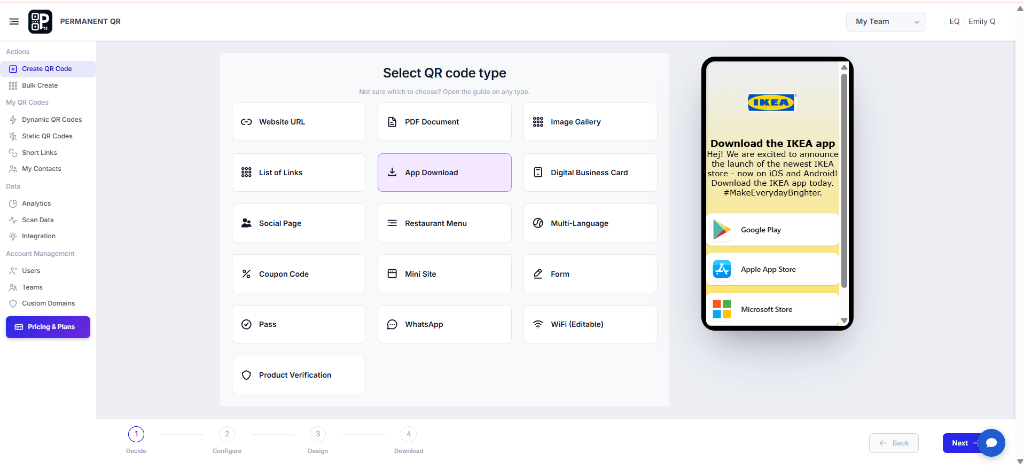
"Select App Download from the QR code types."
Step 2: Add Your App Store URLs
Enter the direct store links for the platforms where your app is available. You can provide URLs for any of the supported stores:
- Google Play Store: Paste the full Google Play link for Android mobile and tablet users.
- Apple App Store: Enter the official Apple App Store URL for iPhone and iPad users.
- Amazon App Store: Provide the Amazon Appstore link for Amazon Fire and Fire OS devices.
- Microsoft Store: Add the Microsoft Store link for Windows desktop and tablet devices.
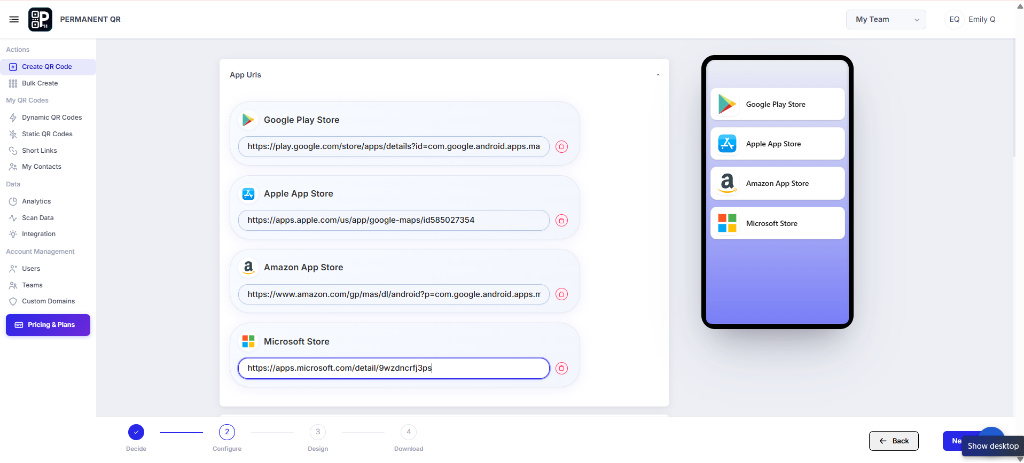
"Add the app store URLs for your application."
Add a Page Title and Description
Customize the landing page details that visitors will see upon scanning. Enter your application name as the page title, add a brief description highlighting its key features, and upload your app icon or brand logo so users immediately recognize your app.
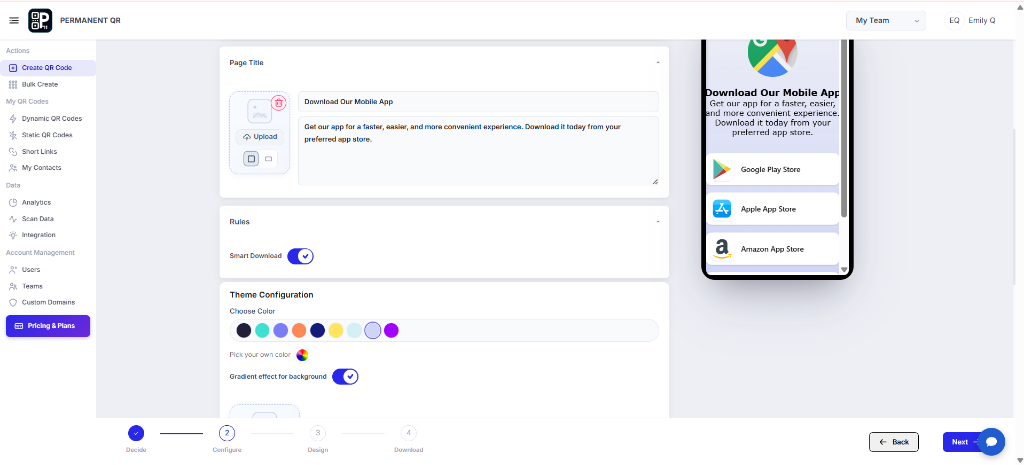
"Customize the page title, description, and landing page settings."
Step 3: Customize Your QR Code
Make your QR code visually distinctive and aligned with your app's brand identity. You can customize the following design settings:
- Template
- Logo
- Pattern
- Corners
- Eyes
- Background
- Frames
- QR Options
Always maintain strong color contrast between the QR code pattern and background to ensure dependable scanning under varied lighting conditions.
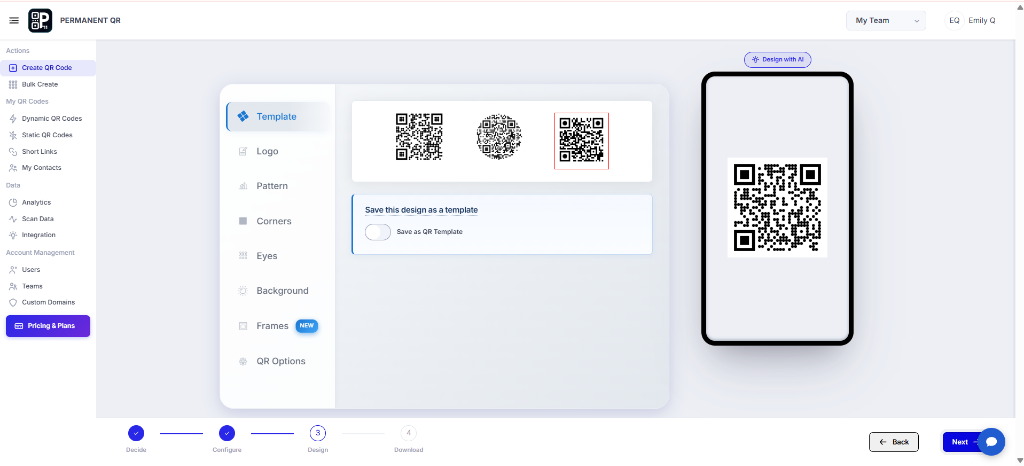
"Customize the appearance of your App Download QR Code."
Step 4: Review and Test Your QR Code
Before downloading and distributing your QR code, complete this 6-point review checklist:
Verify Store URLs: Confirm that every entered app store link opens the correct, live store listing without redirect errors.
Check Page Copy: Check that your app title, tagline, and short description are clear, accurate, and free of typos.
Inspect App Branding: Ensure your uploaded app icon or logo appears crisp and properly centered on the landing page.
Test Real Device Scans: Scan the QR code using actual smartphone cameras on both iOS and Android.
Examine Mobile Layout: Confirm that the landing page displays cleanly on compact and large mobile screens.
Check Visual Contrast: Verify that the QR code pattern has sufficient visual contrast against its background for instant recognition.
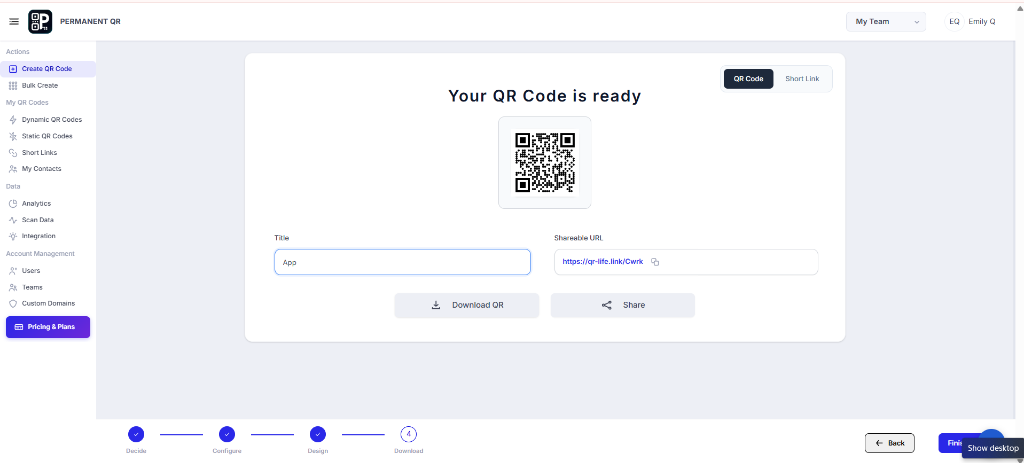
"Review your generated QR code before downloading."
Step 5: Download Your QR Code
Once your review is complete, configure your download settings and save the file:
- Resolution & Size: Select from predefined resolutions ranging from 300×300 px up to 4096×4096 px, or set custom dimensions for your specific design requirements.
- File Formats:
- PNG: High-resolution raster file with transparency support, ideal for digital graphics, websites, and office documents.
- JPEG: Standard compressed format for basic digital applications and mockups.
- SVG: Lossless vector format that can be scaled to any size without degradation, ideal for print collateral, signage, and packaging.
- WEBP: Modern high-efficiency web graphic format for fast-loading websites and emails.
- Advanced Settings: Adjust margin/quiet zone padding and error correction level to guarantee scanning stability in busy printed designs.
- Download: Click the "Download QR Code" button to save your finished asset.
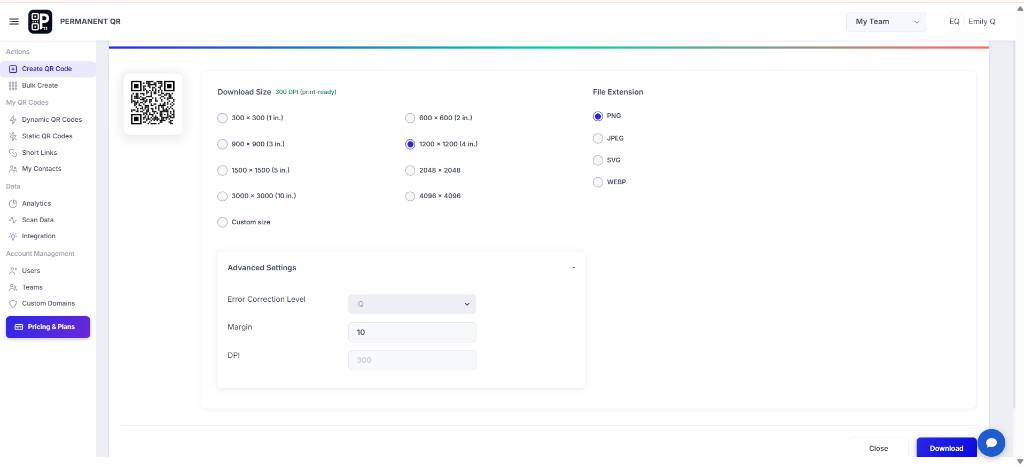
"Choose your QR code size and file format, then download."
What Happens After Someone Scans?
When a user scans your App Download QR Code, they experience a streamlined, friction-free download journey:
Scan Code
Visitor points their smartphone camera at your printed QR code.
Landing Page
A mobile-optimized page opens instantly with your logo, title, and description.
Store Options
Direct download buttons appear for Google Play, Apple App Store, and other configured stores.
One-Tap Select
The visitor taps their preferred store button matching their device.
Instant Install
The device opens its native app store directly on your listing, ready to install.
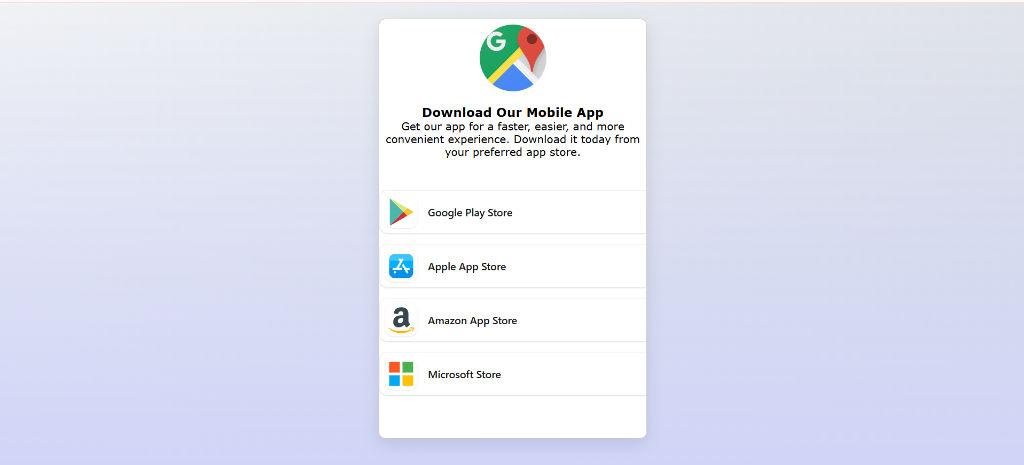
"This is the App Download page visitors see after scanning."
Test Your App Download QR Code
Ensure zero-friction installation for your users by verifying these 7 testing checkpoints:
Test on iOS: Scan with an iPhone camera and confirm it opens the Apple App Store listing directly.
Test on Android: Scan with an Android camera and verify it launches Google Play without browser warnings.
Verify Mobile Speed: Ensure the landing page loads rapidly over cellular data networks.
Inspect Visual Quality: Confirm your app logo and title look sharp and professional on Retina/high-DPI screens.
Test Scan Angles & Distances: Scan from various distances and tilted angles to check error correction resilience.
Test Secondary Stores: If configured, verify that Amazon Appstore and Microsoft Store links route accurately.
Verify Post-Print Editing: Update a store link in your dashboard and confirm the change takes effect immediately without re-printing.
Common Problems
1. QR code does not scan
Cause: Insufficient contrast between foreground and background, quiet zone padding removed, or the printed code is too small for camera focus.
Fix: Use a dark pattern on a light background, maintain an adequate quiet zone border, and ensure the printed code is at least 1 × 1 inch (25 × 25 mm) for handheld reading.
2. App Download page does not open
Cause: The QR code URL was typed with a syntax error, or the scanner device has restricted internet access.
Fix: Verify the QR code destination link in your dashboard and test from an active cellular or Wi-Fi connection.
3. App store link does not work
Cause: The app listing URL was entered incorrectly, the app is still pending store review, or it is restricted in the scanner's geographical region.
Fix: Open your app's public store link in an incognito browser window to confirm it is live. Update the URL in your Permanent QR Codes dashboard if necessary.
4. An app store option is missing
Cause: The store URL field was left blank during initial setup.
Fix: Navigate to your dashboard, edit your App Download QR Code, and add the missing store link. The landing page updates immediately without reprinting.
5. App information does not display correctly
Cause: The uploaded app icon was an unsupported image format, had low resolution, or title text contained formatting characters.
Fix: Upload a square PNG or JPEG app icon (at least 512×512 px) and update your title and description text in the dashboard settings.
Common Mistakes to Avoid
❌ Broken or Pre-Release Store URLs
Entering draft or internal test URLs that require special accounts or permissions to access.
❌ Forgetting Major Platforms
Omitting Google Play or Apple App Store, alienating a significant portion of smartphone users.
❌ Low Visual Contrast
Using light gray or pastel QR patterns on white backgrounds, causing camera scanners to fail.
❌ Printing Under Minimum Size
Printing smaller than 1 × 1 inch (25 × 25 mm) on flyers, or too small on billboards for distance scanning.
❌ Skipping Real Device Tests
Assuming desktop simulator testing guarantees a flawless experience on real iOS and Android hardware.
❌ Using Subscription-Locked QR Codes
Using free or subscription QR services that deactivate printed codes as soon as a monthly billing cycle ends.
Common Uses
Mobile Application Downloads
Print on product packaging, retail tags, user manuals, and promo flyers to drive app installs directly from consumers.
SaaS & Cloud Companion Apps
Place in welcome emails, desktop onboarding screens, and invoices so business users can download the mobile companion app.
Business & Enterprise Apps
Provide employees and enterprise clients with a simple way to install authenticated corporate and field tools.
Event & Conference Apps
Display on attendee badges, entrance banners, and presentation slides so guests can access schedules and venue maps.
Customer Loyalty & Rewards Apps
Print on receipts, in-store tabletop signs, and checkout counters to convert shoppers into active loyalty members.
Restaurant & Ordering Apps
Position on table tents, takeout boxes, and delivery menus to prompt guests to order directly through your native app.
Internal Company Tools
Streamline device setup and internal operations by distributing workflow applications on employee onboarding handbooks.
Frequently Asked Questions
What is an App Download QR Code?
An App Download QR Code is a single dynamic QR code that connects scanners to an optimized mobile landing page featuring direct links to your app across multiple app stores, including Apple App Store, Google Play Store, Amazon Appstore, and Microsoft Store.
Can I link to both Apple App Store and Google Play in one QR code?
Yes. An App Download QR Code allows you to add links for Apple App Store, Google Play Store, Amazon Appstore, and Microsoft Store within a single QR code so visitors on any platform can easily install your app.
Can I change the app store links after printing?
Yes. Because Permanent QR Codes are editable, you can update your store URLs, page title, description, or branding at any time from your dashboard without having to re-generate or re-print the physical QR code.
Do I need to pay monthly subscription fees for my QR code?
No. Permanent QR Codes operate on a transparent one-time payment ($49) model. You own your QR code forever with permanent hosting, unlimited scans, and zero recurring monthly or annual fees.
What happens if a user scans on a desktop or unsupported device?
Visitors on desktop browsers or alternative platforms will still see the responsive App Download landing page, displaying all available store download options so they can choose the right platform or send the link to their mobile device.
Can I add custom branding and app logos to the landing page?
Yes. You can customize the landing page with your official app title, description, and custom app icon or brand logo so visitors immediately recognize your verified application.
Which app stores are supported?
The App Download QR Code supports Google Play Store, Apple App Store, Amazon Appstore, and Microsoft Store.
Is there a scan limit on my App Download QR Code?
No. Your Permanent QR Code includes unlimited scans with no expiration date, bandwidth caps, or scanning throttles.
What image resolution should I use for printed posters and packaging?
For print materials such as banners, brochures, posters, and product packaging, we recommend downloading high-resolution PNG (2048×2048 px or 4096×4096 px) or vector SVG format for crisp rendering at any physical size.
How fast does the App Download landing page load?
The mobile landing page is lightweight, globally CDN-cached, and fully optimized for mobile devices, loading within milliseconds even on slower mobile cellular networks.