Bulk-create coupon code QR codes
Create multiple Coupon Code QR Codes at once by uploading an Excel or CSV file containing your coupon details. Add an optional coupon image, customize the QR code design, and download your generated QR codes in bulk.
Bulk Coupon Code QR Codes
- Create Multiple Coupon QR Codes at Once: Generate large batches of individual coupon codes in a single streamlined workflow.
- Upload Excel or CSV Data: Import coupon details, discounts, button titles, and terms directly from a spreadsheet.
- Add an Optional Coupon Image: Upload a shared promotional cover image to display on each mobile coupon page.
- Customize Your QR Code Design: Style your QR codes with custom templates, logos, patterns, corners, eyes, backgrounds, and frames.
- Download QR Codes in Bulk: Select generated codes and download them as a batch in PNG, JPEG, SVG, or WEBP format.
Before You Start
Before creating your Bulk Coupon Code QR codes, make sure you have prepared the following items. You can use the sample Excel or CSV file available in the Bulk Create interface as your starting template:
Excel or CSV File
A prepared Excel or CSV spreadsheet containing your coupon information.
QR Label for Each Coupon
A clear, descriptive name to identify each coupon code in your dashboard.
Custom Short URL
Optional custom slug path for each coupon QR link if required.
Company / Store Name
Your brand, retailer, or business name displayed on the coupon.
Coupon Title & Description
The promotional headline and offer details explaining what customers receive.
Badge or Discount Information
A visual discount tag such as "25% OFF" or "SAVE $10".
Button Title
Call-to-action button text such as "GET COUPON" or "GET DEAL".
Coupon Code & Valid-Until Date
The redeemable promotional code and expiration date (e.g., 2024-08-31).
Terms and Conditions
Offer rules, restrictions, and redemption instructions for shoppers.
Optional Coupon Image
A promotional graphic or banner to use as the cover image on each coupon.
Permanent QR Codes Account
An active Permanent QR Codes account to upload spreadsheets and manage batches.
Smartphone for Testing
A mobile phone camera to scan and test generated coupon codes before deployment.
Prepare Your Bulk Coupon Code Data
Each row in your Excel or CSV file represents one Coupon Code QR Code. Prepare your data file using the exact column structure from the downloadable sample file.
The required column headers for bulk coupon creation are:
Important:
Keep the column names and structure consistent with the downloaded sample file. Do not rename or reorder columns so the bulk upload processor can parse your records correctly.
| QR Label | Custom Short URL | Company | Title | Description | Badge | Button Title | Coupon Code | Valid Until | Terms and Conditions |
|---|---|---|---|---|---|---|---|---|---|
| Summer Sale 2024 | summer-sale-2024-acme | Acme Store | Summer Sale 2024 | Get 25% off on all summer items | 25% OFF | GET COUPON | SUMMER25 | 2024-08-31 | Valid until August 31, 2024. Cannot be combined with other offers. |
| Back to School | back-to-school-2024-pro | BookStore Pro | Back to School Special | 20% off on all educational materials | 20% OFF | GET DEAL | SCHOOL20 | 2024-09-15 | Valid for students and teachers only. |
How to Create Bulk Coupon Code QR Codes
Step 1: Select Coupon Code
Click "Bulk Create" and select "Coupon Code" from the QR code type options.
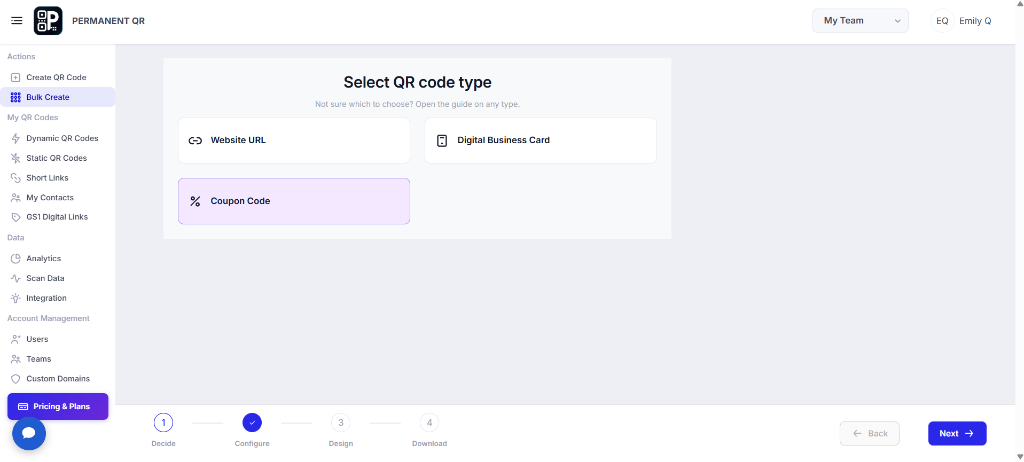
Select Coupon Code from the Bulk Create QR code type options.
Step 2: Download the Excel or CSV File
Download the sample Excel or CSV file from the Upload File section and use it as the template for preparing your coupon data.
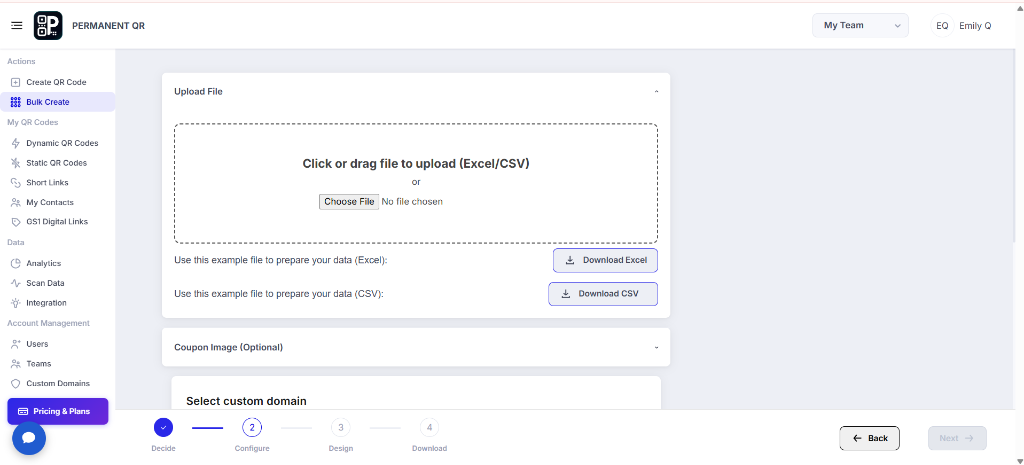
Download the sample Excel or CSV file to prepare your Coupon Code data.
Step 3: Fill Your Coupon Code Details
Open the downloaded file and enter the coupon details for each QR code, including the company, title, description, discount badge, button title, coupon code, validity date, and terms and conditions.
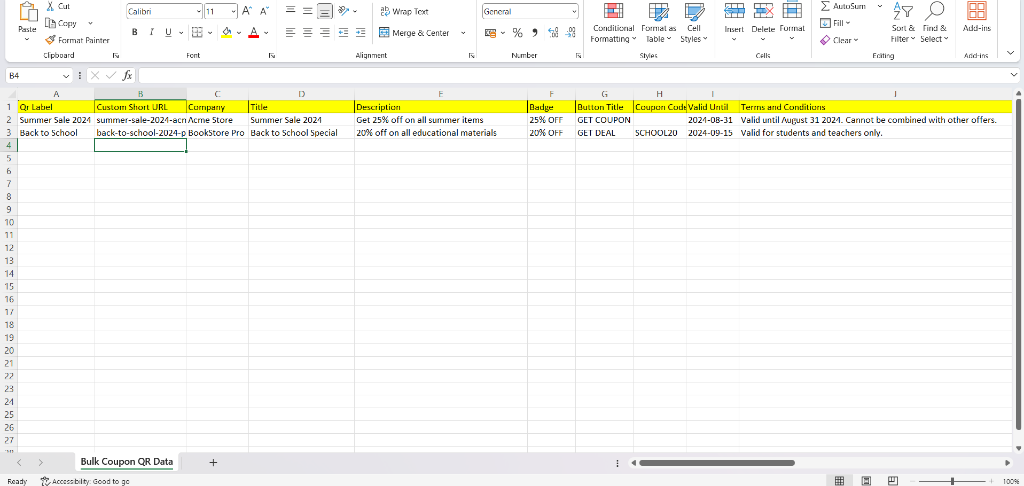
Enter the Coupon Code details for each coupon in the Excel or CSV file.
Step 4: Upload Your Excel or CSV File
Return to the Bulk Create page and upload the completed Excel or CSV file using the Upload File section. After the file is imported, review the available configuration options such as the custom domain.
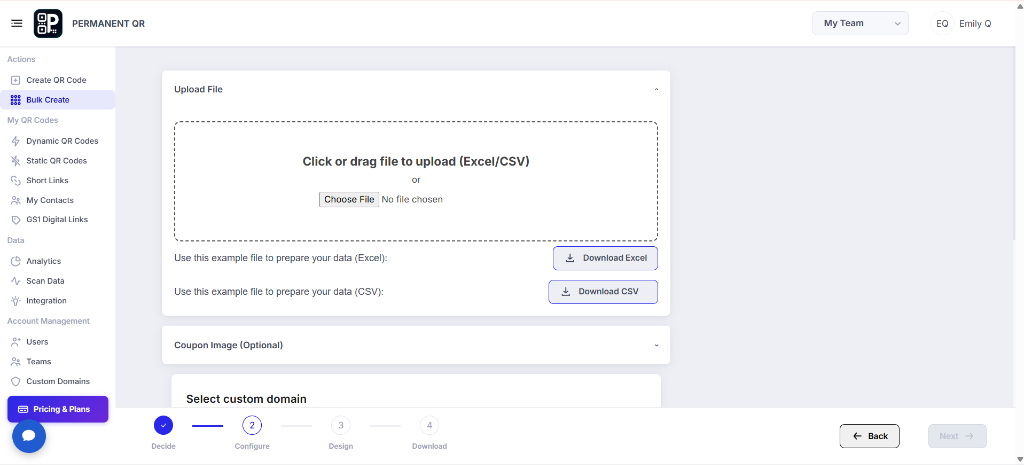
Upload the completed Excel or CSV file containing your Coupon Code data.
Step 5: Add a Coupon Image
Optionally upload a coupon image that will be applied to the bulk coupons. The image can be used as the cover photo for each coupon.
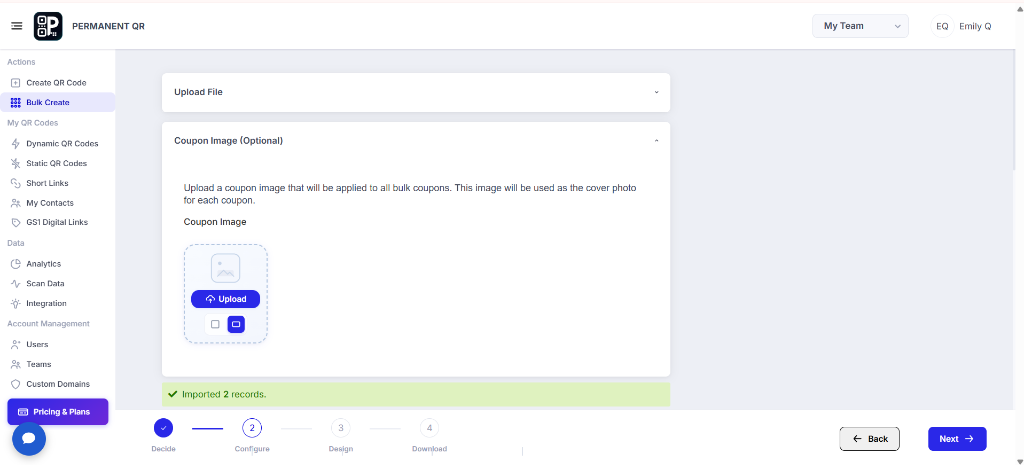
Optionally upload a coupon image to use as the cover photo for the bulk coupons.
Step 6: Customize Your QR Code Design
Customize your QR code using the available design options, including templates, logo, pattern, corners, eyes, background, frames, and QR options.
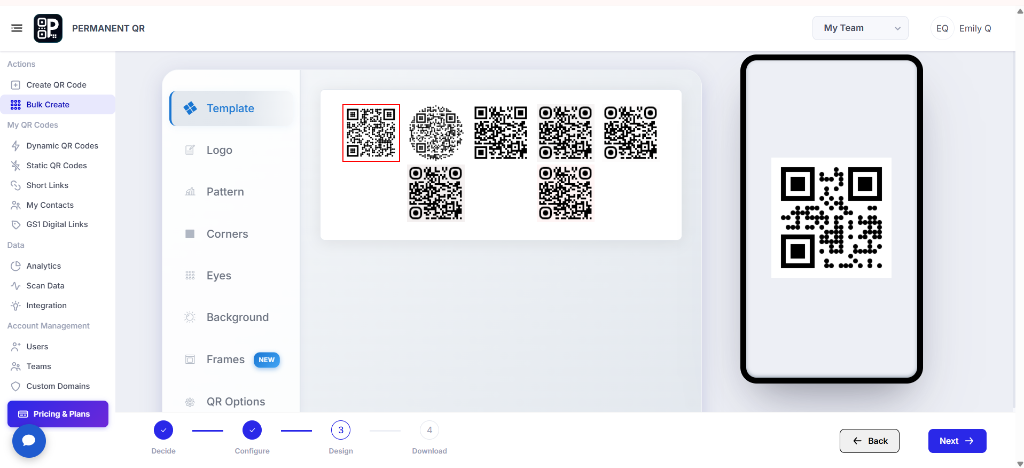
Customize the QR code design using templates, logo, patterns, corners, eyes, backgrounds, frames, and QR options.
Step 7: Select QR Codes and Use Bulk Actions
After the Coupon Code QR codes are generated, select the QR codes you want to manage and open "Bulk Actions" to access the available options.
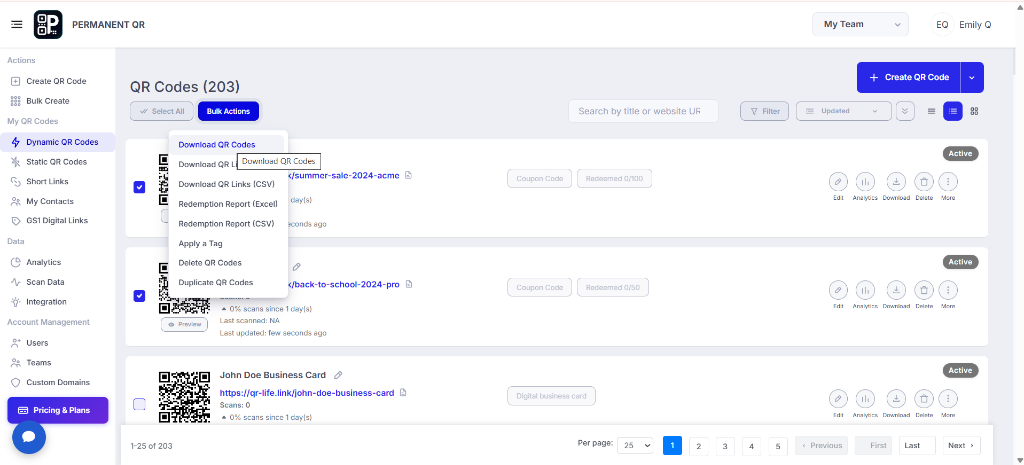
Select the generated Coupon Code QR codes and use Bulk Actions to download or manage them.
Step 8: Download Your Bulk Coupon Code QR Codes
Choose the QR code size and file format, configure the available Advanced Settings, and download the selected Coupon Code QR codes.
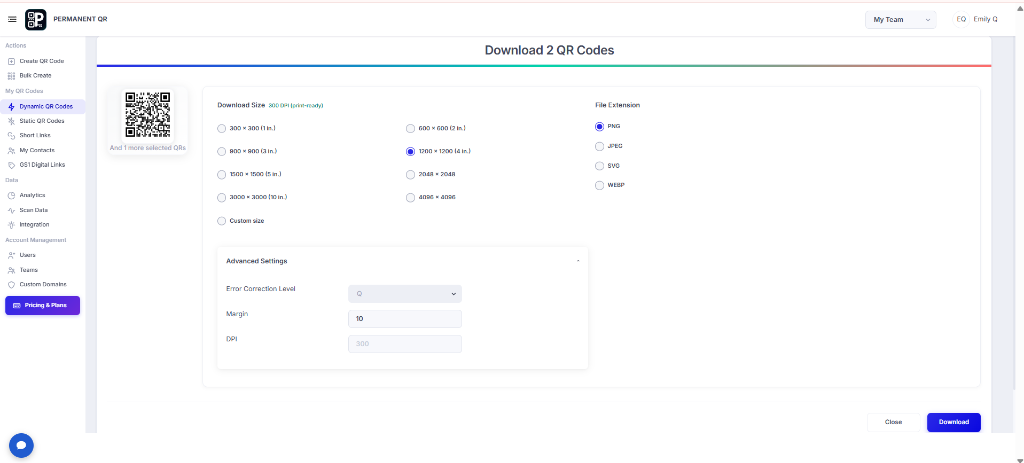
Choose the QR code size and file format, configure the available download settings, and download the selected Coupon Code QR codes.
What Happens After You Create Bulk Coupon Code QR Codes?
Once you upload your spreadsheet data and initiate bulk creation, the system follows this sequence:
Upload Your Coupon Data
Your Excel or CSV file is uploaded and imported into the Bulk Create workflow.
Coupon QR Codes Are Created
A Coupon Code QR code is created for each valid record in your uploaded file.
Coupon Image Is Applied
If you upload a coupon image, it is applied as the cover image for the bulk coupons.
QR Codes Appear in Dynamic QR Codes
The generated Coupon Code QR codes become available in the Dynamic QR Codes section.
Download Your QR Codes
Select the generated QR codes and use Bulk Actions to download them.
How to Test Your Bulk Coupon Code QR Codes
Follow this checklist to verify your batch of Coupon Code QR codes before printing or sharing them:
Confirm that the expected number of Coupon Code QR codes was generated.
Check that each QR code has the correct coupon information.
Scan a generated QR code using a smartphone.
Confirm that the coupon page opens correctly.
Verify the company, title, description, badge, coupon code, and validity information.
Check the terms and conditions.
Test multiple QR codes from the generated batch.
Confirm that the downloaded QR codes scan correctly before printing or sharing.
Common Problems & Solutions
1. Excel or CSV upload fails
Solution: Check that the file format is supported and that the column names and structure match the downloaded sample file.
2. Coupon information is incorrect
Solution: Review the corresponding row in the Excel/CSV file and make sure every value is entered under the correct column.
3. Coupon image is not displayed as expected
Solution: Check that the image was uploaded correctly and review the Coupon Image section before continuing.
4. QR code does not scan
Solution: Test the downloaded QR code and make sure the QR design maintains clear scanning areas and sufficient contrast.
Common Mistakes to Avoid
❌ Changing Sample File Headers
Changing the sample file column names, which prevents the parser from reading your records.
❌ Incorrect File Formatting
Uploading an incorrectly formatted Excel or CSV file that cannot be processed.
❌ Entering Data Under Wrong Columns
Entering coupon information under the wrong column, such as codes in the title column.
❌ Inaccurate Codes or Dates
Using incorrect coupon codes or expired validity dates in your spreadsheet.
❌ Skipping Terms Review
Forgetting to review the terms and conditions and redemption restrictions before launch.
❌ Unsuitable Coupon Image
Uploading an unsuitable coupon image with low resolution or poor aspect ratio.
❌ Skipping Batch Verification
Not testing multiple generated QR codes before printing or mass distributing them.
Common Uses for Bulk Coupon Code QR Codes
Retail Stores
Distribute in-store discount vouchers across retail branches.
Restaurants
Promote lunch combos, meal deals, and dining discounts.
Cafes
Reward repeat beverage visits with scannable savings.
E-commerce
Include package inserts with special next-order discount codes.
Seasonal Sales
Run holiday, black Friday, and summer promotional campaigns.
Student Discounts
Provide educational campus offers and verified student perks.
Membership Offers
Deliver exclusive member savings on products and services.
Event Promotions
Share conference and exhibition attendee voucher codes.
Brand Campaigns
Launch multi-partner co-marketing promotions from one batch.
Customer Loyalty
Reward VIP customers with tier-specific promotional deals.
Frequently Asked Questions
What is a Bulk Coupon Code QR Code?
A Bulk Coupon Code QR Code allows you to create multiple promotional coupon QR codes at once by uploading an Excel or CSV spreadsheet containing coupon codes, discount badges, descriptions, and validity dates.
Can I create multiple Coupon Code QR Codes at once?
Yes. Using the Bulk Create workflow, you can upload a single spreadsheet to generate all your Coupon Code QR codes simultaneously.
What file formats can I upload?
The Bulk Create interface supports Excel (.xlsx) and CSV (.csv) file uploads formatted according to the downloadable sample template.
What information can I include in the coupon data?
You can include the QR label, custom short URL, company or store name, coupon title, description, discount badge, button title, coupon code, valid-until date, and terms and conditions.
Can I add an image to my bulk coupons?
Yes. The Bulk Create workflow includes an optional Coupon Image section where you can upload a cover image that is applied across your bulk coupons.
Can I customize the Coupon Code QR code design?
Yes. You can customize the QR design using templates, logo, pattern, corners, eyes, background, frames, and QR options.
Can I download multiple Coupon Code QR Codes at once?
Yes. After generating your coupon QR codes, select them in the Dynamic QR Codes dashboard and use Bulk Actions to download them as a batch in PNG, JPEG, SVG, or WEBP format.
Create Your Bulk Coupon Code QR Codes Today
Create multiple Coupon Code QR Codes from one Excel or CSV file, customize their design, and download them in bulk.