Social Media QR code setup
A Social Media QR Code lets you connect customers to multiple social media profiles from one convenient QR code. Add your social links, customize the design, and make it easy for people to find and follow you with one scan.
Editable Permanent Social Media QR Code:
- $49 One-Time Payment: Pay once and create a permanent QR code without monthly or annual subscription fees.
- Editable Social Media Links: Update or add social media profile links without reprinting the physical QR code.
- Unlimited Scans: No scan limits, scan quotas, or expiration date.
Before You Start
Before creating your Social Media QR Code, ensure you have gathered:
- Social media profile URLs: Direct links to your Facebook, Instagram, LinkedIn, YouTube, or other social profiles.
- Profile name and short description: The name and description you want visitors to see.
- Profile image or logo: An optional profile image or company logo.
- Preferred theme color: An optional color for your social media landing page.
- Smartphone for testing: A physical smartphone to scan and verify the QR code.
- Permanent QR Codes account: Sign in to your Permanent QR Codes account to create and manage your editable Social Media QR code.
Step 1: Select Social Media QR Code
Log in to your Permanent QR Codes account, click Create QR Code, and select Social Page from the available QR code types.
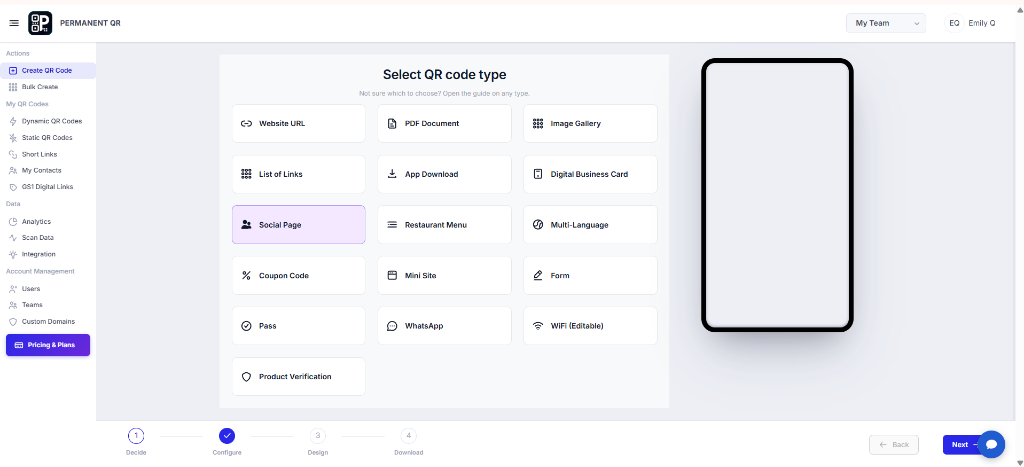
Select Social Page (Social Media) from the QR code types.
Step 2: Add Social Media Links
Choose the social media platforms you want to display and add your profile links.
Supported platform options include:
- YouTube
- Twitter/X
- Snapchat
- TikTok
- and other platforms
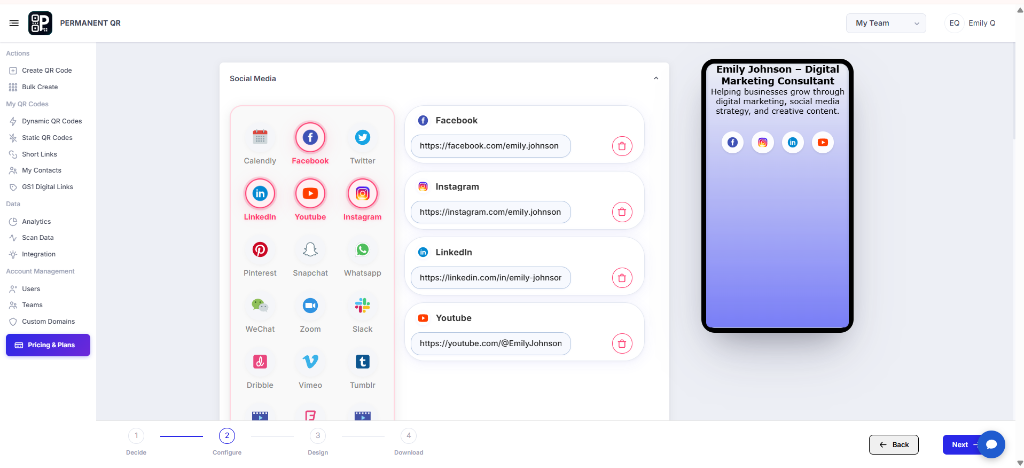
Choose the social media platforms and add your profile links.
Step 3: Edit Your Social Media Content
Add your profile name, short description, and optional profile image or logo.
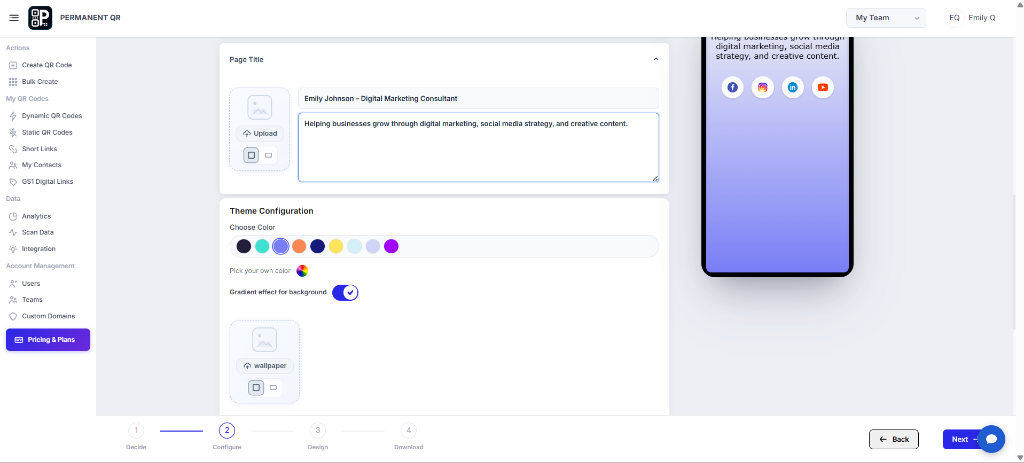
Add your name, description, and upload a profile image.
Step 4: Customize Your QR Code
Customize the QR code appearance using the available design options.
- Template
- Logo
- Pattern
- Corners
- Eyes
- Background
- Frames
- QR Options
Keep strong contrast between the QR code and background for reliable scanning.
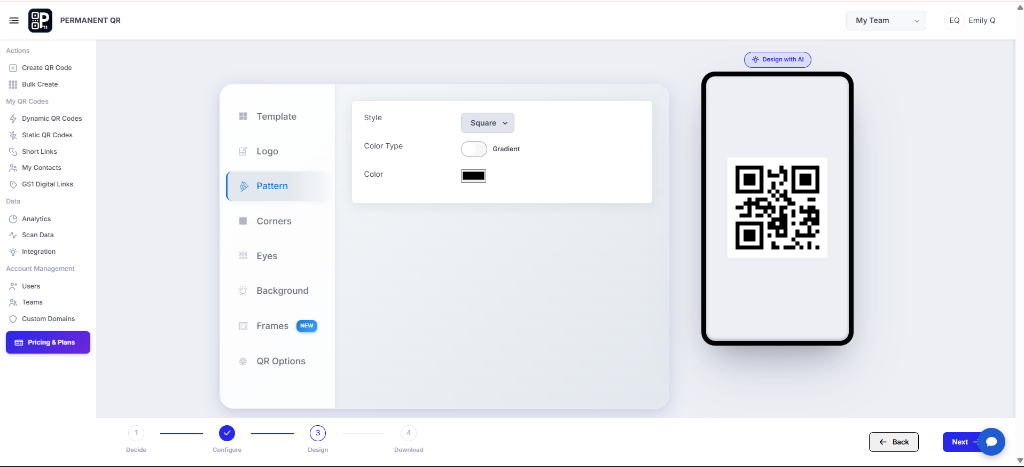
Customize the QR code style, color, pattern, and other design options.
Step 5: Preview Your QR Code
Review the generated QR code and check your social media page and shareable URL before downloading.
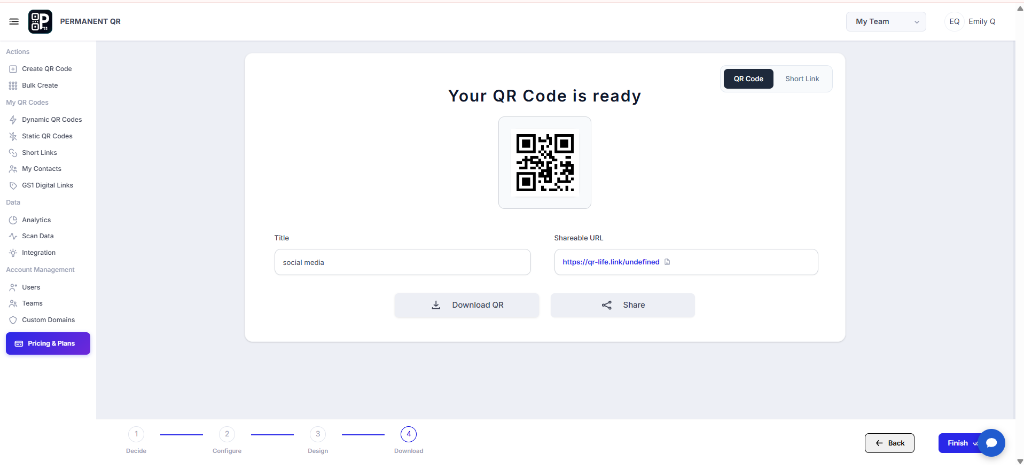
Preview your QR Code and check the shareable URL.
Step 6: Download Your QR Code
Choose the required size and file format, then download your Social Media QR Code.
- Resolution & Size: Choose standard resolutions (such as 1024×1024 px or 2048×2048 px) or custom dimensions matching your digital or print layout.
- File Formats:
- PNG: High-resolution raster file with transparent background support, ideal for digital media, websites, and business cards.
- JPEG: Standard compressed image format for everyday digital use.
- SVG: Infinitely scalable vector graphic format that never pixelates, perfect for commercial printing, banners, and merchandise.
- WEBP: Lightweight modern image format optimized for rapid website delivery.
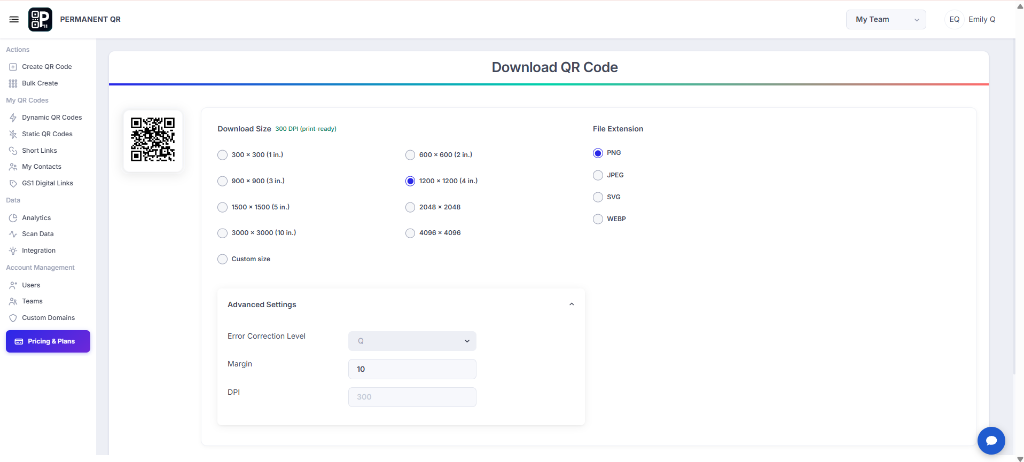
Select the size and file format, then download your QR code.
Step 7: Test Your Social Media QR Code
Scan the QR code with a real smartphone and confirm that the Social Media page opens correctly with your profile links.
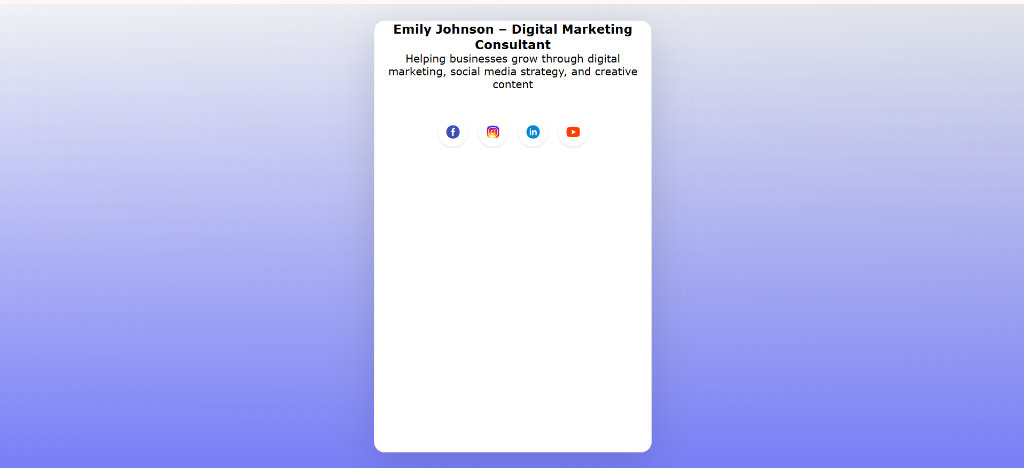
Scan the QR code to open your Social Media page with the configured profiles.
Test Your Social Media QR Code
Before distributing or printing your QR code, verify this checklist:
Scan the QR code using a real smartphone.
Confirm the Social Media page opens correctly.
Check that every social media profile link works.
Verify the profile name and description.
Check the profile image/logo.
Test the QR code from the distance where it will actually be used.
What Happens After Someone Scans a Social Media QR Code?
When someone scans your Social Media QR Code, they experience a simple and intuitive connection flow:
Scan QR Code
The visitor scans the QR code with their smartphone.
Social Media Page Opens
The Social Media landing page opens instantly.
Profile Information Appears
The visitor sees your profile name, description, and branding.
Social Links Are Displayed
Your configured social media profiles appear on the page.
Visitor Connects
The visitor can choose a social platform and follow, view, or contact you.
Common Problems & Solutions
1. Social Media Page Does Not Open
Solution: Make sure the QR code is clear, readable, and test it with another smartphone.
2. Social Profile Link Does Not Work
Solution: Check that the profile URL was entered correctly.
3. Wrong Social Profile Opens
Solution: Edit the QR code and replace the incorrect profile URL.
4. QR Code Will Not Scan
Solution: Increase contrast, avoid excessive customization, and make sure the QR code is large enough.
5. Need to Add or Change a Social Profile
Solution: Edit the Social Media QR Code and update the profile links without needing to reprint the QR code.
Common Mistakes to Avoid
❌ Incorrect Social Media URL
Entering typos or broken links prevents visitors from reaching your social profile.
❌ Missing Social Profile
Forgetting to add key platforms your audience uses every day.
❌ Poor QR Code Contrast
Using faint or similar background colors that make the QR code unreadable by smartphone cameras.
❌ QR Code Printed Too Small
Printing below the minimum recommended size prevents cameras from focusing and scanning.
❌ Over-Customizing the QR Code
Adding too many effects, complex frames, or large center logos can reduce scan reliability.
❌ Skipping Real-Device Testing
Assuming the code works without testing on actual smartphones before distributing or printing.
Common Uses
Businesses & Brands
Connect customers with your official social accounts from storefronts, business cards, and brochures.
Influencers & Creators
Share your complete social presence on YouTube, Instagram, TikTok, and X using a single link and QR code.
Restaurants & Cafes
Place QR codes on table tents, menus, and receipts to encourage diner follows and reviews.
Events & Promotions
Display on event banners, stage backdrops, and flyers so attendees can follow event updates in real time.
Real Estate Professionals
Add to yard signs, property flyers, and business cards so potential clients can connect across your social channels.
Product Packaging & Marketing Materials
Include on product labels, unboxing inserts, and print mailers to build an engaged community of followers.
Frequently Asked Questions
What is a Social Media QR Code?
Can I add multiple social media profiles to one QR code?
Can I change my social media links later?
Does the Social Media QR Code expire?
Can I customize the Social Media QR Code?
Can I use the Social Media QR Code on printed materials?
Can visitors choose which social media profile to open?
Create Your Social Media QR Code
Connect your customers to all your social media profiles with one easy-to-scan QR code.