Coupon Code QR code setup
A Coupon Code QR Code connects physical promotions, print advertisements, packaging, storefronts, and other marketing materials directly to digital coupons and mobile vouchers. Customers scan the QR code with their phone camera to instantly access coupon details, promotional rules, and in-store or online redemption options.
Editable Permanent Coupon Code QR Code:
- $49 One-Time Payment: Pay once and own your QR code forever with no monthly or annual subscription fees.
- Editable Coupon Information: Update the coupon code, terms, expiration date, or redemption links without reprinting the physical QR code.
- Unlimited Scans: No scan quotas, throttles, or scan limits—your QR code works reliably forever.
Before You Start
Before creating your Coupon Code QR code, ensure you have gathered:
- Coupon code: The specific promotional discount code (e.g.,
SAVE25OFF) configured in your sales register or e-commerce platform. - Offer and discount details: Clear savings amount, percentage discount, or complimentary perk offered to customers.
- Expiration date: The official deadline when the coupon promotion concludes.
- Terms and conditions: Minimum purchase requirements, qualifying product categories, and redemption rules.
- Redemption method: Whether shoppers will present a voucher in person to store cashiers, shop online via a web link, or both.
- Destination URL: Direct web link to your online checkout cart or landing page if online redemption is required.
- Coupon image or product image: High-quality promotional graphic representing the offer or product.
- Branding information: Company name, promotional badge label, and physical store address.
Offer Planning
Define your promotional discount, customer eligibility criteria, expiration timeline, and customer-facing message to maximize campaign response rates.
Redemption Workflow
Determine whether customers will present a mobile voucher screen to in-store staff, tap a direct online redemption button to visit your e-commerce checkout page, or use both methods.
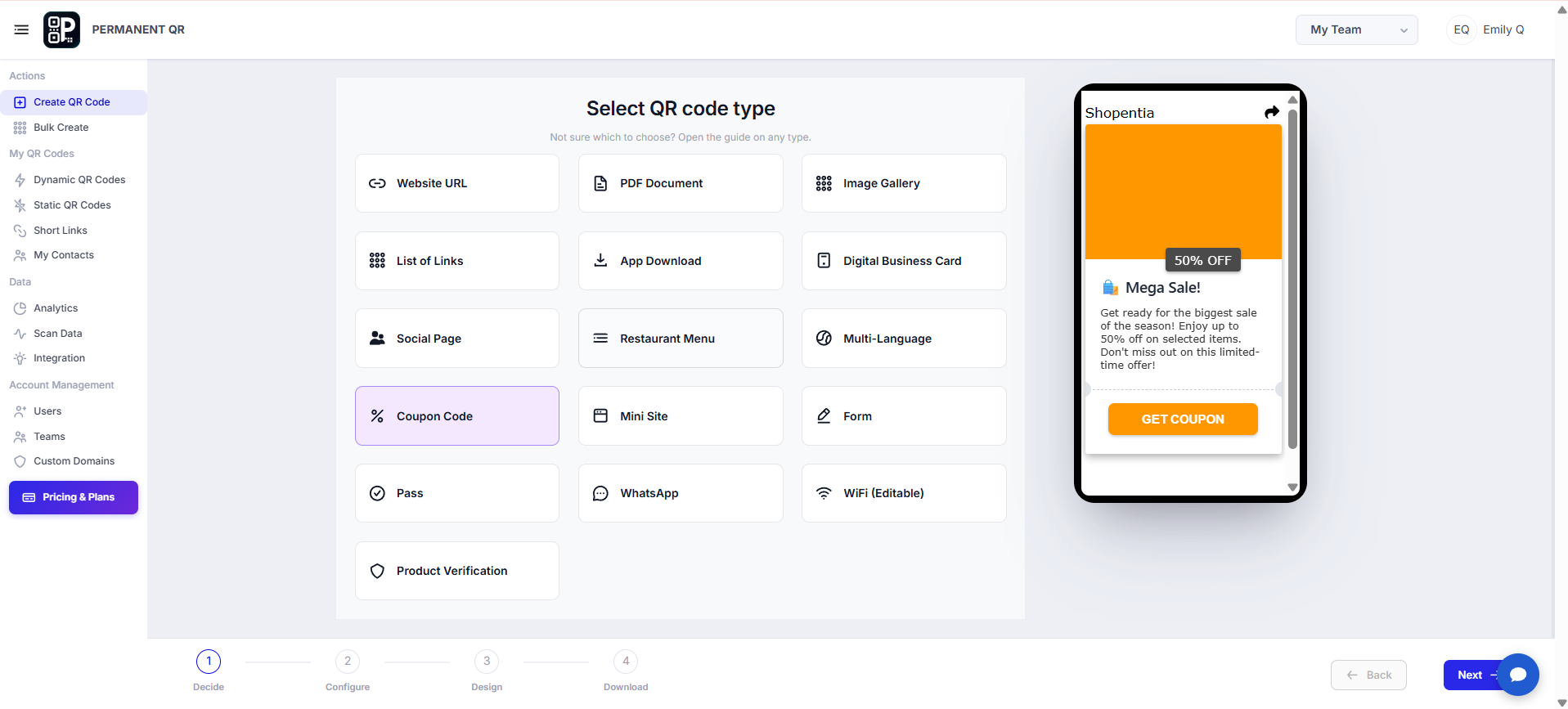
Step 1: Select "Coupon Code"
Log in to your Permanent QR Codes dashboard and navigate to create a new QR code. From the available QR code types, select Coupon Code to launch the dedicated coupon configuration workflow.
- Open the QR Code creation page in your dashboard.
- Select Coupon Code from the available QR code types.
- Continue to the configuration screen using the step navigation.
Step 2: Add Your Coupon Details
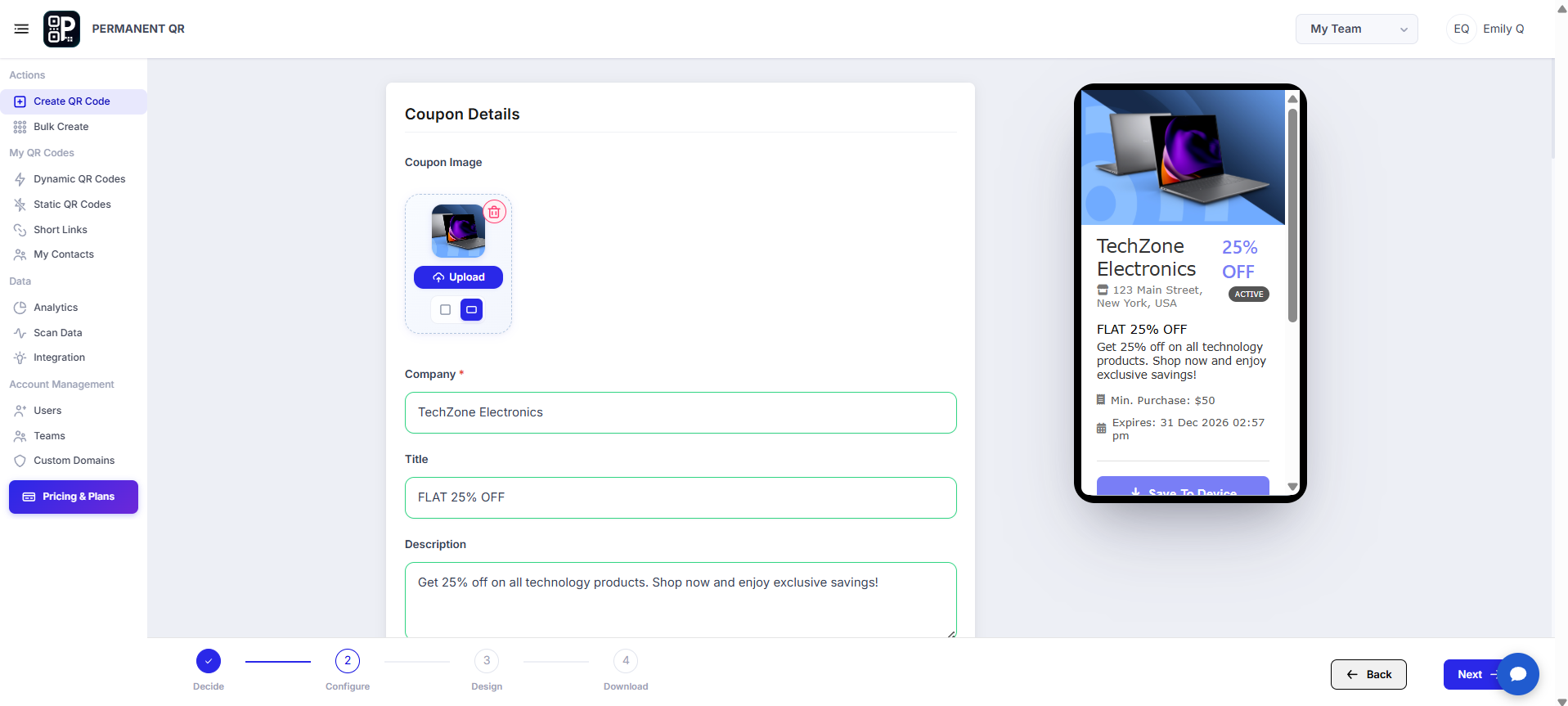
Enter the primary details that will appear on the customer-facing mobile coupon page:
- Company: Enter your brand or business name (e.g., TechZone Electronics) displayed prominently at the top of the coupon page.
- Coupon Image: Upload a high-resolution promotional image showcasing your offer, product, or campaign banner.
- Title: The main promotional headline of the offer (e.g., "FLAT 25% OFF").
- Description: A compelling summary detailing the offer, such as "Get 25% off on all technology products. Shop now and enjoy exclusive savings!"
- Badge: An eye-catching badge tag (e.g., "25% OFF") highlighting the key discount percentage or offer benefit.
- Button Title: Custom text for the primary call-to-action button (e.g., "GET COUPON").
- Address: Your physical storefront or venue address (e.g., "123 Main Street, New York, USA") for local customers.
- Map Location: A Google Maps URL link allowing customers to navigate directly to your store with one tap.
Step 3: Add Coupon Information
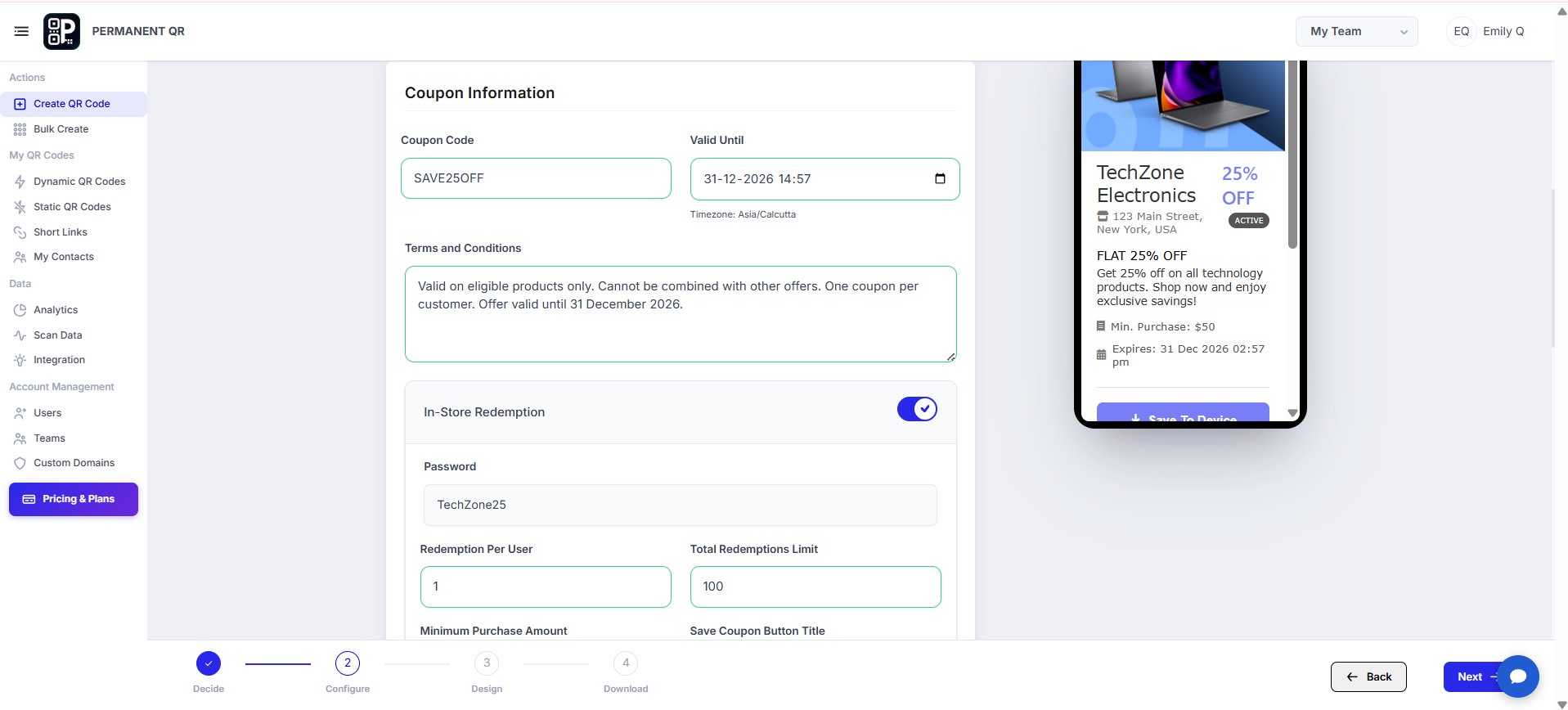
Configure the coupon voucher rules, expiration date, redemption conditions, and usage thresholds:
- Coupon Code: The exact code (e.g.,
SAVE25OFF) customers enter at checkout or present to store cashiers. - Valid Until: The expiration date and time when the promotion closes (e.g., 31-12-2026 14:57).
- Terms and Conditions: Transparent campaign terms, such as "Valid on eligible products only. Cannot be combined with other offers. One coupon per customer."
- In-Store Redemption: Enable this toggle if customers can redeem the voucher in person at your retail store.
- Password: An optional authorization password or staff PIN (e.g., TechZone25) required to validate in-store redemptions.
- Redemption Per User: Set the maximum number of times an individual customer can claim the coupon (e.g., 1).
- Total Redemptions Limit: Set an overall campaign redemption limit (e.g., 100) to keep promotions within budget.
- Minimum Purchase Amount: Set a minimum purchase threshold (e.g., $50) required before the discount activates.
- Save Coupon Button Title: Custom label for the button allowing customers to save or bookmark the voucher on their device.
Step 4: Configure Online Redemption
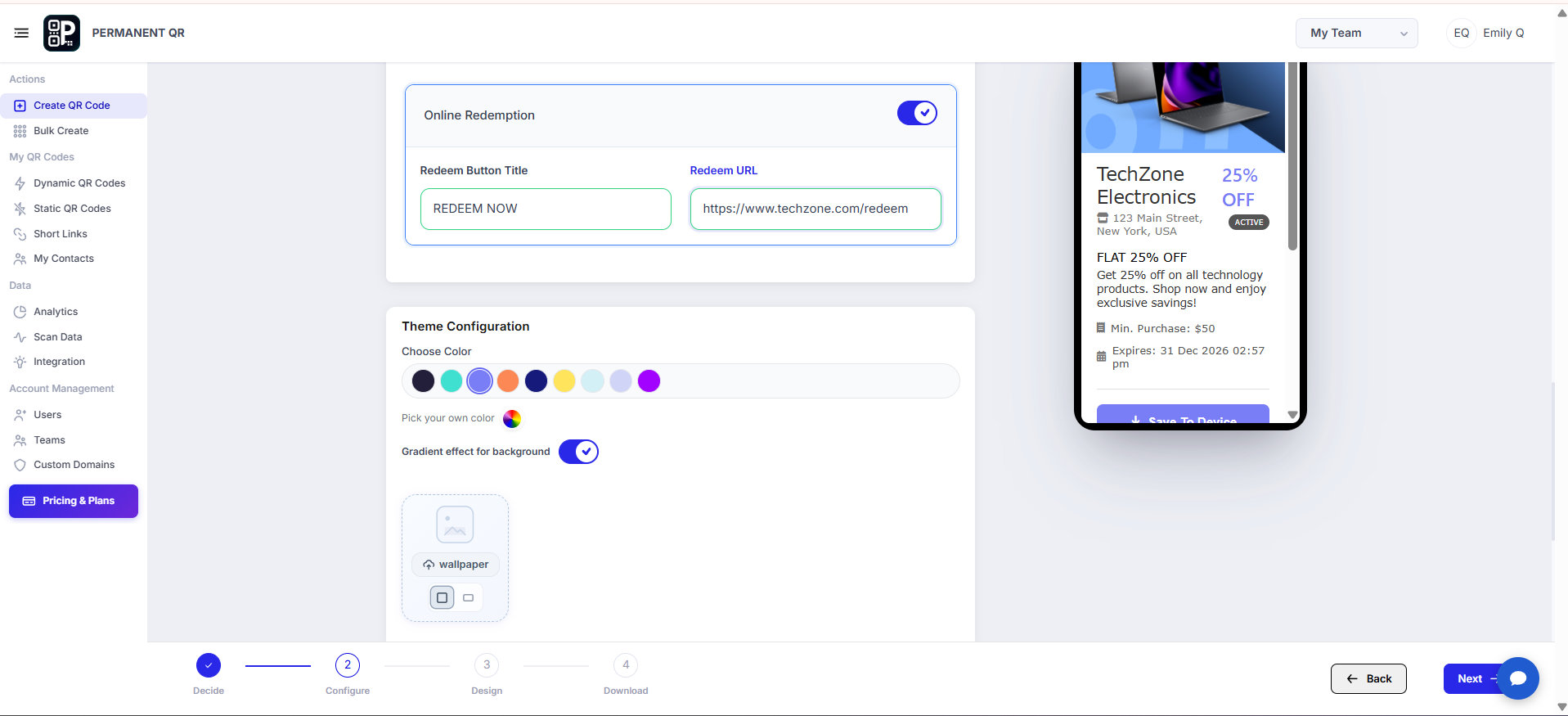
If customers should redeem the promotion on your website or online store, configure the online redemption settings:
- Enable Online Redemption: Toggle this option on so a digital redemption button is displayed on the landing page.
- Redeem Button Title: Enter the button text (e.g., "REDEEM NOW" or "Shop Online & Redeem").
- Redeem URL: Provide the direct destination link (e.g.,
https://www.techzone.com/redeem) to your online checkout or promotion page. - Theme Configuration: Choose your brand colors, toggle gradient background effects, or upload a custom wallpaper to personalize the coupon landing page.
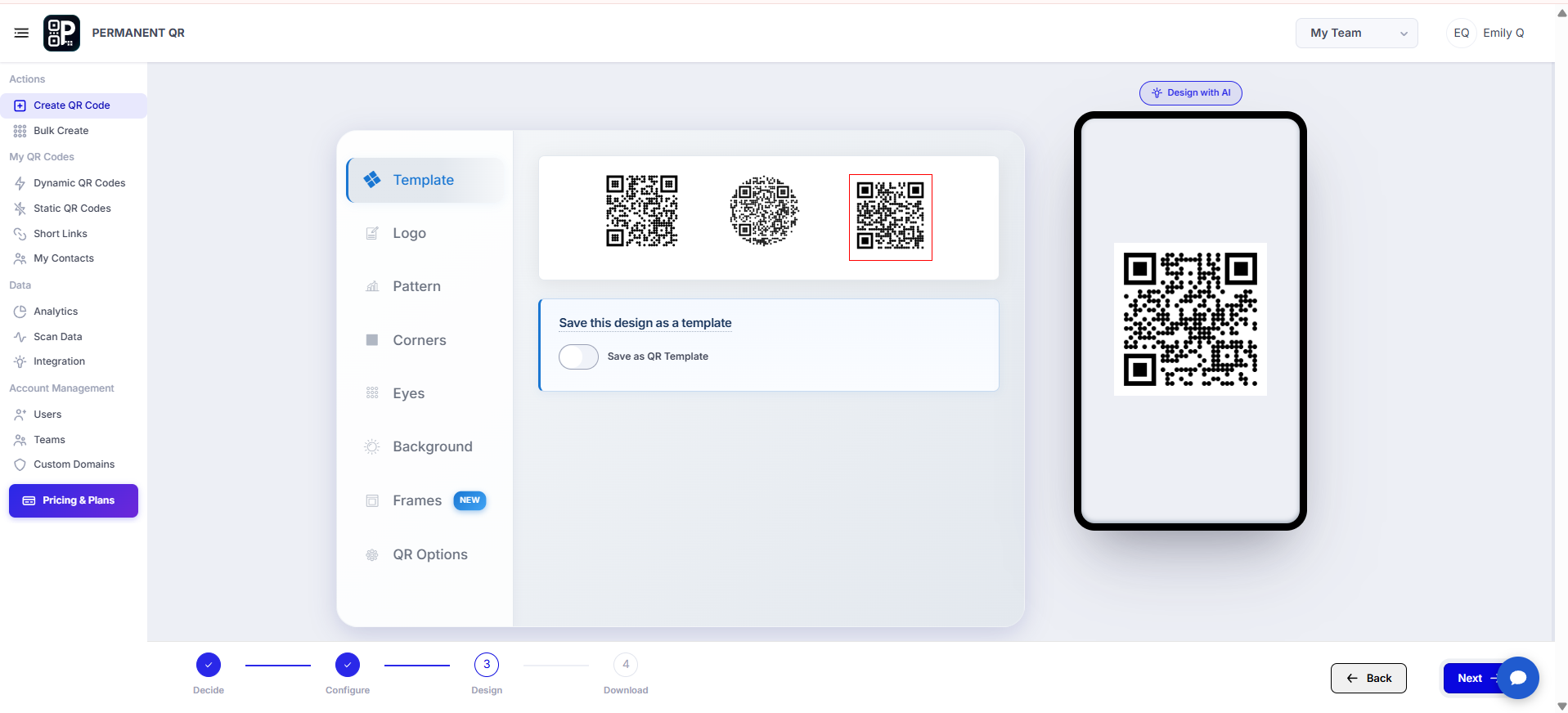
Step 5: Customize Your QR Code
Customize the visual styling of your Coupon Code QR Code to match your corporate brand while ensuring high scan reliability:
- Template
- Logo
- Pattern
- Corners
- Eyes
- Background
- Frames
- QR Options
You can also utilize AI Design options to create unique artistic treatments. Always maintain sufficient color contrast between the QR code pattern and background to ensure instant camera detection.
Step 6: Review and Test Your QR Code
Before downloading and printing your QR code, complete this 6-point testing checklist:
Verify Company and Offer Details: Ensure company name, coupon title, description, and badge are accurate and free of typos.
Verify Coupon Code: Confirm that the promo code matches the exact discount code configured in your sales register or e-commerce platform.
Verify Expiration Date: Ensure the expiration date and countdown timestamp correspond accurately with your campaign timeline.
Verify Terms and Conditions: Confirm that minimum purchase rules, eligible items, and customer limitations are clearly stated.
Test In-Store Redemption: Open the coupon on a mobile device and verify on-screen barcode display and staff password validation.
Test Online Redemption and Links: Tap the online redemption button on a phone to verify it loads your checkout page without errors.
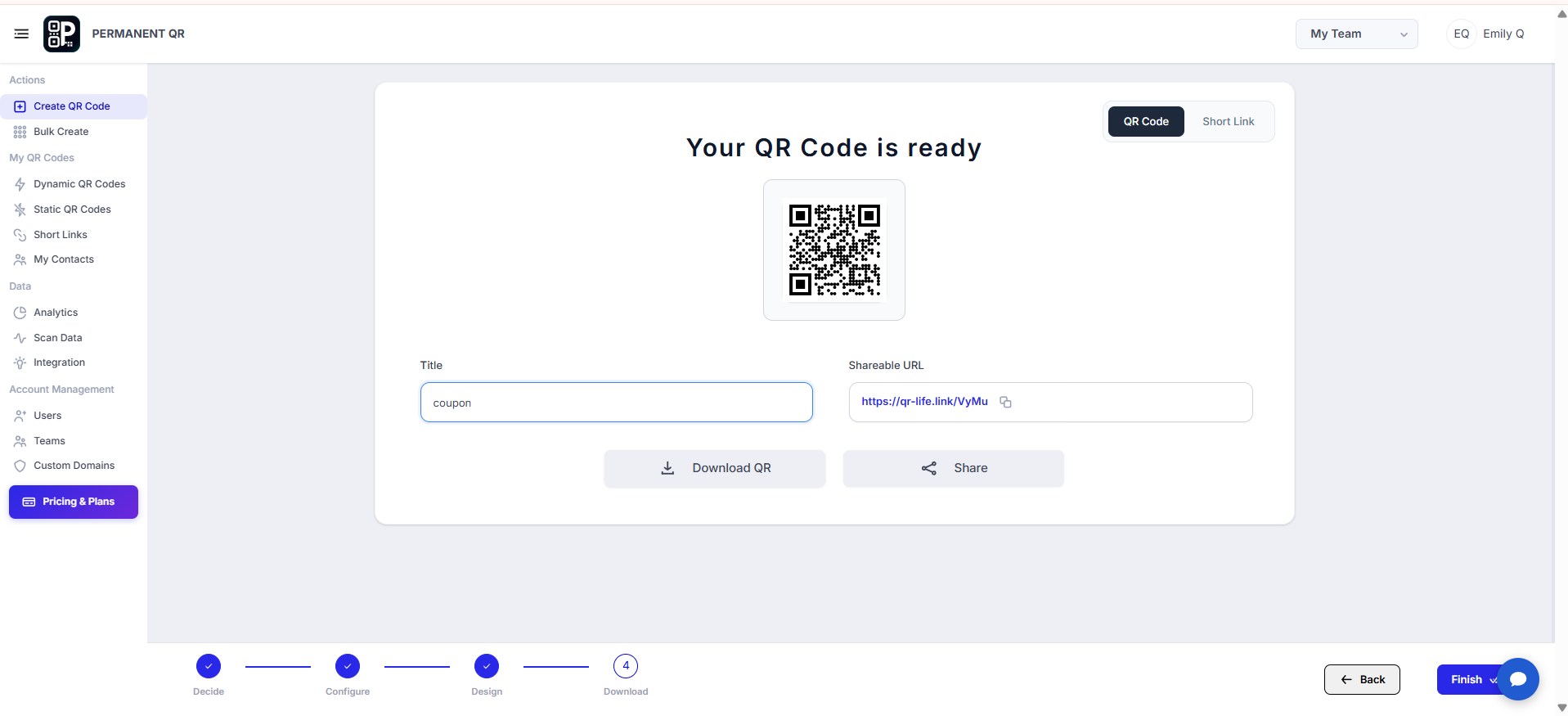
Step 7: Download Your QR Code
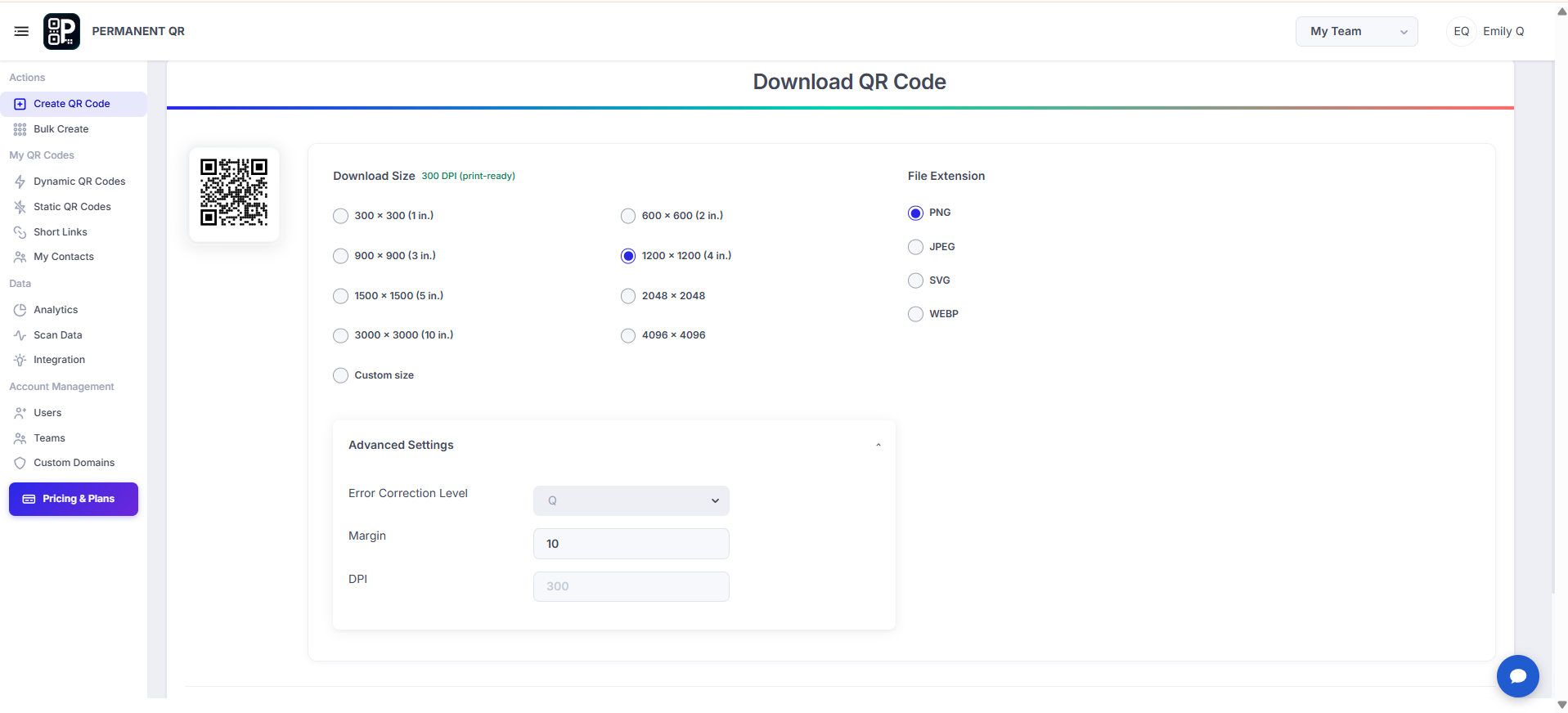
Once verified, configure your download options and save your print-ready asset:
- Resolution & Sizes: Choose from standard presets (300×300, 600×600, 900×900, 1200×1200, 1500×1500, 2048×2048, 3000×3000, 4096×4096 px) or specify custom dimensions.
- File Formats:
- PNG: High-resolution raster file with transparency support, ideal for digital graphics, emails, and social media.
- JPEG: Standard compressed image format suitable for digital mockups, newsletters, and basic presentations.
- SVG: Scalable vector format that remains crisp at any dimensions, recommended for physical print collateral, banners, posters, and packaging.
- WEBP: High-efficiency web graphic format for fast-loading digital web pages.
- Advanced Settings: Configure error correction levels, margin/quiet zone padding, and print DPI to guarantee robust scanning across varied print textures.
- Download: Click the "Download QR Code" button to save your finished asset.
What Happens After Someone Scans?
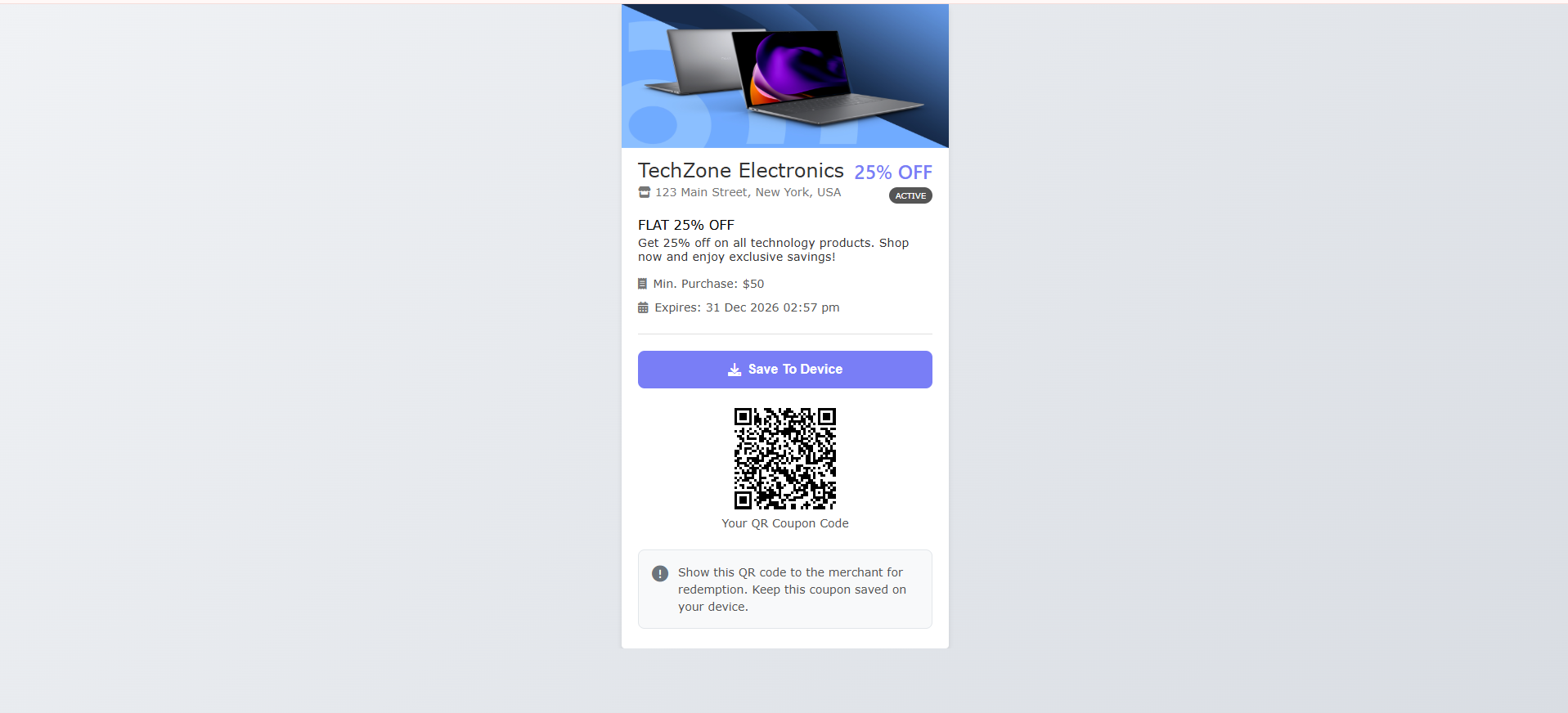
When a customer scans your Coupon Code QR Code, they experience an intuitive and streamlined journey:
Scan Code
Customer points their smartphone camera at the printed or digital QR code.
Landing Page
A mobile-optimized coupon landing page opens instantly with brand details and offer copy.
Review Conditions
Customer reviews discount details, expiration countdown, minimum spend, and terms.
Save or Copy
Customer copies the voucher code or taps "Save to Device" to bookmark the offer.
Redeem Offer
Customer completes redemption online via destination URL or presents the voucher in-store.
Test Your Coupon Code QR Code
Ensure a seamless promotional experience for every customer by verifying these 9 testing checkpoints:
QR code scans correctly: Test with both iOS and Android camera apps under varied lighting.
Coupon page loads correctly: Verify that the page loads rapidly over mobile cellular and Wi-Fi connections.
Coupon image displays correctly: Confirm your promotional banner renders clearly on high-DPI smartphone screens.
Coupon code is correct: Check that the displayed code matches your store checkout discount code.
Discount/offer details are correct: Verify discount percentages, dollar amounts, or gifts are described clearly.
Expiration date is correct: Confirm that the countdown timer and expiration deadline match your campaign calendar.
Terms and conditions are correct: Ensure minimum purchase requirements and exclusion rules are transparent.
In-store redemption works: Test staff verification PINs and verify barcode readability on phone screens.
Online redemption URL works correctly: Click the redeem button to ensure it navigates to the active store cart without errors.
Common Problems
1. QR code does not scan
Cause: Insufficient contrast between foreground pattern and background, removed quiet zone margin, or printed smaller than camera focus thresholds.
Fix: Use a dark pattern on a light background, keep the quiet zone border intact, and print at least 1 × 1 inch (25 × 25 mm) for handheld reading.
2. Coupon page does not load
Cause: The destination link was entered with a syntax error or the scanner's phone has restricted internet connectivity.
Fix: Check your QR code destination URL in your dashboard and test from an active cellular data or Wi-Fi connection.
3. Online redemption link does not work
Cause: The Redeem URL was entered without https://, points to a draft e-commerce page, or has broken redirect paths.
Fix: Open your store URL in an incognito window to verify it is live, then update the Redeem URL in your Permanent QR Codes dashboard.
4. Coupon has expired prematurely
Cause: The "Valid Until" date was mistakenly set in an earlier timezone or configured with the wrong calendar deadline.
Fix: Open your dashboard, edit the coupon settings, extend the expiration date, and save. The live page updates instantly without reprinting.
5. Customer cannot redeem the coupon
Cause: Staff PIN was entered incorrectly during in-store validation, or the total campaign redemption limit was reached.
Fix: Verify the staff validation password in your settings, or raise the total redemptions limit from your dashboard if the offer reached its quota.
Common Mistakes to Avoid
❌ Using an Unclear Coupon Code
Using easily confused characters like numbers and letters (e.g. 0 and O, 1 and l) that lead to shopper errors at checkout.
❌ Forgetting the Expiration Date
Leaving expiration rules ambiguous, creating customer friction when attempting to redeem after a campaign has ended.
❌ Missing Terms and Conditions
Omitting essential conditions such as minimum spend thresholds, eligible categories, and one-voucher-per-customer limits.
❌ Using an Incorrect Redemption URL
Directing shoppers to broken links or non-existent carts rather than the specific promotional checkout landing page.
❌ Making the QR Code Too Small
Printing smaller than 1 × 1 inch (25 × 25 mm) on flyers or packaging, preventing phone cameras from focusing quickly.
❌ Using Low-Contrast QR Styling
Using light pastel colors or subtle gradients on white backgrounds, causing camera scanning failures.
Common Uses
Retail Discounts
Print on in-store shelf tags, window displays, and point-of-sale signs to drive physical foot traffic and retail sales.
Restaurant Promotions
Place on dining table tents, receipts, and takeout bags offering diners discounts on future meal orders or appetizers.
Event Offers
Distribute on conference badges, event tickets, and program handouts to deliver exclusive limited-time deals for attendees.
Seasonal Sales
Power holiday promotions, Black Friday flash discounts, and seasonal clearance events across print ads and direct mail.
E-commerce Promotions
Include on package packing slips and thank-you cards to encourage repeat purchases on your online storefront.
Loyalty Rewards
Provide VIP vouchers on customer loyalty mailers and receipt footers to reward frequent buyers and retain customers.
In-Store Promotions
Display at checkout counters to encourage shoppers to return for mid-week specials or upcoming store promotions.
Product Packaging
Print directly on product boxes, tags, or warranty sheets to deliver instant rebates, refill discounts, and companion offers.
Frequently Asked Questions
What is a Coupon Code QR Code?
A Coupon Code QR Code is an editable dynamic QR code that connects offline print collateral and marketing displays to a mobile-optimized coupon landing page. It displays your promotional discount, coupon code, validity period, terms, and options for in-store and online redemption.
How does a Coupon Code QR Code work?
When a customer scans the QR code with their mobile phone camera, it opens an interactive coupon page displaying your offer details. Customers can copy the code, save the voucher to their device, show an on-screen redemption barcode in-store, or tap an online redeem button to shop directly on your website.
Can I edit the coupon after creating the QR code?
Yes. Because Permanent QR Codes are editable, you can modify discount amounts, update coupon codes, extend expiration dates, update terms, or change destination URLs anytime from your dashboard without reprinting the physical QR code.
Can customers redeem coupons in-store?
Yes. You can enable in-store redemption so customers present a mobile coupon barcode or QR code to the cashier. You can also configure an optional staff validation password to verify redemptions and prevent reuse.
Can customers redeem coupons online?
Yes. You can configure online redemption by adding a custom redeem button title and destination URL that directs shoppers directly to your online store, checkout cart, or promo landing page with the discount ready to use.
Can I set an expiration date?
Yes. You can configure a specific 'Valid Until' date and time. Once the expiration date passes, the coupon landing page automatically informs visitors that the promotion has ended, preventing unauthorized late redemptions.
Can I limit the number of redemptions?
Yes. You can establish both total campaign redemption limits and per-user redemption caps to ensure fair promotional distribution and manage campaign budget thresholds.
Can I set a minimum purchase amount?
Yes. You can specify a minimum purchase threshold directly in the coupon settings, which will be prominently displayed on the customer-facing mobile voucher.
Can I customize the Coupon Code QR Code?
Yes. You can customize the QR code design with your choice of templates, brand logos, custom patterns, corner styles, eye shapes, color palettes, call-to-action frames, and AI styling options.
Can I track Coupon Code QR Code scans?
Yes. Your Permanent QR Codes dashboard provides built-in scan analytics, allowing you to monitor total scan counts, geographic locations, device operating systems, and time-of-day engagement for your promotional campaigns.