WhatsApp QR code setup
A WhatsApp QR Code lets customers start a conversation instantly by scanning with their smartphone.
Editable Permanent WhatsApp QR Code:
- $49 One-Time Payment: Pay once and own your QR code forever with no monthly or annual subscription fees.
- Editable WhatsApp Details: Update the WhatsApp number or pre-filled message anytime without reprinting the physical QR code.
- Unlimited Scans: No scanning limits, no scan quotas, and no expiration date.
Before You Start
Before creating your WhatsApp QR code, ensure you have gathered:
- WhatsApp phone number: A WhatsApp phone number with the correct international country code.
- Optional pre-filled WhatsApp message: An optional default message that appears automatically when the chat opens.
- Optional branding assets: High-resolution company logo or custom design elements to style your QR code.
- Smartphone for testing: A smartphone with WhatsApp installed to verify the scanning and chat redirection experience.
- Permanent QR Codes account: Sign in to your Permanent QR Codes account to create and manage your editable WhatsApp QR code.
Direct WhatsApp Conversations
Let people scan your QR code and quickly open a WhatsApp conversation with your number.
Pre-Filled Messages
Add a message that appears automatically when WhatsApp opens.
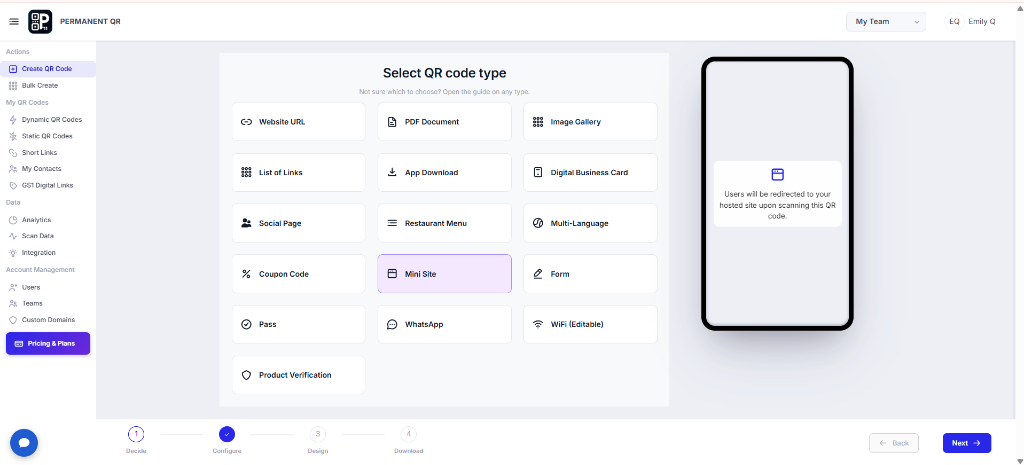
Step 1: Select WhatsApp QR Code
Log in to your Permanent QR Codes account, click Create QR Code, and select WhatsApp.
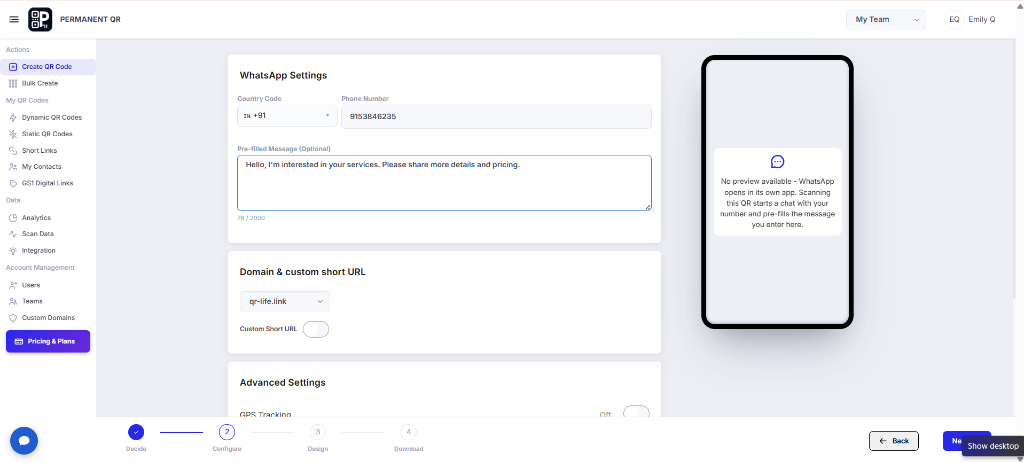
Step 2: Add WhatsApp Details
Enter the country code and WhatsApp phone number. You can also add an optional pre-filled message.
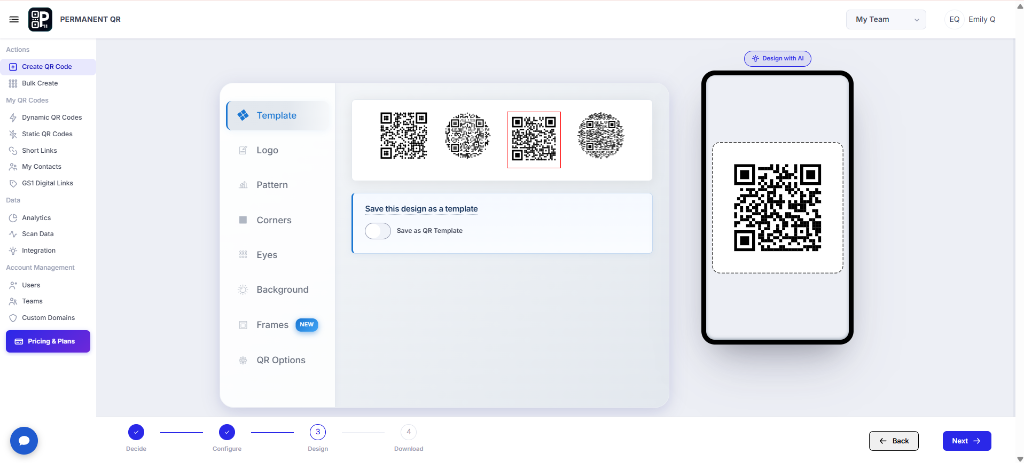
Step 3: Customize Your QR Code
Customize the appearance of your QR code using the available design options.
- Template
- Logo
- Pattern
- Corners
- Eyes
- Background
- Frames
- QR Options
Keep strong contrast between the QR code and background for reliable scanning.
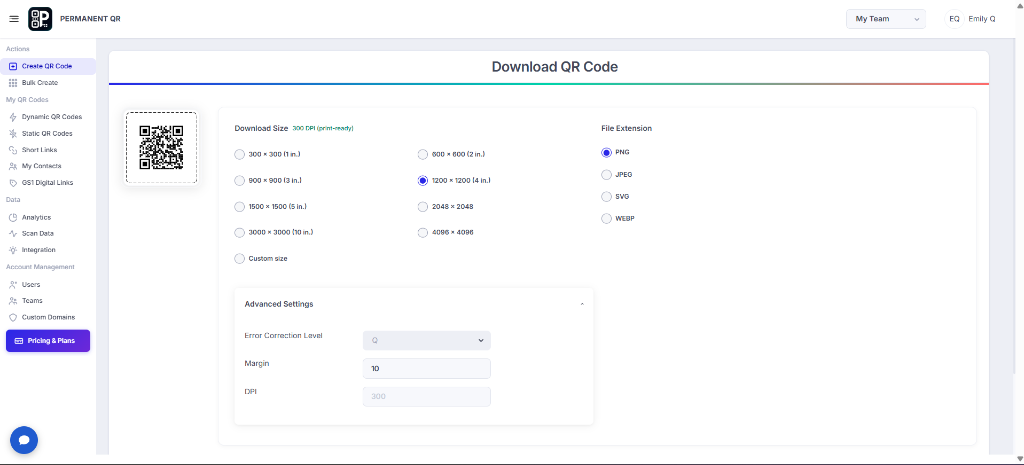
Step 4: Download Your QR Code
Choose the required resolution and download format, then download your QR code.
- PNG — General digital and print use.
- SVG — Scalable professional printing.
- JPEG — Standard digital use.
- WEBP — Lightweight digital use.
Step 5: Test Your WhatsApp QR Code
Scan the QR code with a real smartphone and confirm that the correct WhatsApp number and message open.
Correct phone number
Correct country code
Correct pre-filled message
Test with a real smartphone
WhatsApp opens correctly
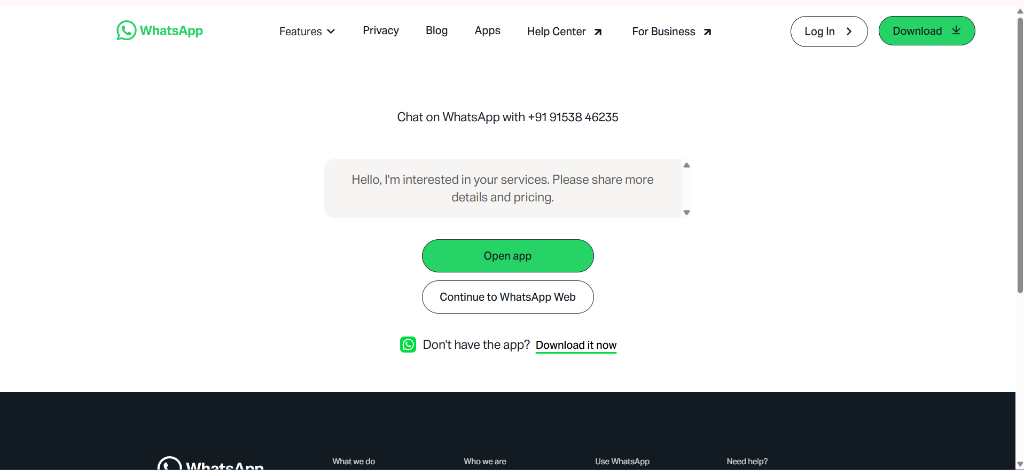
What Happens After Someone Scans a WhatsApp QR Code?
A simple 5-step process connects the visitor to your WhatsApp conversation.
Scan QR Code
Visitor scans the QR code with their smartphone.
WhatsApp Opens
The WhatsApp chat link opens.
Number Loads
The configured WhatsApp number loads automatically.
Message Appears
The optional pre-filled message appears.
Start Chat
The visitor can start the conversation.
Test Your WhatsApp QR Code
Correct country code
Correct phone number
Pre-filled message
Smartphone testing
WhatsApp opens correctly
Common Problems & Solutions
1. WhatsApp Does Not Open
Cause: WhatsApp may not be installed or the device may not support the app.
Fix: Open the link on a supported device or supported WhatsApp web experience.
2. Wrong Phone Number Opens
Cause: The country code or phone number is incorrect.
Fix: Check and update the WhatsApp number.
3. Pre-Filled Message Is Missing
Cause: The message was not entered or saved correctly.
Fix: Edit the QR code and update the message.
4. QR Code Will Not Scan
Cause: Low contrast, excessive customization, or insufficient size.
Fix: Increase contrast, simplify the design, and use an appropriate print size.
5. Need to Change the Number
Explanation: The WhatsApp destination can be updated without creating a new QR code.
Fix: Edit the WhatsApp QR Code in the dashboard and update the number.
Common Mistakes to Avoid
❌ Incorrect Country Code
Make sure the correct international country code is selected.
❌ Incorrect Phone Number
Double-check the WhatsApp number before generating the QR code.
❌ Unclear Pre-Filled Message
Keep the message short and clear.
❌ Low QR Code Contrast
Avoid colors that make the QR code difficult to scan.
❌ Printing Too Small
Use an appropriate physical size for reliable scanning.
❌ Skipping Real-Device Testing
Always test the QR code with a smartphone before distribution.
Common Uses
Customer Support
Let customers quickly contact your support team through WhatsApp.
Sales & Inquiries
Use QR codes on advertisements, brochures, and business materials.
Restaurants & Food Businesses
Let customers contact the business for orders, questions, or reservations.
Real Estate
Let potential buyers or tenants quickly contact an agent.
Events & Promotions
Use QR codes on posters and event materials for quick communication.
Product Packaging
Give customers an easy way to contact the brand for product support.
Frequently Asked Questions
What is a WhatsApp QR Code?
A WhatsApp QR Code lets visitors open a WhatsApp conversation by scanning the code.
Can I add a pre-filled WhatsApp message?
Yes. You can add an optional message that appears when the WhatsApp chat opens.
Can I change the WhatsApp number later?
Yes. The editable QR code destination can be updated without reprinting the physical QR code.
Does the WhatsApp QR Code expire?
The Permanent QR Code does not require recurring subscription payments and remains available according to the service terms.
Can I customize the WhatsApp QR Code?
Yes. You can customize supported elements such as templates, logos, patterns, colors, frames, and QR options.
Can I use the QR code on printed materials?
Yes. It can be used on packaging, posters, business cards, brochures, signage, and other materials.
Do I need WhatsApp installed to use the QR code?
The visitor needs a compatible way to access WhatsApp, such as the WhatsApp mobile app or supported web experience.
Create Your WhatsApp QR Code
Create a WhatsApp QR Code and make it easy for customers to start a conversation with one scan.