Pass QR code setup
A Pass QR Code lets you create a digital pass for events, tickets, memberships, invitations, or check-in passes. Add event details, secure the pass with a password, collect recipient information, customize the QR code, and download it for use.
Editable Permanent Pass QR Code:
- $49 One-Time Payment: Pay once and own your QR code forever with no monthly or annual subscription fees.
- Editable Pass Information: Update event details, check-in password, or pass settings without reprinting the physical QR code.
- Unlimited Scans: No scanning limits, no scan quotas, and no expiration date.
Before You Start
Before creating your Pass QR Code, ensure you have gathered:
- Event name: The official name or title of your event.
- Event date and time: The scheduled date and entry time.
- Event venue: The physical location or auditorium.
- Check-in password: The password used by staff to verify the pass.
- Recipient information: Recipient name and email if required.
- Additional pass details: Custom details such as pass type, department, seat, gate, or zone.
- Smartphone for testing: A smartphone camera to test password verification and pass display.
- Permanent QR Codes account: Sign in to your Permanent QR Codes account to create and manage your editable pass.
Event Pass Configuration
Define your event schedule, venue location, recipient assignment, and specialized pass attributes like seating or gate access.
Secure Check-in Management
Protect event entry and restrict confidential pass details behind an authorized check-in password, with optional single-scan Auto Check-in.
Step 1: Select Pass QR Code
Select "Pass" from the QR code type options to start creating your digital pass.
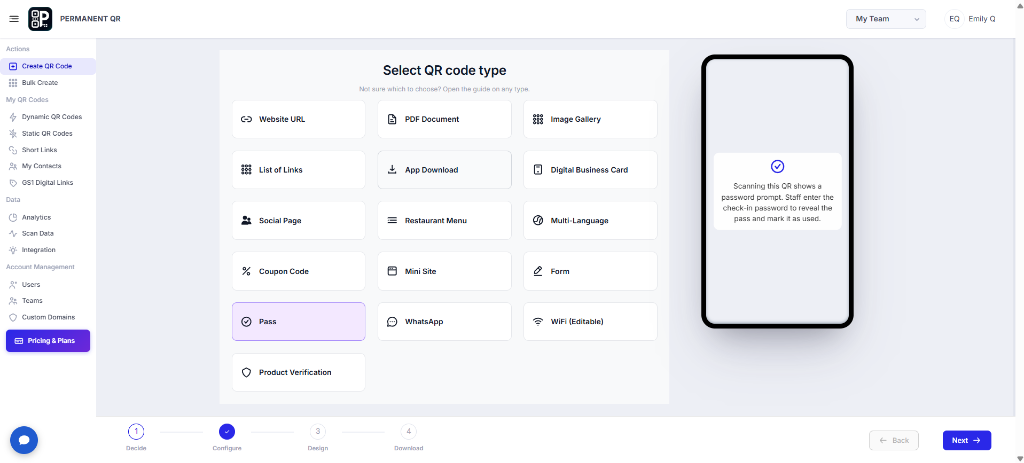
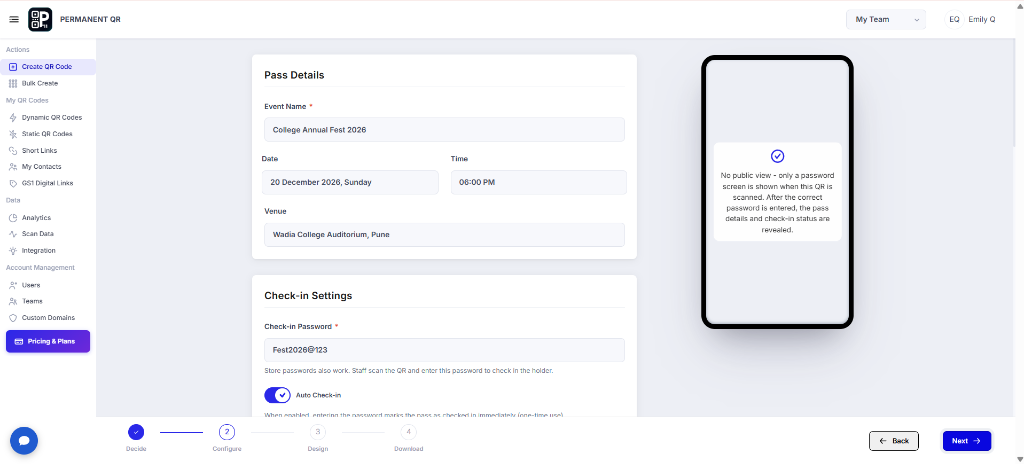
Step 2: Add Pass Details
Enter the event name, date, time, venue, and check-in password. Enable Auto Check-in if needed.
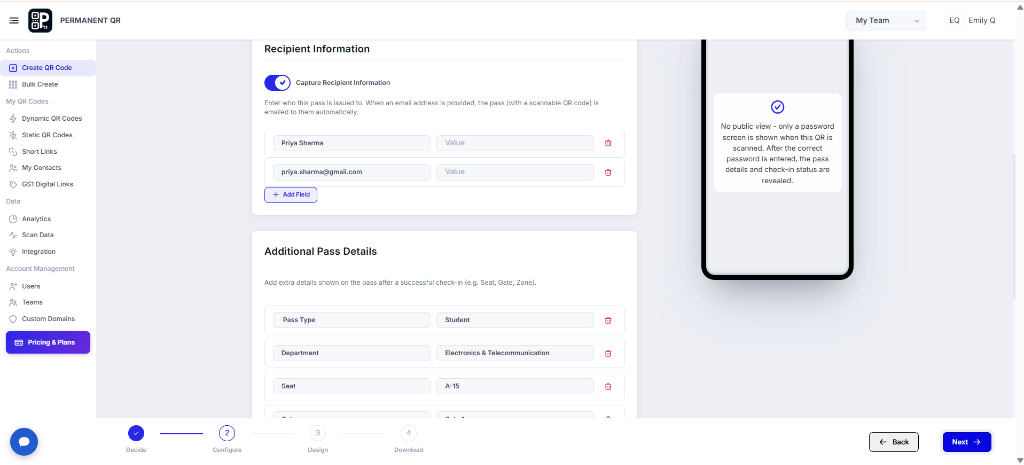
Step 3: Add Recipient and Pass Information
Add recipient information and additional details such as pass type, department, seat, gate, or zone.
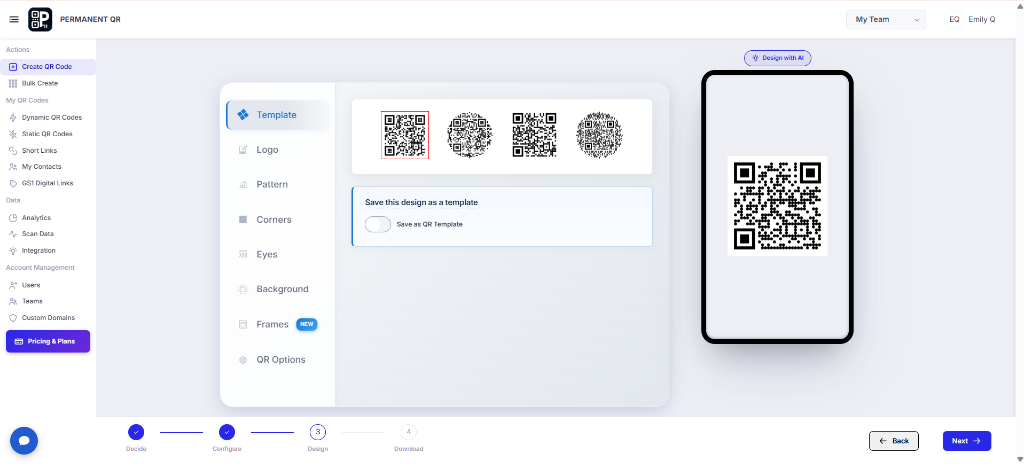
Step 4: Customize Your Pass QR Code
Customize the QR code using templates, logos, patterns, colors, frames, and other available design options.
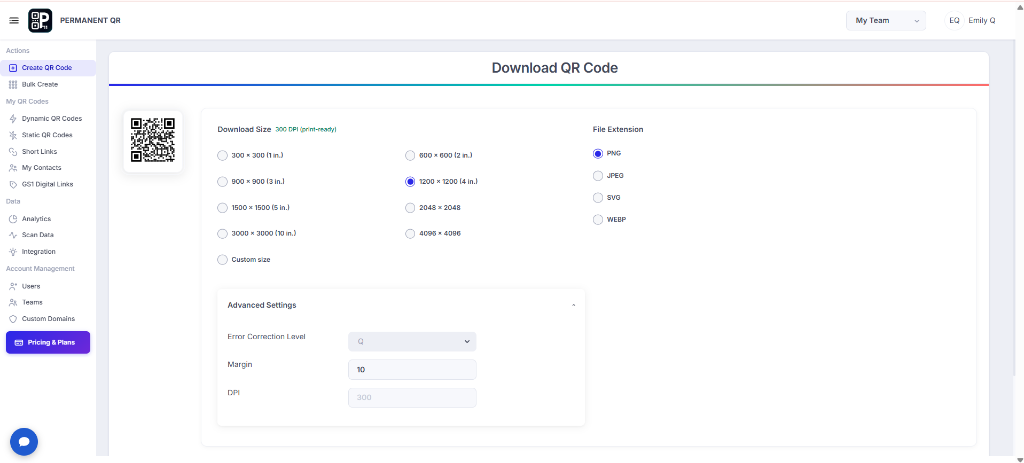
Step 5: Download Your Pass QR Code
Choose the QR code size and file format, then download your Pass QR Code.
What Happens After Someone Scans a Pass QR Code?
When an attendee or staff member interacts with a Pass QR Code, they follow a streamlined and secure check-in flow:
Scan the QR Code
The attendee or pass holder scans the Pass QR Code using their phone.
Password Screen Appears
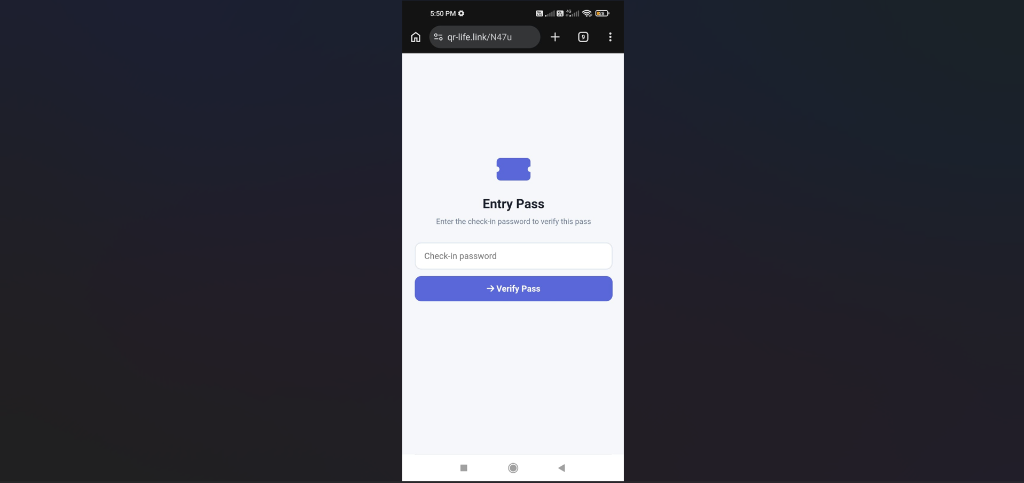
If a check-in password is enabled, the scanner is shown a password screen before the pass details are revealed.
Enter the Password
The authorized staff member or user enters the correct check-in password.
Pass Details Are Revealed
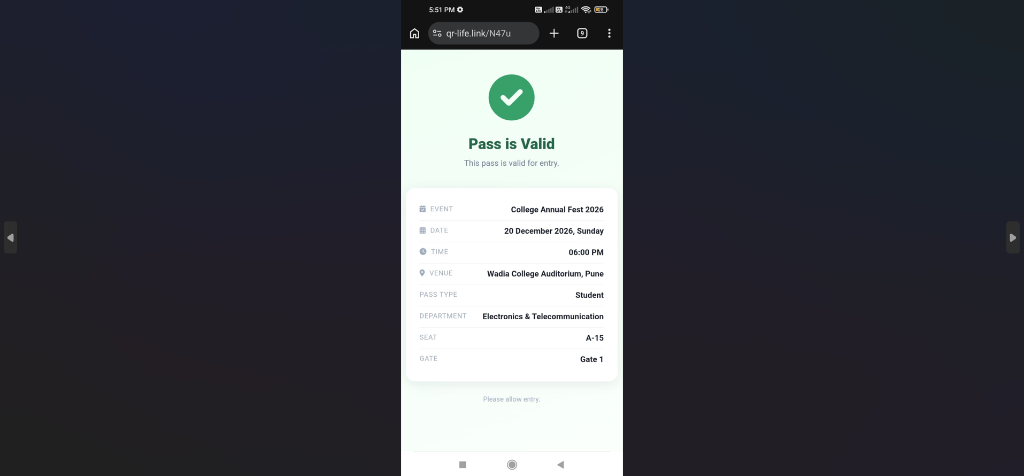
After successful verification, the configured pass information and check-in status are displayed.
Check-in Is Completed
When Auto Check-in is enabled, entering the correct password can mark the pass as checked in according to the configured pass settings.
See the Pass QR Code Scan Flow
After scanning the Pass QR Code, the check-in password is entered to verify the pass. Once verified, the pass details are displayed.
After scanning the Pass QR Code, the check-in password is entered to verify the pass.
After successful verification, the pass details and entry information are displayed.
How to Test Your Pass QR Code
Complete this testing checklist before publishing or distributing passes to ensure error-free verification at the door:
Scan the QR code using a smartphone: Verify that the QR code is recognized quickly with built-in iOS and Android camera apps.
Confirm the password screen appears when a password is enabled: Ensure pass content remains locked behind the password challenge.
Enter the correct check-in password: Verify that the authorization key validates smoothly without case or character issues.
Confirm the pass details are displayed: Check that event name, date, time, and venue render accurately on mobile screens.
Verify the recipient information if enabled: Confirm that the attendee name and email correspond to the issued holder.
Verify additional pass details: Check that specialized attributes like seat, department, pass type, gate, or zone appear as expected.
Confirm the check-in status: Ensure that the pass shows the proper verified check-in confirmation state.
Test the QR code from multiple phones before distributing it: Check scanning performance across both iPhone and Android handsets under typical venue lighting.
Common Problems & Solutions
1. QR code does not scan
Cause: Low contrast between pattern and background, removed quiet zone margins, or low-resolution image export.
Solution: Make sure the QR code is clear, has sufficient contrast, and is downloaded at an appropriate size.
2. Password is not accepted
Cause: Typo in password entry, case sensitivity mismatch, or unintended trailing spaces.
Solution: Check that the entered password exactly matches the configured check-in password.
3. Pass details are not displayed
Cause: Password verification step was bypassed, or mandatory pass fields were left unpopulated.
Solution: Verify that the correct password has been entered and that the pass information was configured correctly.
4. Check-in status does not update
Cause: Auto Check-in toggle was disabled during pass creation or cellular connection dropped during scan.
Solution: Review the Auto Check-in setting and test the pass again using the configured password.
5. QR code is difficult to scan after printing
Cause: The printed code was scaled too small, printed on glossy reflective paper, or cropped without outer margins.
Solution: Use a sufficiently large QR code and maintain clear margins around the QR code.
Common Mistakes to Avoid
❌ Using an Unclear or Low-Resolution QR Code
Downloading pixelated raster files or stretching small graphics, preventing cameras from focusing swiftly in event queues.
❌ Entering Incorrect Event Details
Misspelling event venues or entering outdated start times, causing confusion for attendees arriving at the hall.
❌ Sharing the Check-in Password Publicly
Distributing the restricted staff password publicly rather than keeping it strictly for gatekeepers and check-in personnel.
❌ Forgetting to Verify Recipient Information
Overlooking attendee email addresses or recipient assignment before emailing passes, leading to unassigned entries.
❌ Forgetting to Test the QR Code Before the Event
Distributing badges and passes without doing a full password entry and verification rehearsal on mobile devices.
❌ Printing the QR Code Too Small
Printing passes smaller than 1 × 1 inch (25 × 25 mm) on badges or tickets, causing camera scanning delays at check-in.
❌ Not Checking the Auto Check-in Setting
Distributing passes without confirming whether Auto Check-in is enabled, preventing the system from automatically recording arrival upon password verification.
Common Uses for Pass QR Codes
College Events
Issue digital passes for annual fests, campus festivals, athletic meets, and student symposiums with instant staff verification.
Conferences
Provide professional digital badges indicating attendee classification, keynote access, breakout room assignments, and track designations.
Workshops
Authenticate enrolled participants at training sessions and professional masterclasses with protected check-in passwords.
Concerts
Deliver seamless concert admission passes with gate numbers, tiered zone allocations, and rapid entrance verification.
Corporate Events
Manage annual general meetings, company retreats, and product launch invitations with staff-managed check-in controls.
Event Invitations
Distribute private digital passes for VIP dinners, anniversary galas, and weddings with recipient-specific attendee verification.
Membership Passes
Equip clubs, gyms, societies, and member facilities with scannable digital passes displaying holder standing and tiers.
Visitor Passes
Streamline security desks and reception lobbies by generating temporary visitor passes that log entrance times.
Student Events
Authenticate student identification, department affiliation, and entry eligibility at campus auditoriums and arenas.
Staff or Guest Check-in
Provide backstage, vendor, and crew passes to regulate access across designated gates, stages, and restricted zones.
Frequently Asked Questions
What is a Pass QR Code?
A Pass QR Code provides a digital pass that can contain event details, recipient information, additional pass details, and check-in information.
Can I add a password to a Pass QR Code?
Yes. A check-in password can be configured so the pass information is protected by a password screen when scanned.
Can I collect recipient information?
Yes. Recipient information can be captured when the feature is enabled.
Can I add seat or department information?
Yes. Additional pass details can include information such as pass type, department, seat, gate, or zone.
Can I customize the Pass QR Code?
Yes. The QR code can be customized using the available design options.
Can I download the Pass QR Code?
Yes. You can choose the required size and file format and download the QR code.
Can I use Auto Check-in?
Yes. Auto Check-in can be enabled when configuring the pass.
Create Your Pass QR Code Today
Create a digital Pass QR Code, add your event and check-in details, customize the design, and download it for easy sharing or printing.