Image Gallery QR code setup
An Image Gallery QR Code lets you share multiple images through a single QR code. When someone scans the code, the image gallery opens so they can view the uploaded images.
Before You Start
Before creating your QR code, ensure you have:
- The images you want to upload ready on your device
- Images in JPEG, PNG, or WebP format (up to 50 images supported)
- Clear, high-quality images
- Your preferred image display order
- A smartphone available for testing
- Access to your Permanent QR Codes account if creating an editable QR code
Step 1: Select Image Gallery
Open the QR code creation tool and select Image Gallery from the available QR code types to begin.
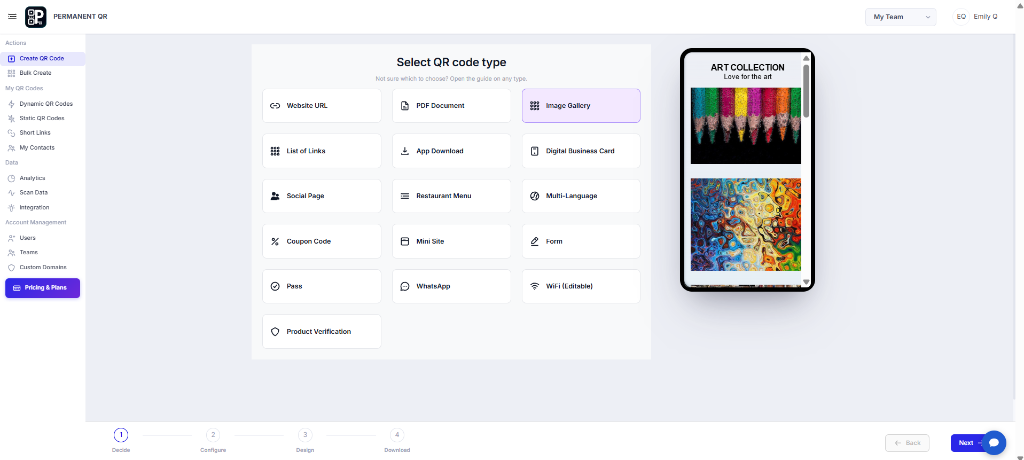
"Select Image Gallery from the QR Code types."
Step 2: Add Your Images
Upload the images you want visitors to see. You can add up to 50 JPEG, PNG, or WebP images, then add a gallery title and description.
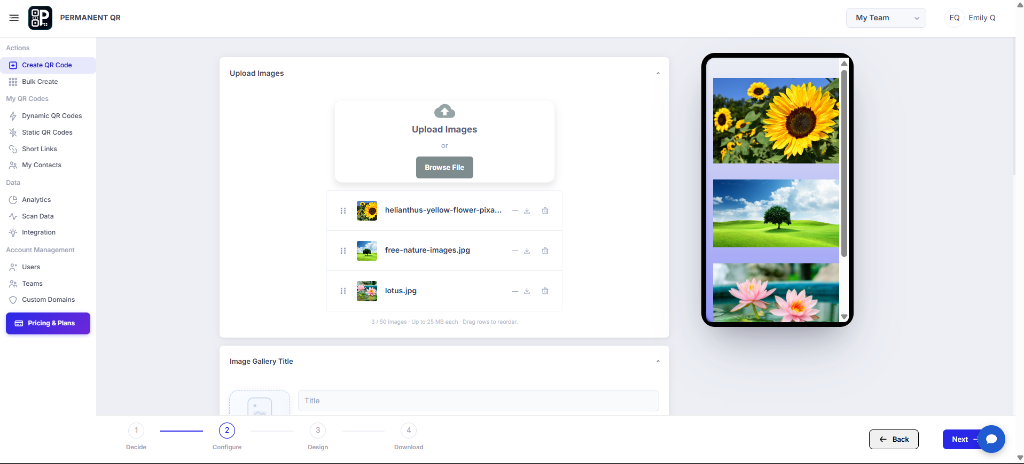
"Upload your images and configure the gallery."
Add a Gallery Title and Description
After uploading your images, add a title and description for your gallery. These details help visitors understand the images they are viewing.
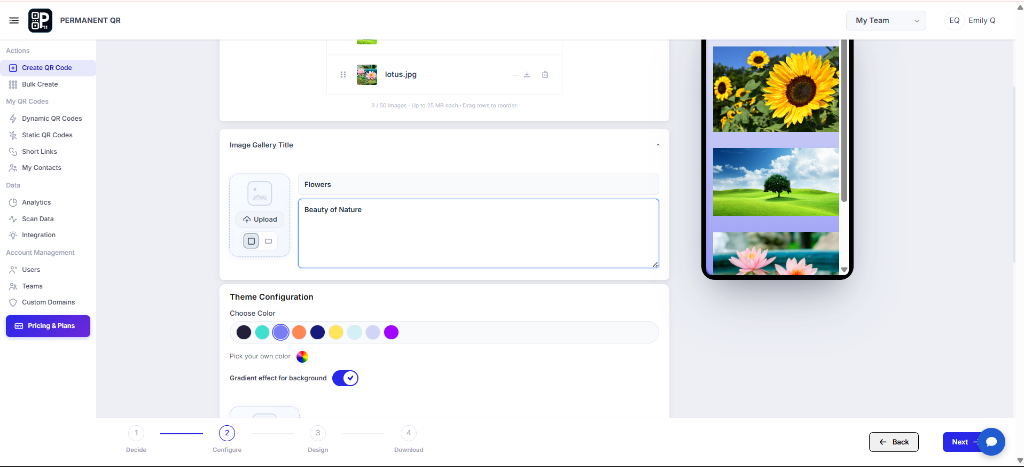
"Add a title and description to your image gallery."
Preview Your Gallery
Preview the gallery to check the images, title, description, and overall layout before generating the QR code.
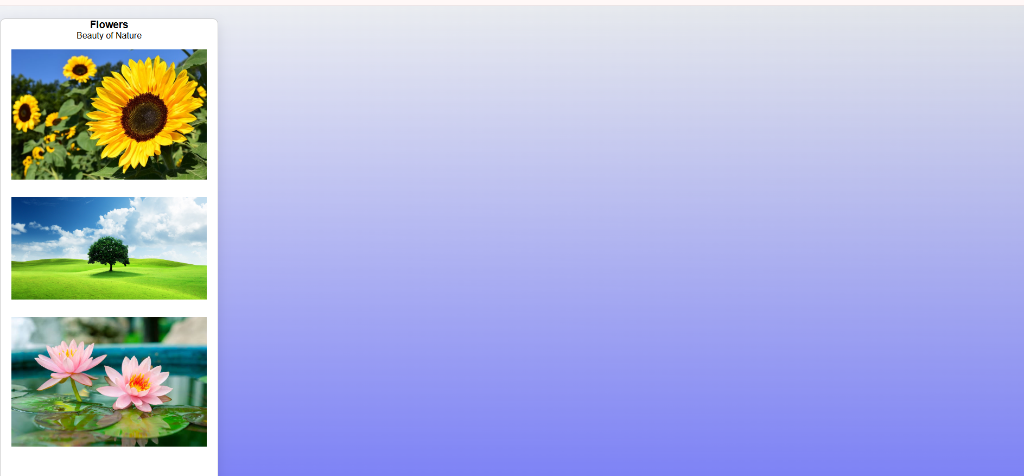
"Preview the gallery before generating the QR code."
Step 3: Customize Your QR Code
Customize the QR code by adjusting its colors, pattern, corners, eyes, frame, and logo. Keep enough contrast so the code remains easy to scan.
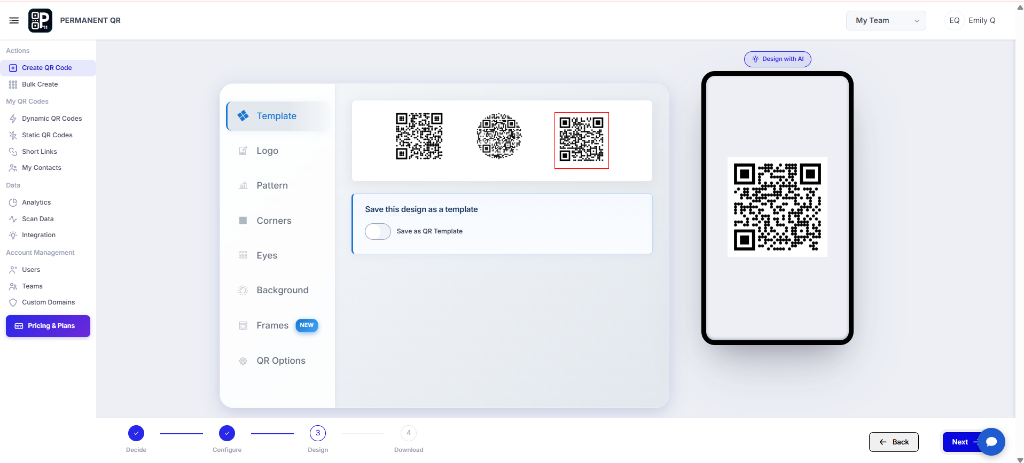
"Customize the QR code before generating it."
QR Code Design Best Practices
High Contrast
Use enough contrast between the QR code and its background. Dark patterns on light backgrounds scan most reliably.
Keep the Quiet Zone
Leave enough clear space around the QR code so scanners can easily detect the edges.
Do Not Over-Customize
Make sure the design remains easy to scan. Keep the pattern legible and clear.
Use a Suitable Format
Choose the appropriate export format for your intended digital use or printing.
Step 4: Review and Test Your QR Code
Review the gallery details and scan the QR code with a smartphone. Confirm that the gallery opens and the images load correctly.
- Check the gallery title and description.
- Review the generated QR code.
- Scan the QR code with a smartphone.
- Confirm the gallery opens.
- Confirm the images load correctly.
- Confirm the image order is correct.
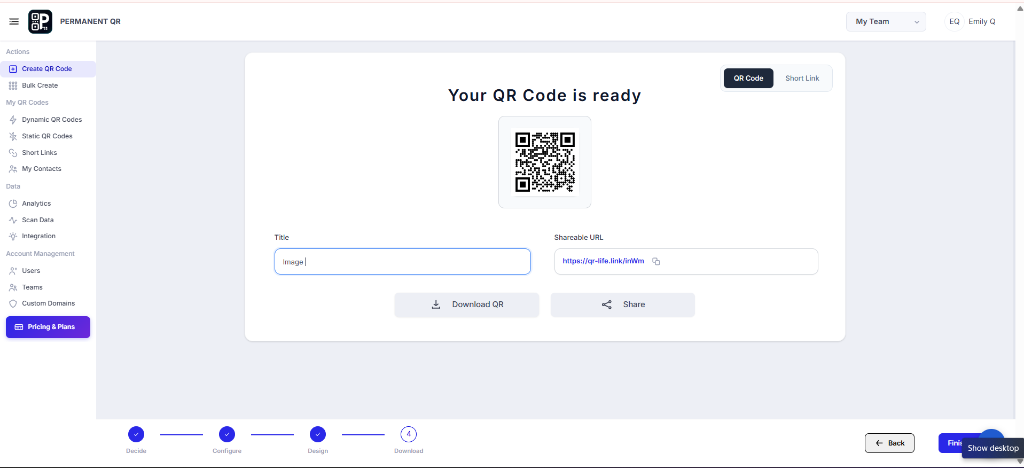
"Review your QR code before downloading."
Step 5: Download Your QR Code
Choose the file format that fits how you plan to use the QR code. Download the finished QR code after testing it.
Recommended Formats:
- PNG
Suitable for general digital use and printing.
- SVG
Suitable for scalable graphics and print.
- JPEG
Suitable for standard image use.
- WEBP
Suitable for web use.
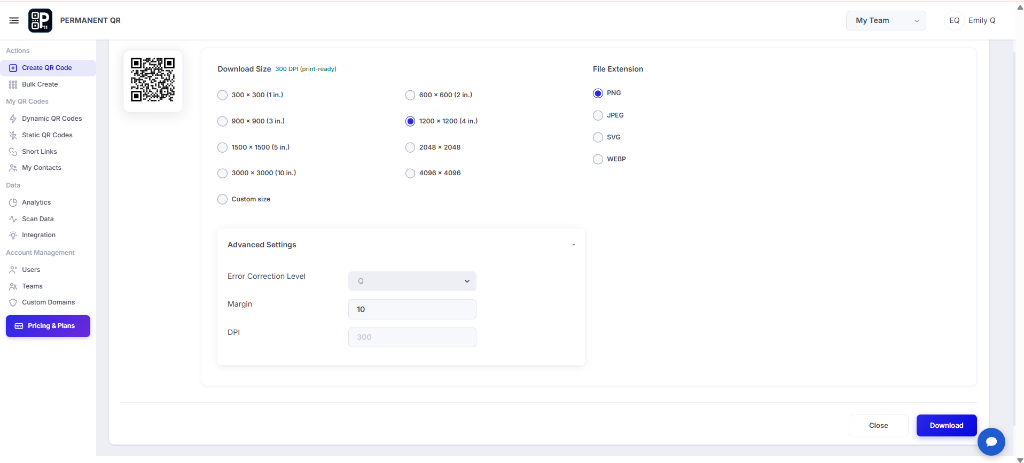
"Choose your download settings and download the QR code."
What Happens After Someone Scans?
- The visitor scans the QR code using their smartphone camera.
- The Image Gallery opens directly in the mobile browser.
- No separate app is required.
- The uploaded images, gallery title, and description are displayed.
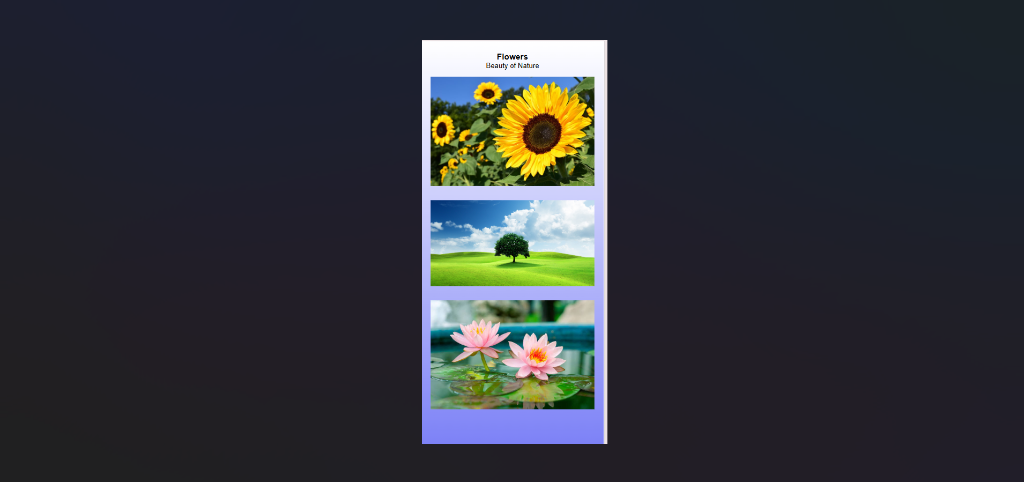
"This is the gallery visitors see after scanning the QR code."
Track Your QR Code
Editable Permanent QR Codes automatically provide detailed scan analytics to help you monitor how your image gallery is performing.
- Scan Data Total scans & scan volume over time
- Device Data Smartphones, tablets & operating systems
- Geographic Data Visitor locations and regions
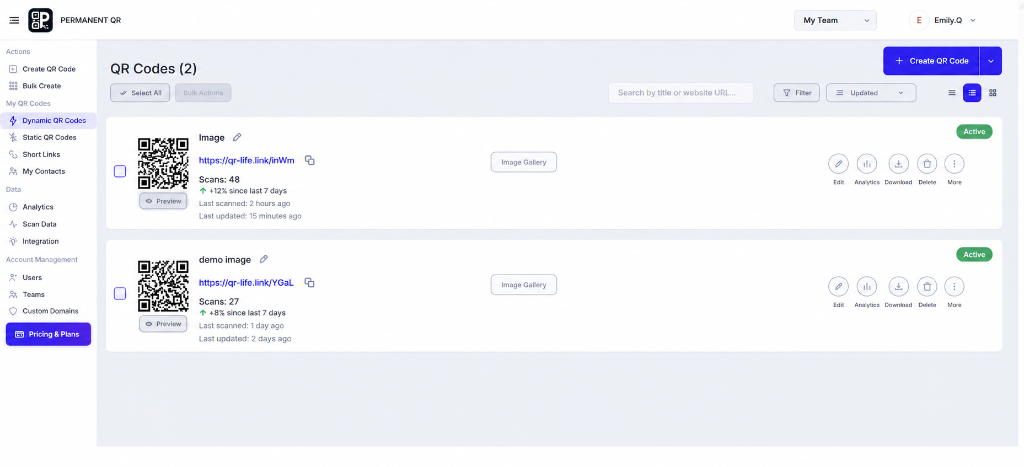
"Track scans and review your QR code activity from the dashboard."
Test Your Image Gallery QR Code
- ✓ QR code scans successfully
- ✓ Gallery opens correctly
- ✓ Images load correctly
- ✓ Images appear in the correct order
- ✓ Gallery title and description are correct
- ✓ QR code is ready to share or print
Common Problems
QR code does not scan
Check the QR code size, contrast, quiet zone, and print quality.
Gallery does not open
Check the QR code again and make sure the device has an internet connection.
Images are not loading
Verify that the upload completed successfully and reload the gallery.
Images appear in the wrong order
Return to the editor and drag the images into the correct order.
Gallery does not display correctly
Open the gallery on an actual smartphone and test it again.
Common Mistakes to Avoid
- ❌ Uploading the wrong images
- ❌ Forgetting to check image order
- ❌ Leaving incorrect gallery title or description
- ❌ Not testing the QR code before printing
- ❌ Using a QR design with insufficient contrast
Common Uses
- Photography portfolios
- Real estate listings
- Events & weddings
- Product displays
- Restaurant or photo menus
- Art and design portfolios
Frequently Asked Questions
What is an Image Gallery QR Code?
How do I add images?
Can I change images after creating the QR code?
Can I reorder the images?
What happens when someone scans the QR code?
Do visitors need an app?
Can I customize the QR code?
What file formats are available?
Can I track QR code scans?
How much does an Image Gallery QR Code cost?
Ready to Create Your Image Gallery QR Code?
Create a permanent image gallery QR code and share multiple photos with a single scan.