Download codes in bulk
Download multiple QR codes at once using the Bulk Actions feature. Select the QR codes you need, choose Download QR Codes, configure the download settings, and download them as a batch.
Bulk QR Code Download
Quickly export multiple QR codes with flexible sizing and file format choices using Bulk Actions.
Download Multiple QR Codes
Select and download multiple QR codes at the same time.
Choose Your Download Size
Select from predefined resolutions or configure a custom dimension.
Select PNG, JPEG, SVG, or WEBP
Export your QR codes in the image format that matches your requirements.
Before You Start
Before starting the bulk download process, make sure you have the following:
An active Permanent QR Codes account
Sign in to your Permanent QR Codes account to access your dashboard.
Existing QR codes available in your QR Codes dashboard
Ensure your account has existing QR codes ready to download.
The QR codes you want to download
Identify the specific QR codes you plan to include in the batch download.
Access to the Bulk Actions option
The Bulk Actions menu becomes available once QR codes are selected.
How to Download QR Codes in Bulk
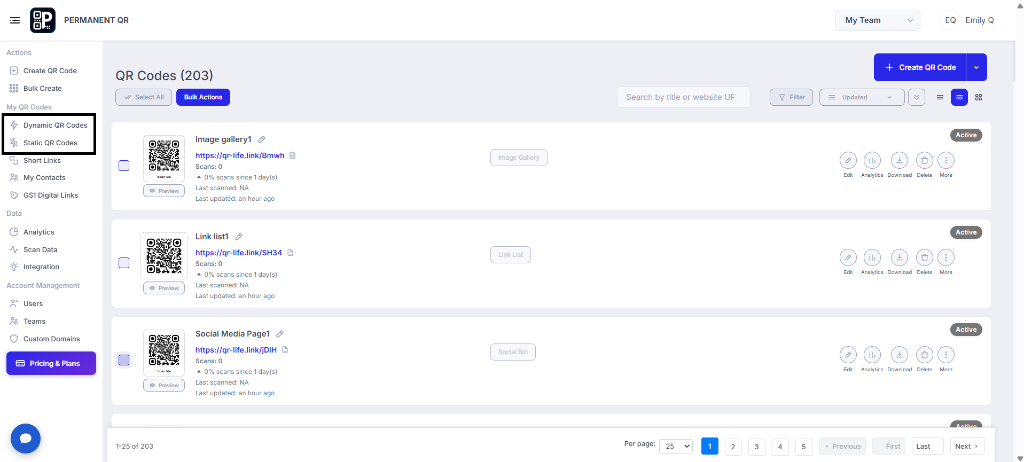
Step 1: Select the QR Codes
Go to your QR Codes dashboard. In the left sidebar, click Dynamic QR Codes or Static QR Codes depending on which ones you want to download. Then select the QR codes you want to download using the checkboxes.
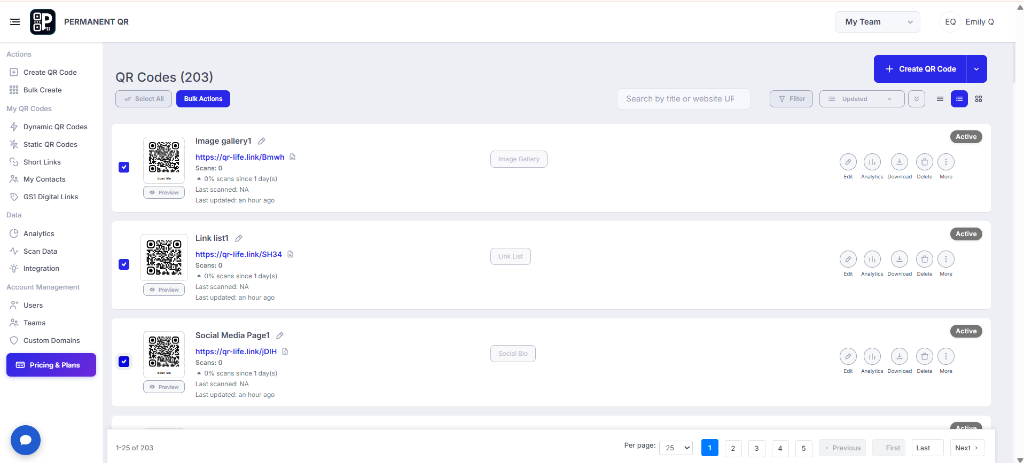
Step 2: Open Bulk Actions
After selecting the QR codes, click Bulk Actions to view the available download options.
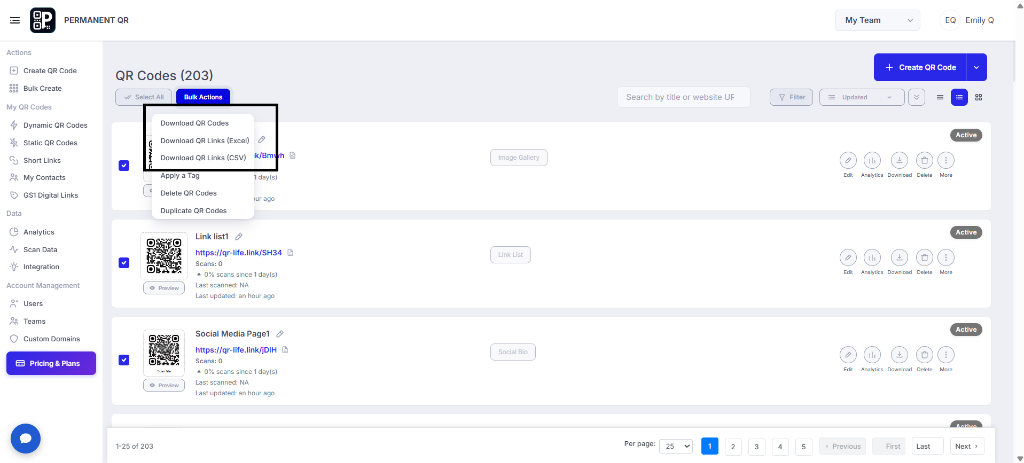
Step 3: Choose Download QR Codes
The Bulk Actions dropdown offers three download options. Choose based on what you need:
Download QR Codes
Downloads a ZIP file containing individual QR code image files (PNG) for each selected code. Use this when you need the actual QR code images — for printing, sharing, or embedding in designs.
Download QR Links (Excel)
Downloads an Excel spreadsheet (.xlsx) with your QR code names, short URLs, and destination links. Use this when you need a structured list for reporting, sharing with a team, or keeping a record in Microsoft Excel or Google Sheets.
Download QR Links (CSV)
Downloads a CSV file with the same information as Excel. Use this when importing QR data into another tool, CRM, database, or custom system that accepts CSV input.
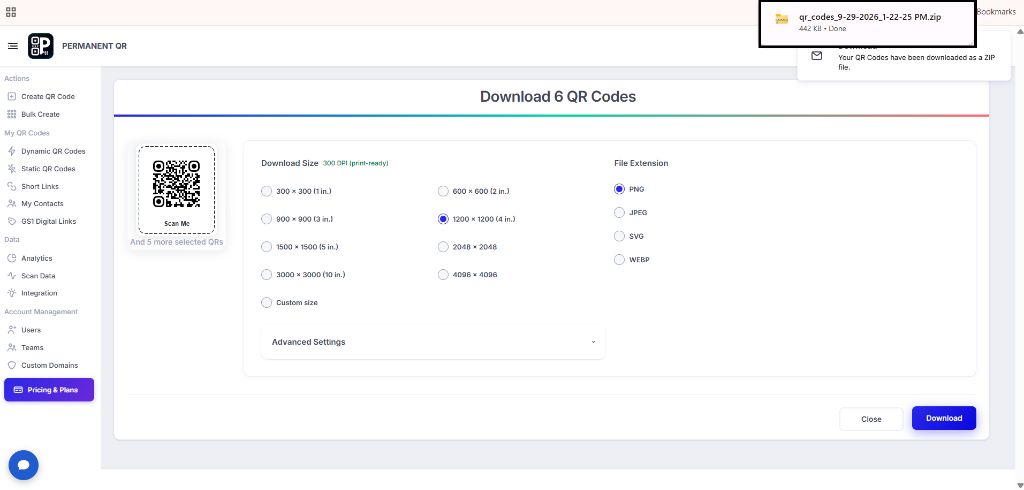
Step 4: Configure and Download Your QR Codes
Choose the download size and file extension, review the available settings, and click Download to download the selected QR codes.
Download Options
The Download QR Codes screen allows you to configure your QR code download before downloading. You can choose the desired output dimensions and image format according to your project requirements.
Download Size
Choose from a wide variety of predefined resolutions or specify a custom size:
- • 300 × 300 (1 in.)
- • 600 × 600 (2 in.)
- • 900 × 900 (3 in.)
- • 1200 × 1200 (4 in.)
- • 1500 × 1500 (5 in.)
- • 2048 × 2048
- • 3000 × 3000 (10 in.)
- • 4096 × 4096
- • Custom size
File Extension
Select the file format that best matches your print or digital workflow:
- • PNG
- • JPEG
- • SVG
- • WEBP
Advanced Settings
An Advanced Settings expandable section is also accessible on the download screen to provide additional configuration options when needed.
What Happens After You Download Your QR Codes?
After configuring your preferences and initiating the download, here is what takes place:
QR Codes Are Prepared
The selected QR codes are prepared using your chosen download settings.
Download Starts
Click Download to generate the selected QR codes as a downloadable file.
QR Codes Are Ready
The downloaded QR codes can be opened, stored, or used for printing and sharing.
How to Test Bulk QR Code Download
Follow this checklist to test and verify bulk QR code download:
Select one or more QR codes.
Open Bulk Actions.
Select Download QR Codes.
Choose a download size.
Select a file extension.
Click Download.
Open the downloaded file and verify the QR codes.
Common Problems & Solutions
Problem 1: Download QR Codes is not visible.
Solution: Make sure you have selected one or more QR codes before opening Bulk Actions.
Problem 2: The wrong QR codes were selected.
Solution: Cancel the process and select the correct QR codes before opening Bulk Actions.
Problem 3: The downloaded QR codes are not in the expected format.
Solution: Check the File Extension option before clicking Download.
Problem 4: The downloaded QR codes are not the desired size.
Solution: Return to the download settings and select the required Download Size before downloading again.
Common Mistakes to Avoid
❌ 1. Selecting the wrong QR codes
Accidentally selecting unintended QR codes before opening Bulk Actions.
❌ 2. Forgetting to check the selected QR codes
Not reviewing the selected QR code items prior to clicking Download.
❌ 3. Choosing the wrong file extension
Selecting a format that does not match your intended print or digital use case.
❌ 4. Choosing an unsuitable download size
Selecting an image size that is too small for crisp printing or oversized for quick digital sharing.
❌ 5. Downloading without reviewing the settings
Clicking Download before verifying the selected dimensions, file extension, and options.
Common Uses of Bulk QR Code Downloads
Bulk downloading QR codes simplifies asset management across a wide range of use cases:
Printing Multiple QR Codes
Exporting multiple QR codes for printing.
Marketing Campaigns
Distributing assets across promotional campaigns.
Product Packaging
Preparing QR codes for labels and packaging.
Event Materials
Preparing badges, tickets, and event displays.
Business Cards
Generating QR codes for employee or personal cards.
Flyers and Brochures
Adding scannable codes to marketing print collateral.
Posters and Signage
Exporting high-resolution graphics for display signage.
Client Deliverables
Packaging organized QR codes for agency clients.
Store or Location-Specific QR Codes
Organizing codes across multiple retail or branch locations.
Backup Copies of QR Codes
Archiving local image copies of existing QR codes for safekeeping.
Frequently Asked Questions
Can I download multiple QR codes at once?
Yes. Select multiple QR codes and use the Bulk Actions → Download QR Codes option.
What file formats are available?
The download screen provides PNG, JPEG, SVG, and WEBP options.
What QR code sizes can I choose?
The download screen provides multiple predefined sizes from 300 × 300 up to 4096 × 4096, as well as a custom size option.
Can I download only selected QR codes?
Yes. Select the QR codes you want to download before opening Bulk Actions.
Where can I find the Download QR Codes option?
Select your QR codes, click Bulk Actions, and choose Download QR Codes.
Can I change the QR code size before downloading?
Yes. Select the required Download Size on the download settings screen.
Can I choose the QR code file format?
Yes. You can select the available file extension before downloading.
Download Your QR Codes in Bulk
Save time by downloading multiple QR codes at once using Bulk Actions.