WiFi QR code setup
A WiFi QR Code allows customers, guests, employees, or visitors to connect to a wireless network without manually typing the network name and password. Visitors can simply scan the QR code from any smartphone camera to receive a mobile-friendly connection experience.
Editable Permanent WiFi QR Code:
- $49 One-Time Payment: Pay once and own your QR code forever with no monthly or annual subscription fees.
- Editable WiFi Information: Update the SSID, password, or WiFi information without reprinting the QR code.
- Unlimited Scans: No scan quotas, throttling, or scan limits.
Before You Start
Before creating your WiFi QR code, ensure you have gathered:
- Have your WiFi network name (SSID) ready: The exact wireless network name broadcast by your access point.
- Have the WiFi password ready: The accurate current security key or passkey.
- Know your network security type: The security standard in use (WPA/WPA2, WPA3, WEP, or No Encryption).
- Decide whether the network is hidden: Determine if your network broadcasts its SSID publicly or is hidden.
- Choose where the QR code will be displayed: Plan your physical placement locations such as tabletop displays, signs, or cards.
- Test the connection on a mobile device before publishing: Verify that mobile devices can authenticate using the prepared credentials.
Network Information
Keep your SSID, security type, and password available before creating the QR code.
Placement Planning
Decide whether the QR code will be placed at reception desks, tables, counters, entrances, offices, signs, or other locations.
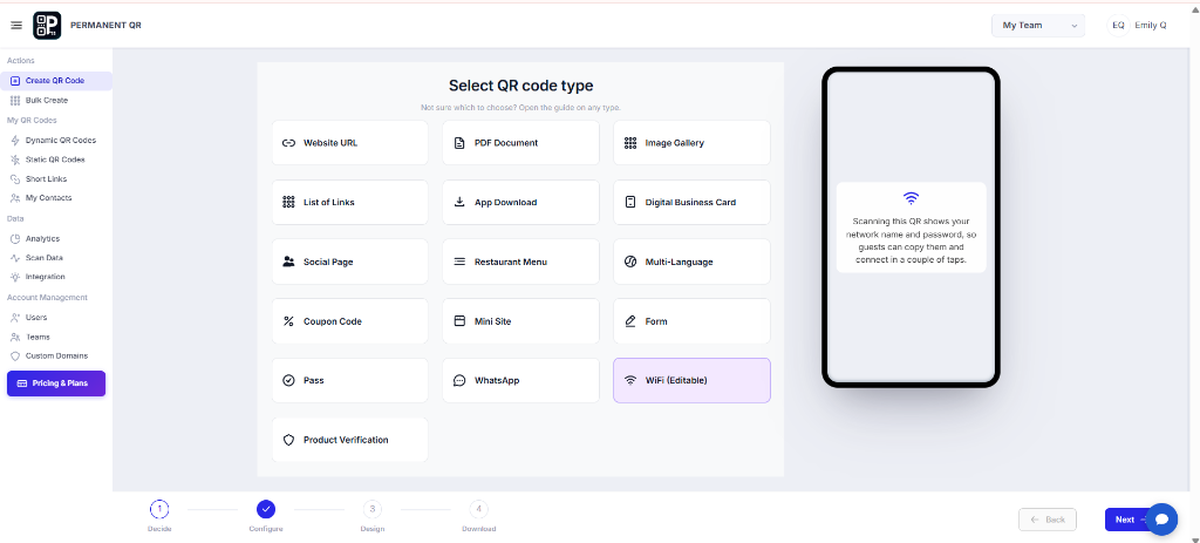
Step 1: Select "WiFi (Editable)"
Log in to your Permanent QR Codes dashboard and navigate to the QR code creation screen. From the available QR code types, choose WiFi (Editable) to begin setting up your network credentials.
Step 2: Configure Your WiFi Settings
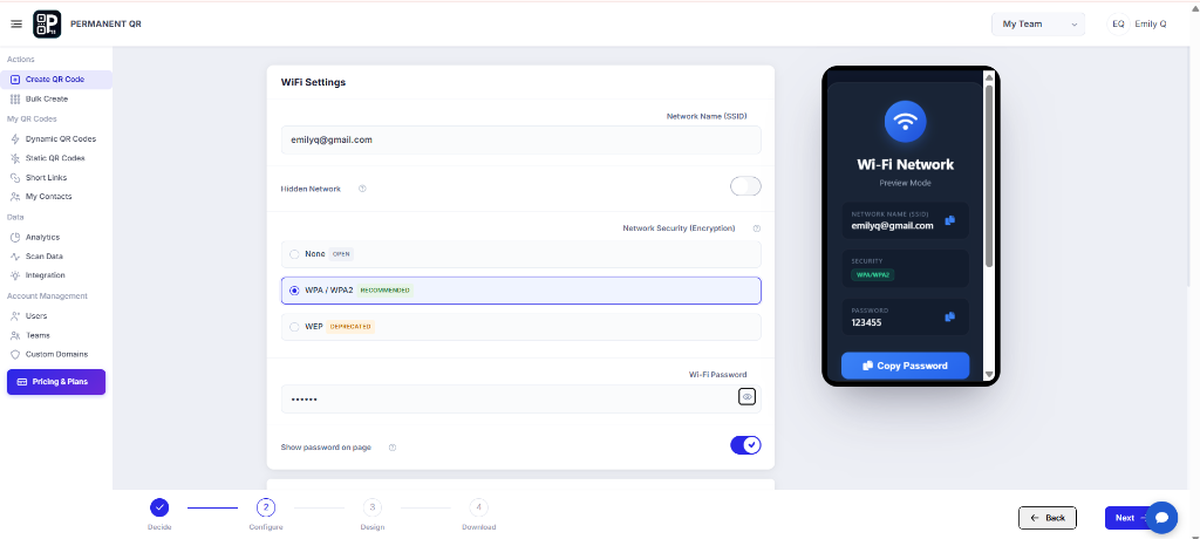
Enter the wireless network settings that scanners will use to connect:
- Network Name (SSID): Enter the exact SSID of your wireless access point. Be careful with capitalization and special characters.
- Hidden Network: Enable this toggle if your router does not broadcast its SSID publicly, ensuring mobile scanners request the hidden network.
- Network Security / Encryption: Select the encryption protocol matching your router (e.g., None/Open, WPA/WPA2, or WEP).
- WiFi Password: Type the current security key required to connect.
- Show password on page: Toggle this option to allow visitors to view and copy the plain-text password on the mobile landing page.
Step 3: Customize Your QR Code
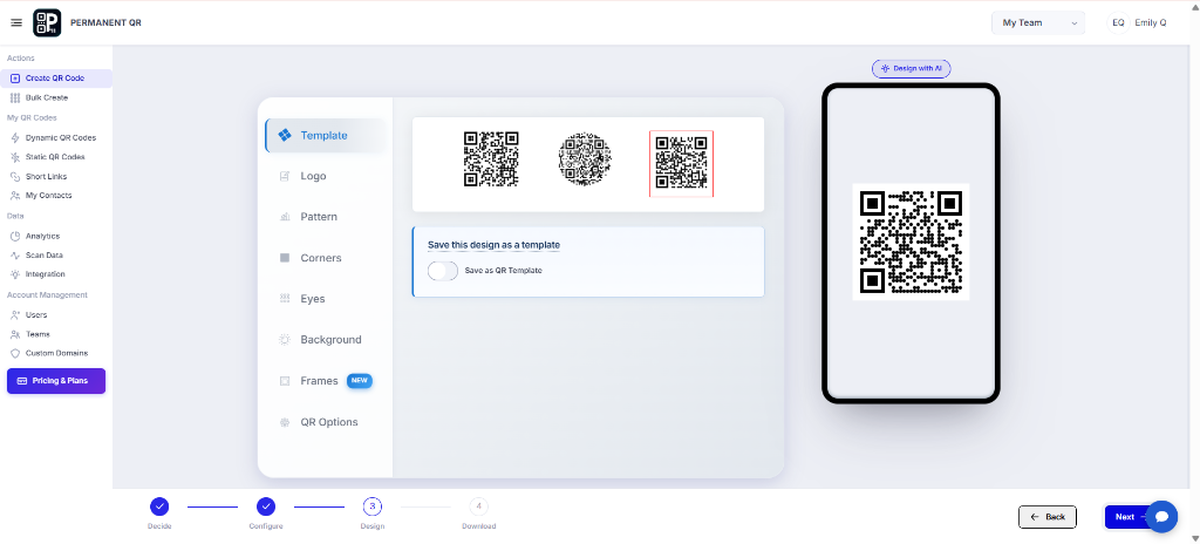
Customize the visual design of your WiFi QR code to match your business branding while ensuring high contrast and effortless scannability:
- Template
- Logo
- Pattern
- Corners
- Eyes
- Background
- Frames
- QR Options
- Design with AI
Maintain sufficient contrast between the foreground QR pattern and background canvas so smartphone cameras can recognize the code instantly under varied lighting.
Step 4: Review Your QR Code
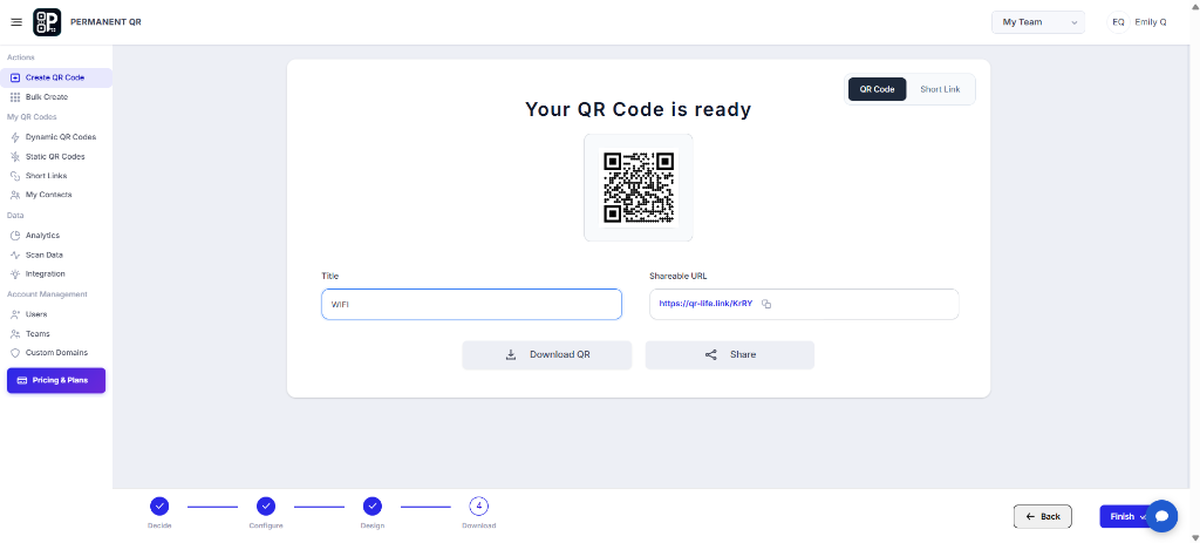
After configuring and styling your code, review the generated output on the "Your QR Code is ready" summary screen before downloading or distributing:
- QR code preview: Inspect the live rendered QR pattern and run a test scan with your smartphone.
- Title: Confirm the internal identifier (e.g., "WIFI") used to organize codes in your dashboard.
- Shareable URL: Review the hosted permanent landing page link (e.g., https://qr-life.link/...).
- Download QR: Click through to the format and resolution selection screen.
- Share: Share the digital landing page link or QR graphic with your team or printing partners.
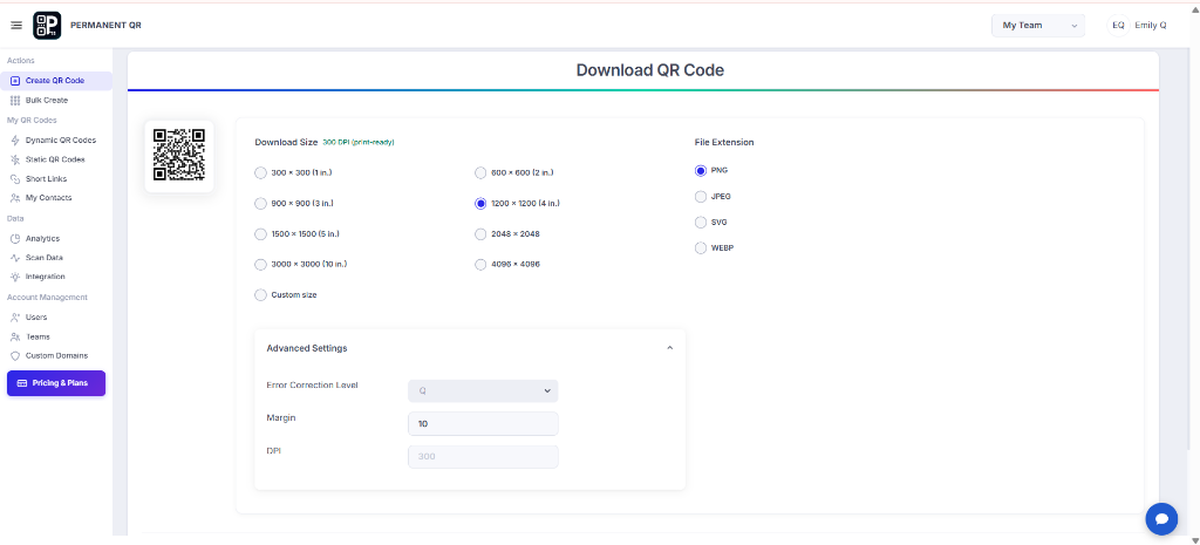
Step 5: Download Your QR Code
The Download QR Code screen lets you select the exact dimensions and file format needed for digital displays or commercial printing:
- Output Sizes: Select from standard print and screen dimensions:
300 × 300 600 × 600 900 × 900 1200 × 1200 1500 × 1500 2048 × 2048 3000 × 3000 4096 × 4096You can also specify a Custom size for unique packaging or signage layouts.
- Available Formats:
- PNG: High-resolution raster file with transparency, perfect for desktop printing, menus, and flyers.
- JPEG: Standard web graphic format for basic digital mockups.
- SVG: Infinitely scalable vector graphic for large commercial signs, window vinyls, and banners.
- WEBP: High-efficiency web graphic format for websites and digital signs.
- Advanced Settings:
- Error Correction Level: Adjust redundancy (L, M, Q, H) to protect scannability on textured or curved surfaces.
- Margin: Set the quiet-zone border padding around the code.
- DPI: Select 300 DPI print-ready resolution for crisp physical reproduction.
What Happens After Someone Scans?
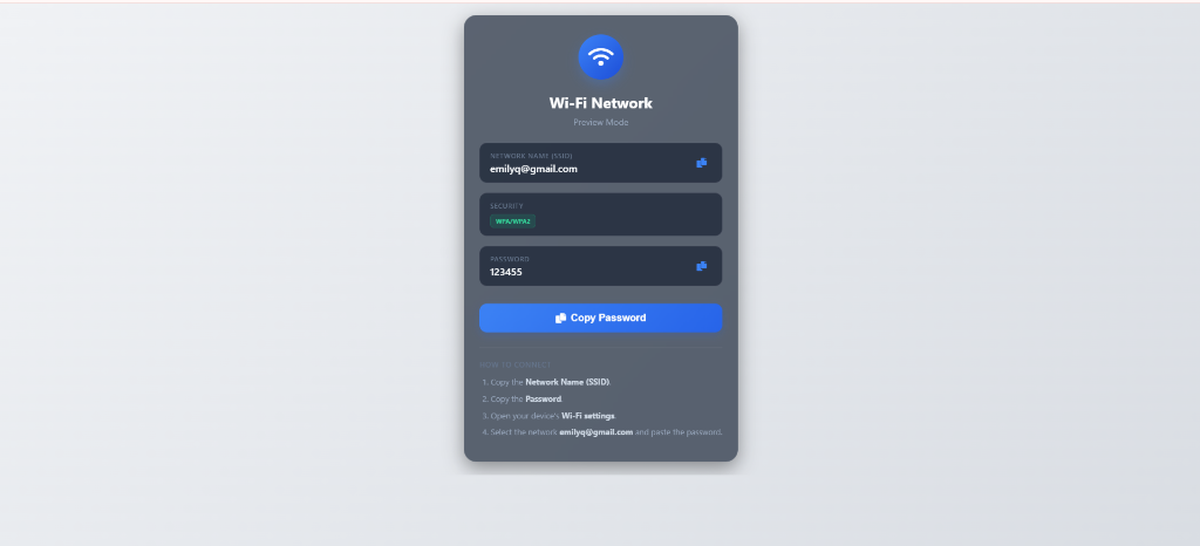
When a customer or visitor scans your WiFi QR Code, they follow a straightforward, five-step connection journey:
Scan the WiFi QR Code
The visitor points their smartphone camera or QR scanner at the code.
Open Information Page
The mobile browser instantly opens the clean WiFi information page.
View Network Details
The visitor views the Network Name (SSID) and security encryption type.
Copy Credentials
The visitor copies the password or views connection credentials.
Connect the Device
The visitor joins the network seamlessly with accurate settings.
WiFi QR Code Testing Checklist
Before distributing or printing your QR codes, complete this nine-point testing checklist:
QR code scans correctly.
QR code opens on mobile.
SSID is correct.
Password is correct.
Security type is correct.
Hidden-network setting is correct if applicable.
WiFi information is readable.
Connection works on multiple devices.
QR code remains readable at the intended display/print size.
Common Problems
1. QR code does not scan
Cause: Poor contrast between foreground and background, missing margin padding, or the code was printed too small for camera focus.
Fix: Increase the QR code size, maintain strong color contrast, and export in a high-quality format like SVG or high-resolution PNG.
2. WiFi credentials are incorrect
Cause: Typo in the network SSID or password during initial configuration.
Fix: Open your Permanent QR Codes dashboard and update the SSID or password. The landing page updates immediately without reprinting.
3. Device cannot connect
Cause: The selected security/encryption protocol does not match your router's actual security mode.
Fix: Check your wireless router settings (e.g., WPA2-PSK vs WPA3) and select the corresponding encryption setting in the dashboard.
4. Hidden network does not connect
Cause: The wireless network is configured as hidden on your router, but the Hidden Network setting was left disabled.
Fix: Toggle on the "Hidden Network" option in your WiFi settings so devices explicitly query for the network.
5. Printed QR code is difficult to scan
Cause: The code was printed at low DPI or is displayed on reflective or uneven surfaces.
Fix: Re-export using vector SVG or 300 DPI PNG, increase error correction level to Q or H, and print at least 1 × 1 inch (25 × 25 mm).
Common Mistakes to Avoid
❌ Entering the wrong SSID
Misspelling network names or using incorrect letter casing causes client devices to fail network discovery.
❌ Entering the wrong password
Inputting an outdated or mistyped passkey results in immediate authentication failures for connecting guests.
❌ Selecting the wrong security type
Mismatching security standards (e.g. WEP instead of WPA2/WPA3) prevents modern devices from connecting.
❌ Using a low-quality QR image
Stretching low-resolution screenshots for print causes blurry edges that smartphone cameras cannot decode.
❌ Making the QR code too small
Printing under 1 × 1 inch makes scanning difficult, particularly from distances or under dim restaurant lighting.
❌ Publishing without testing on an actual mobile device
Skipping real-device tests across iOS and Android devices risks deploying broken signage to visitors.
Common Uses
Hotels & Resorts
Provide seamless guest WiFi access across rooms, lobbies, pools, and amenity areas.
Restaurants & Cafés
Place codes on tabletop stands and menus so diners can connect without asking staff.
Offices
Simplify visitor and vendor onboarding to secure corporate guest wireless networks.
Retail Stores
Offer complimentary customer WiFi in fitting rooms, waiting lounges, and checkout zones.
Waiting Areas
Keep clients entertained in medical clinics, salons, dealerships, and service centers.
Events & Conferences
Connect hundreds of attendees quickly via event badges, stage banners, and signs.
Public Spaces
Display network access on library desks, community centers, parks, and coworking hubs.
Product Packaging / Printed Materials
Print WiFi onboarding information on router boxes, welcome kits, and appliance manuals.
Frequently Asked Questions
What is a WiFi QR Code?
A WiFi QR Code allows smartphones and mobile devices to quickly read network connection parameters—including the SSID, security type, and password—without manually typing them in device settings.
How does a WiFi QR Code work?
When scanned, the QR code opens a mobile-friendly page displaying your WiFi network details, security type, and credentials with simple instructions to connect your device in seconds.
Can I edit my WiFi information later?
Yes. Because Permanent QR Codes are editable, you can update your network SSID, security encryption, or password anytime in your dashboard without having to regenerate or reprint the physical QR code.
Do I need to reprint the QR code after changing my WiFi password?
No. When your WiFi password changes, simply update the password field in your Permanent QR Codes dashboard. All printed materials continue working immediately.
Can I use a WiFi QR Code for a hidden network?
Yes. Enable the "Hidden Network" option during setup so connecting devices know to broadcast connection requests for non-beaconing networks.
Which WiFi security types are supported?
The generator supports WPA/WPA2 (recommended for most home and business setups), WPA3, WEP (deprecated legacy), and open networks with no encryption.
Can people scan the WiFi QR Code with any smartphone?
Yes. Modern iOS and Android smartphones can scan the QR code using their built-in camera app, Google Lens, or any standard QR scanning tool.
Where should I place my WiFi QR Code?
Common placements include reception counters, table tents, guest rooms, meeting room walls, entrance doors, event badges, and customer waiting areas.
Can I customize the appearance of my WiFi QR Code?
Yes. You can customize the QR code template, pattern style, eye shape, brand colors, frame text, logo, background, and error correction levels.
Can I download the WiFi QR Code for printing?
Yes. You can download print-ready files in PNG (up to 4096×4096 px), JPEG, SVG vector, and WEBP formats with 300 DPI support and adjustable margins.