Edit a code's destination or design
Learn how to edit an existing Dynamic QR Code, update its information or destination, customize its design, and save your changes without creating a new QR code.
Quick Answer
Open Dynamic QR Codes, select the QR code you want to edit, click Edit, update the information, customize the design, review the QR code, and click Finish.
Editing Workflow
Note: Editing is available for Dynamic QR Codes. Static QR Codes cannot be modified after generation.
What Does Editing a QR Code Mean?
Editing a Dynamic QR Code allows you to update its existing information or destination while keeping the same QR code. You can make changes from your dashboard, customize the design when needed, and save the updated version without creating a new QR code.
What Can You Change?
Configuration
Update available destination links, contact data, or type-specific settings.
Design
Customize visual styling using available options such as templates, logos, patterns, corners, eyes, backgrounds, and frames.
Final Details
Review the live preview, title, and shareable URL before saving.
How to Edit a QR Code
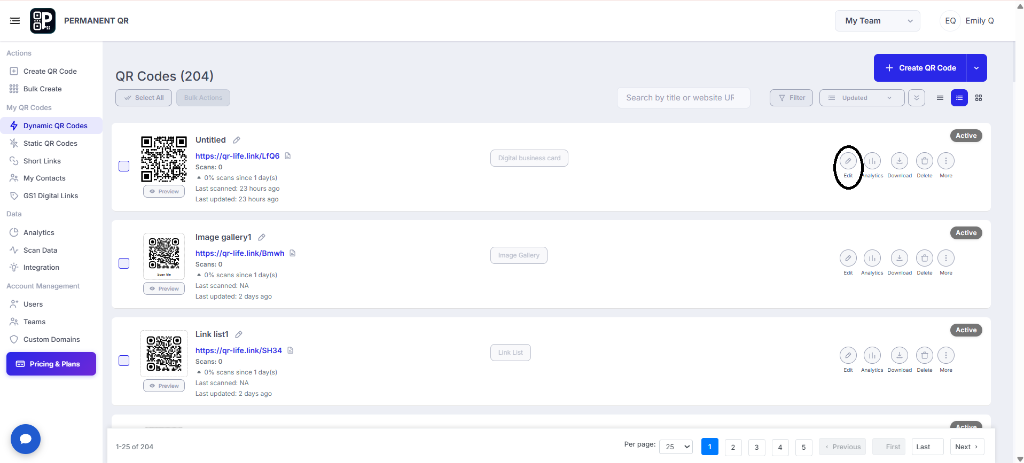
Step 1: Find Your QR Code
Log in to your Permanent QR Codes account and navigate to Dynamic QR Codes. Locate the campaign you want to edit, then click the Edit option on the card.
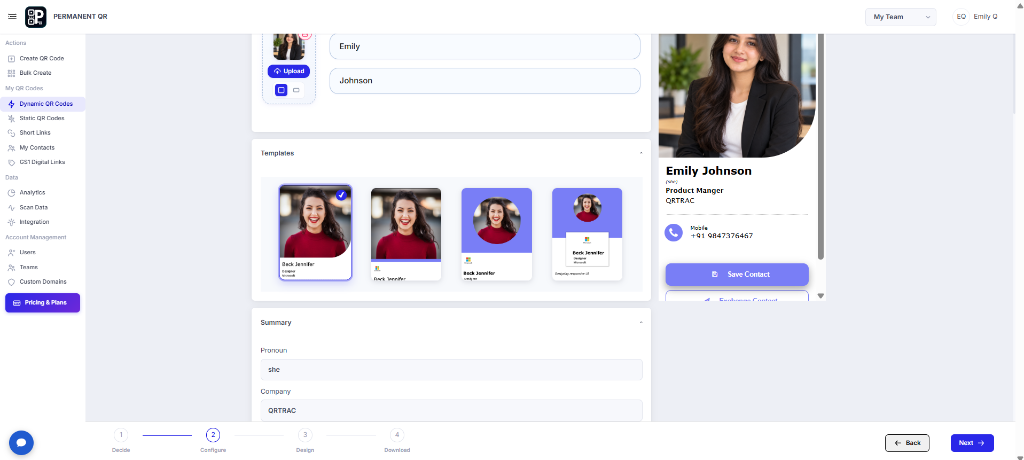
Step 2: Update Your QR Code
In the Configure stage, update the available destination or profile details. Review the changes and click Next to continue to the Design stage.
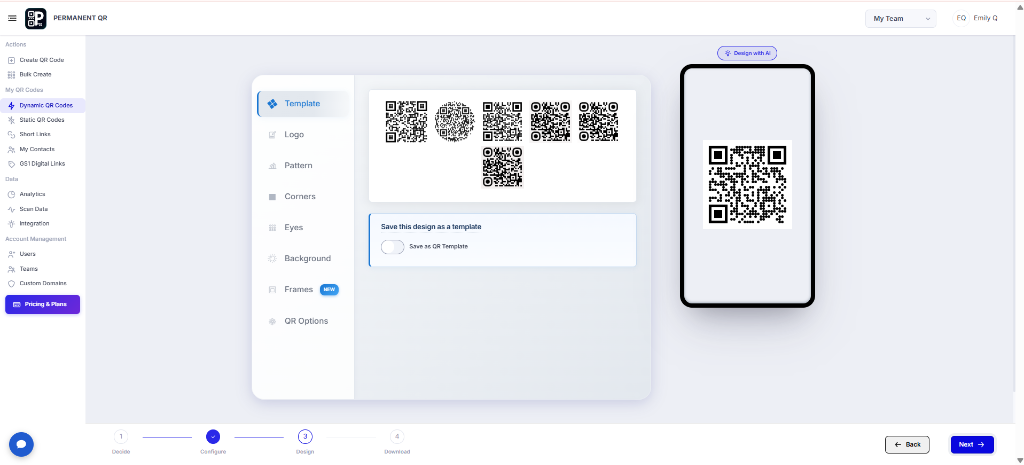
Step 3: Customize the Design
In the Design stage, refine the visual appearance using the available styling options. Choose a template or adjust the logo, pattern, corners, eyes, background, frames, and display options, then click Next.
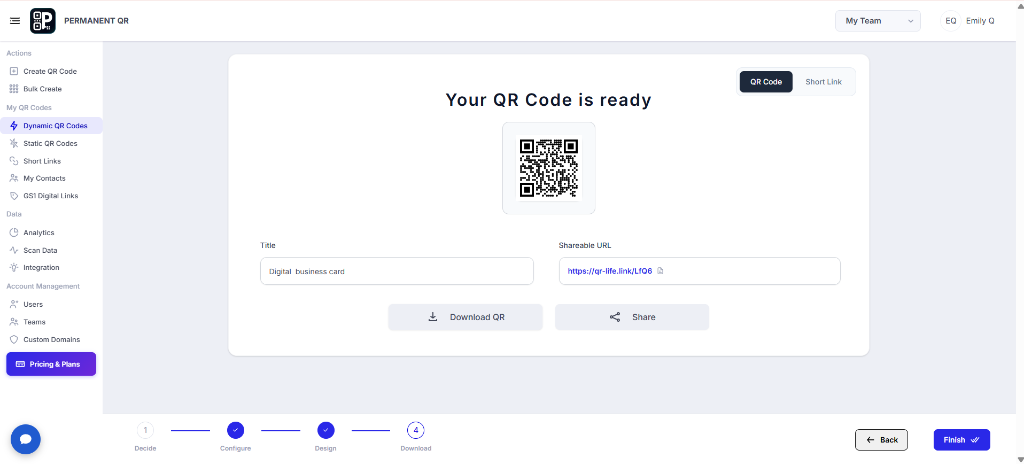
Step 4: Review and Finish Editing
Review the final preview, campaign title, and shareable URL. If everything is correct, click Finish to save all changes to your existing code.
What Happens After You Edit a QR Code?
Once you complete the editing process, your existing campaign is updated across your account:
Changes Are Saved
Your updated configuration is saved immediately when you click Finish.
Existing Code Remains
You continue using the existing printed code without generating or distributing a replacement.
Updated Information Is Used
Scans immediately direct users to the updated information or destination.
You Can Download or Share
The final screen provides options such as Download QR and Share when available.
*Available editing options and destination fields depend on the specific format configured.
How to Test Your Edited QR Code
Always verify your changes before physical printing or widespread distribution:
Scan the code with a smartphone camera.
Confirm that the destination opens correctly.
Verify that the updated information or destination is displayed.
Check that the graphic is sharp, high-contrast, and readable.
Perform a final test scan before printing or sharing the asset.
Common Problems and Solutions
Problem: Cannot locate the code in your dashboard
Solution: Confirm you are viewing the Dynamic QR Codes tab and search for the item by its title if available.
Problem: Changes are not appearing
Solution: Make sure you completed the editing workflow and clicked Finish.
Problem: Code does not scan correctly
Solution: Review the live preview and test across multiple smartphone camera apps before distribution.
Problem: Updated the wrong code
Solution: Check the title and shareable short URL before applying changes.
Common Mistakes to Avoid
1. Editing the wrong item
Always verify the campaign title and link before clicking Edit.
2. Skipping the Configure stage
Make sure all required fields are updated accurately.
3. Forgetting to review the design
Check the live preview before finishing.
4. Leaving without clicking Finish
Make sure you complete the workflow to save your changes.
5. Skipping post-edit testing
Always scan the updated code before distributing materials.
Common Use Cases
Editing dynamic links keeps campaigns, print materials, and signage current without costly reprinting:
Restaurant Menus
Update seasonal dishes, price adjustments, or digital menu links without replacing tabletop stickers.
Events & Conferences
Adjust agendas, speaker lists, or venue floorplans as event schedules evolve.
Product Packaging
Update user guides, warranty details, or support links across ongoing packaging runs.
Flyers & Posters
Redirect printed posters to new promotional campaigns after an initial offer ends.
Business Cards
Update phone numbers, job titles, or portfolio URLs while keeping physical cards in use.
Brochures & Printed Materials
Refresh digital collateral links, downloadable assets, and product specs easily.
Retail & In-Store Signage
Change featured promotional URLs and seasonal offers without replacing hardware signs.
Feedback & Forms
Direct scanners to updated survey forms or questionnaires as customer campaigns change.
Frequently Asked Questions
Can I edit a code I have already created?
Yes, you can edit an existing Dynamic QR Code from your dashboard without needing to create a replacement QR code or change the printed code.
Where can I find the Edit option?
Log in to your account, navigate to Dynamic QR Codes, locate the QR code card you want to update, and click the Edit option on the card.
What happens when I click Edit?
Clicking Edit opens the QR code editor, starting at the Configure stage where you can view and update the current configuration.
Can I change the information in my QR code?
Yes. In the Configure stage, you can update the destination URL, text, or details configured for that QR code type.
Can I restyle a code after it is created?
Yes. In the Design stage, you can select templates or adjust design options such as logo, pattern, corners, eyes, background, frames, and QR options.
Do I have to make a new code after I edit one?
No. Editing updates the existing Dynamic configuration, so your printed or shared code continues to work without needing a replacement.
Can I preview my QR code before finishing?
Yes. In the final stage, you can review a live preview of the updated QR code along with its title and shareable URL.
Can I download my QR code after editing?
Yes. The final confirmation screen provides a Download option if you need an updated image file of your design.
Can I share my QR code after editing?
Yes. The final screen includes a Share button and displays the shareable URL for easy distribution.
Which button saves my edits?
Click the Finish button on the final screen to save all changes and apply them to your existing code.
Edit Your QR Code Anytime
Update your existing Dynamic codes, customize their design, and keep your published information current from your dashboard.