Delete codes in bulk
Delete multiple QR codes at once using the Bulk Actions menu. Select the QR codes you want to remove, choose Delete QR Codes, review the deletion warning, and confirm the action.
Important:
Deleting QR codes is a permanent action. Review your selected QR codes carefully before confirming the deletion.
Manage Unused QR Codes with Bulk Deletion
Remove multiple unused or test QR codes at once to keep your dashboard clean and organized.
Select Multiple QR Codes
Choose multiple QR codes from your QR code list and manage them together.
Delete QR Codes in Bulk
Use Bulk Actions to delete the selected QR codes instead of removing them one at a time.
Review Before Deleting
Review the deletion confirmation carefully before permanently removing the selected QR codes.
Before You Start
Before using bulk deletion, ensure you have completed the following steps:
Sign In to Your Account
Sign in to your Permanent QR Codes account.
Open Your QR Codes List
Open your QR Codes list in your management dashboard.
Select the QR Codes
Make sure the QR codes you want to delete are selected.
Review the Selected Codes
Review the selected QR codes before using the delete action.
Confirm Codes Are No Longer Needed
Make sure you no longer need the selected QR codes before confirming deletion.
Important Warning:
Deleting QR codes is permanent. Make sure you select only the QR codes you want to remove.
How to Delete QR Codes in Bulk
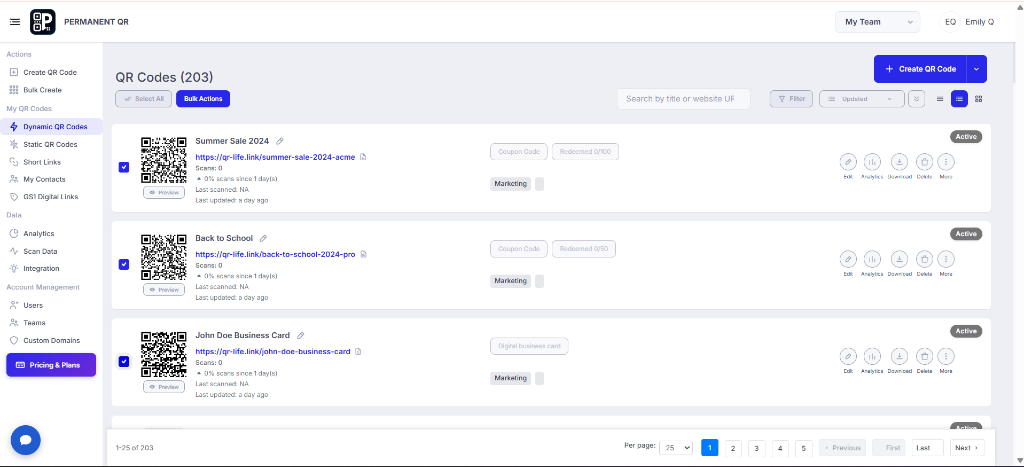
Step 1: Select the QR Codes
From your QR code list, select the QR codes you want to delete by using the selection checkboxes.
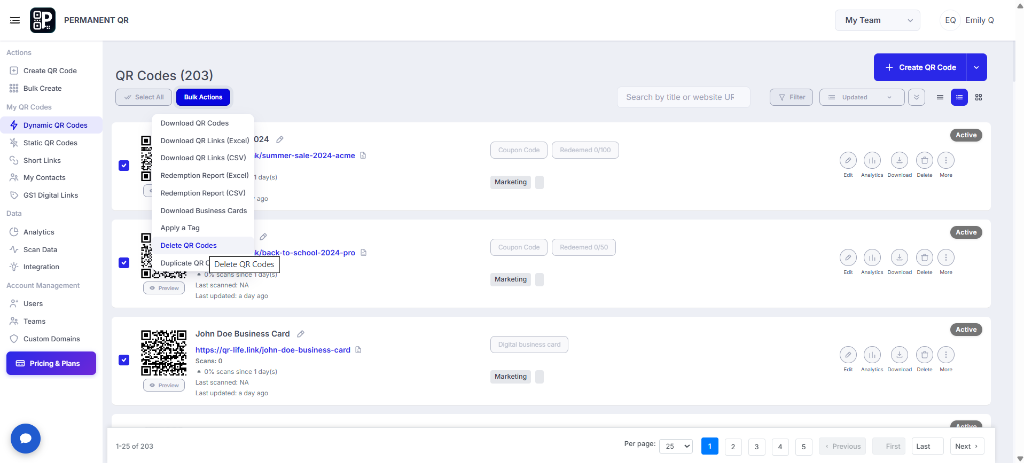
Step 2: Bulk Actions → Delete QR Codes
After selecting the QR codes, click Bulk Actions to open the available bulk management options. Select Delete QR Codes from the menu.
Step 3: Review the Deletion
A confirmation dialog will appear before the QR codes are deleted. Review the number of selected QR codes and the warning that associated analytics data will be deleted.
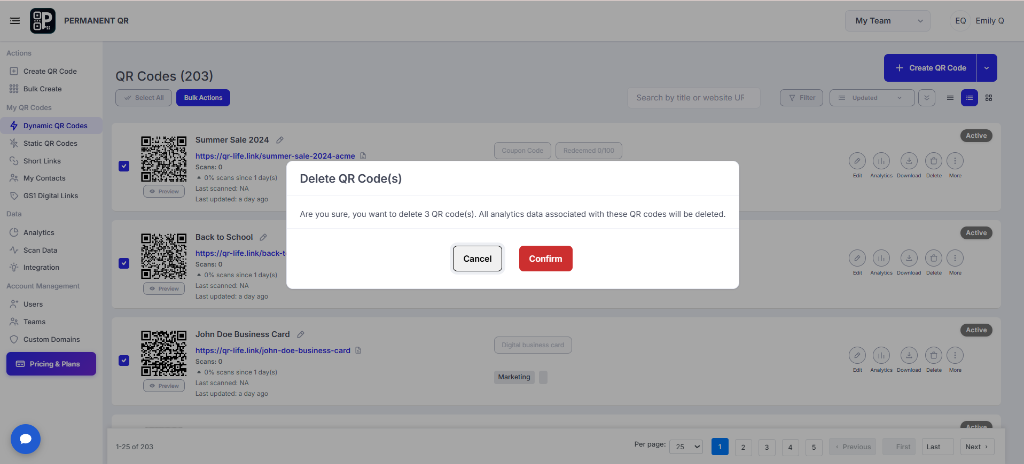
Step 4: Confirm Delete
If you are sure that the selected QR codes should be removed, click Confirm. The selected QR codes will then be deleted.
Warning:
Deletion is permanent. Make sure you have reviewed the selected QR codes before clicking Confirm.
Important: Deletion Is Permanent
Deleting QR codes is a permanent action. Before confirming the deletion, carefully review the selected QR codes and make sure they are no longer needed.
- • Review the selected QR codes before deleting them.
- • Make sure you are deleting the correct QR codes.
- • Associated analytics data may also be deleted, as shown in the confirmation message.
- • Do not click Confirm unless you are certain you want to proceed.
What Happens When You Delete QR Codes
Select
You select the QR codes that you want to remove.
Choose Delete
You open Bulk Actions and choose Delete QR Codes.
Review
A confirmation dialog shows the selected QR code count and deletion warning.
Confirm
You click Confirm to permanently delete the selected QR codes.
Before You Confirm the Deletion
Review this checklist before clicking Confirm to permanently delete QR codes:
The correct QR codes are selected.
You have reviewed the selected QR codes.
You no longer need the selected QR codes.
You understand that deletion is permanent.
You have reviewed the analytics-data warning.
You are ready to click Confirm.
Common Problems
I cannot see the Delete QR Codes option.
Solution: Make sure you have selected one or more QR codes before opening Bulk Actions.
I selected the wrong QR code.
Solution: Click Cancel in the confirmation dialog and review your selection before trying again.
I am not sure whether I should delete a QR code.
Solution: Do not confirm the deletion until you are certain that the selected QR code is no longer needed.
Common Mistakes to Avoid
❌ Selecting the wrong QR codes.
Accidentally selecting unintended QR codes from your list before opening Bulk Actions.
❌ Forgetting to review the selected QR codes.
Not checking the selected items in your list before initiating the deletion.
❌ Clicking Confirm without reading the warning.
Skipping the confirmation dialog warning about permanent deletion and analytics data.
❌ Deleting QR codes that are still being used.
Removing QR codes that are currently printed or actively deployed in live marketing materials.
❌ Assuming deleted QR codes can automatically be restored.
Do not assume deleted QR codes can automatically be restored once confirmed.
Common Uses for Bulk Deletion
Bulk deletion provides an efficient way to maintain a clean QR code list across different operational scenarios:
Remove Test QR Codes
Delete QR codes created only for testing.
Clean Up Old QR Codes
Remove QR codes that are no longer required.
Remove Unused Campaign Codes
Clean up QR codes from completed campaigns.
Organize Your QR Code List
Keep your QR code dashboard easier to manage by removing unnecessary entries.
Frequently Asked Questions
Can I delete multiple QR codes at once?
Yes. Select the QR codes you want to remove and use Bulk Actions → Delete QR Codes.
Where can I find the Delete QR Codes option?
Select one or more QR codes from your QR code list and open the Bulk Actions menu. The Delete QR Codes option will appear there.
Can I cancel the deletion?
Yes. If the confirmation dialog is open and you do not want to continue, click Cancel instead of Confirm.
What should I check before deleting QR codes?
Review the selected QR codes carefully and make sure they are no longer needed before confirming the deletion.
Will my analytics data be deleted?
The confirmation dialog shown in the product states that analytics data associated with the selected QR codes will be deleted.
Can I delete QR codes individually?
The QR code list also provides individual Delete actions. For multiple QR codes, use Bulk Actions → Delete QR Codes.
What should I do if I accidentally select the wrong QR codes?
Cancel the deletion confirmation and review your selection before attempting the deletion again.
Manage Your QR Codes Easily
Review your QR codes, remove unused entries, and keep your QR code list organized with bulk management tools.