Bulk-create business card QR codes
Create multiple Digital Business Card QR Codes at once by uploading an Excel or CSV file containing contact and business information. Choose a card template, customize your QR code design, and download your generated QR codes in bulk.
Bulk Digital Business Card QR Codes
- Create Multiple Digital Business Cards at Once: Generate digital business cards for multiple team members or staff simultaneously in a single operation.
- Upload Excel or CSV Data: Prepare and upload contact information, roles, phone numbers, and web links using an Excel or CSV file.
- Customize Your QR Code Design: Choose a card template, configure theme styles, and customize QR codes with patterns, colors, and logos.
- Download QR Codes in Bulk: Select generated QR codes and download them as a batch in your preferred format.
Before You Start
Before creating your Bulk Digital Business Card QR codes, make sure you have prepared the following items. You can use the sample Excel or CSV file provided in the Bulk Create interface as your starting template.
Excel or CSV File
A prepared Excel or CSV spreadsheet containing your Digital Business Card information.
QR Label for Each Card
A clear, unique QR label to identify each individual card in your dashboard.
Custom Short URL
Optional custom short URL slug for each card if required.
First Name and Last Name
Contact names for every digital business card recipient.
Company Name & Designation
Organization name, department, and professional job title.
Summary
A brief professional introduction or bio for the card profile.
Website URL
Company website or portfolio link for visitors to explore.
Phone Number & Email Address
Primary and office phone numbers, along with personal and work email addresses.
Address & Contact Information
Physical address, office location, and additional available contact fields.
Optional Photo URL & Pronoun
Optional profile photo link and pronoun information if supported by the template.
Permanent QR Codes Account
An active Permanent QR Codes account to upload spreadsheets and manage batches.
Smartphone for Testing
A smartphone camera to scan and test generated business cards prior to printing.
Prepare Your Digital Business Card Data
Each row in your spreadsheet represents one Digital Business Card QR Code. When preparing your data file, use the column structure provided in the downloadable sample template.
Example column names from the Bulk Create template include:
Important:
These column names are examples from the template. The available fields should match your downloaded sample file. Keep the column names and structure of the downloaded sample file unchanged when preparing the data.
| QR Label | Firstname | Lastname | Company | Designation | Phone | Website | |
|---|---|---|---|---|---|---|---|
| Alex Rivera - Card | Alex | Rivera | Acme Corp | Sales Director | +1 555-0142 | alex@acme.com | https://acme.com |
| Sarah Chen - Card | Sarah | Chen | Acme Corp | Product Manager | +1 555-0198 | sarah@acme.com | https://acme.com |
How to Create Bulk Digital Business Card QR Codes
Step 1: Select Digital Business Card
Click "Bulk Create", select "Digital Business Card" from the QR code type options, and click "Next" to continue.
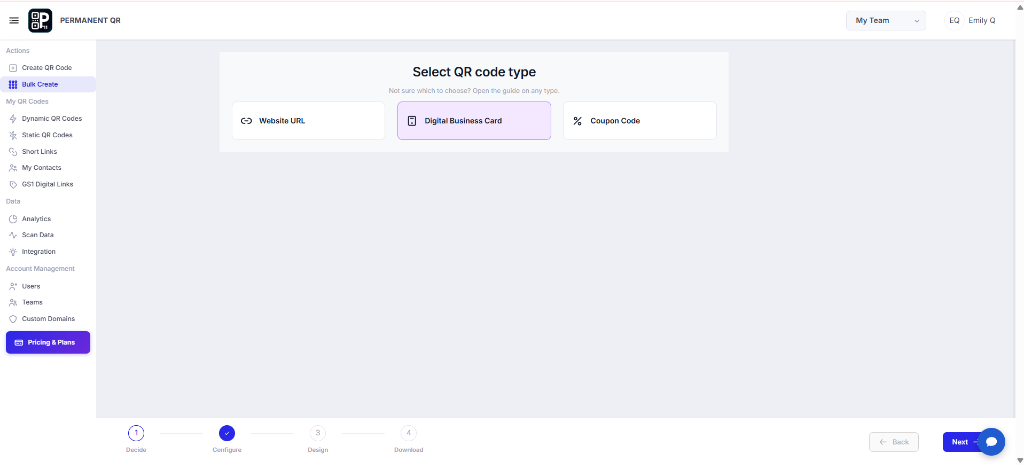
Select Digital Business Card from the Bulk Create QR code type options.
Step 2: Download the Excel or CSV File
Download the sample Excel or CSV file from the Upload File section and use it as the template for preparing your Digital Business Card data.
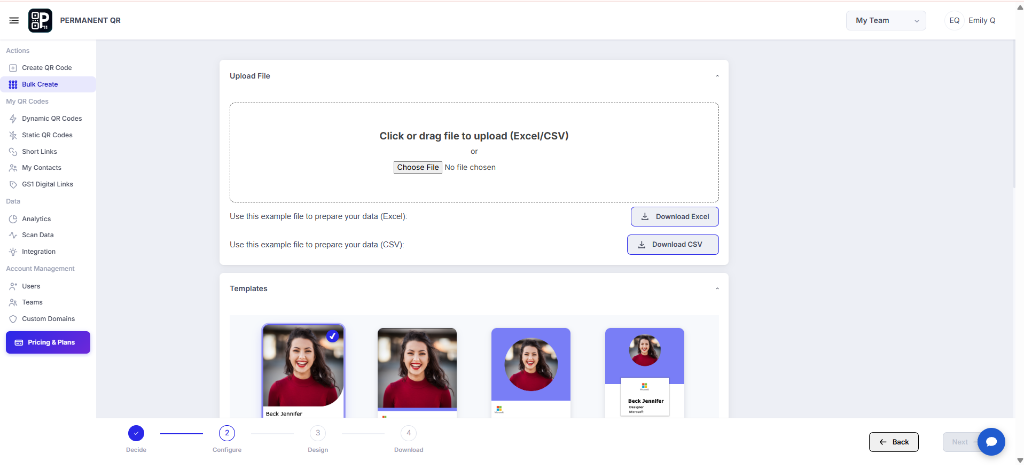
Download the sample Excel or CSV file to prepare your Digital Business Card data.
Step 3: Fill Your Digital Business Card Details
Open the downloaded file and enter the required information for each Digital Business Card. Add details such as name, company, designation, website, phone number, email, and address.
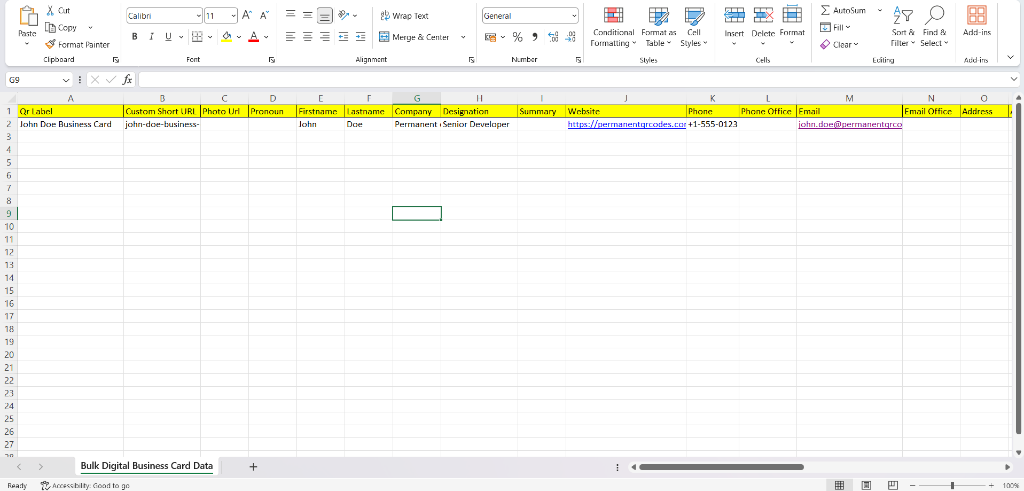
Enter the Digital Business Card details for each contact in the Excel or CSV file.
Step 4: Upload Your Excel or CSV File
Return to the Bulk Create page and upload the completed Excel or CSV file using the Upload File section.
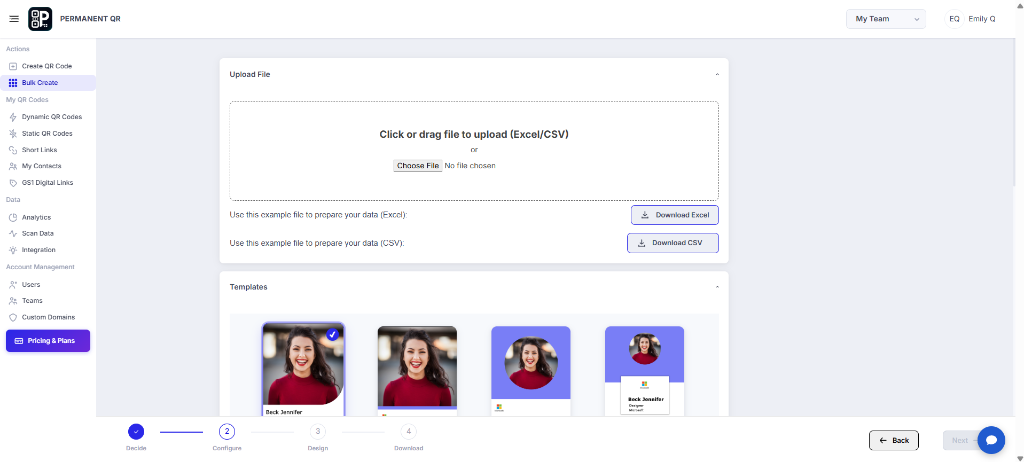
Upload the completed Excel or CSV file containing your Digital Business Card data.
Step 5: Choose a Digital Business Card Template
Select a Digital Business Card template from the available template options. The selected template determines how the business card information is displayed.
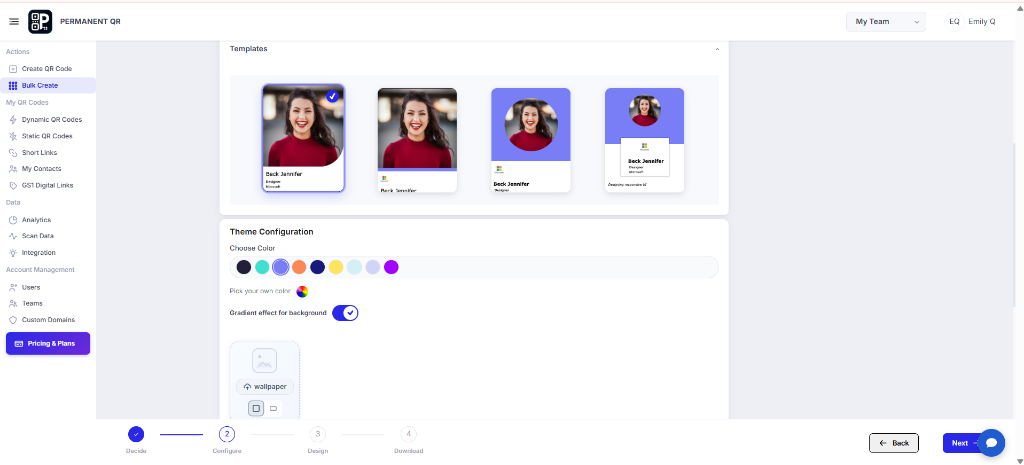
Choose a Digital Business Card template for the generated cards.
Step 6: Configure the Theme and Customize Your QR Code
Configure the available theme options such as colors and background settings, then customize your QR code using templates, logo, pattern, corners, eyes, background, frames, and QR options.
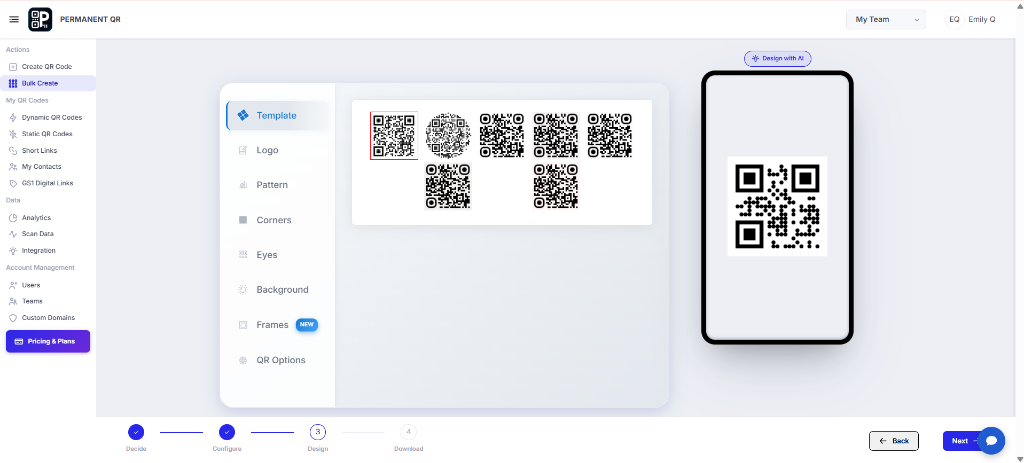
Customize the QR code design using templates, logo, patterns, corners, eyes, backgrounds, frames, and QR options.
Step 7: Select QR Codes and Use Bulk Actions
After the QR codes are generated, select the Digital Business Card QR codes you want to manage and open "Bulk Actions" to access the available download and management options.
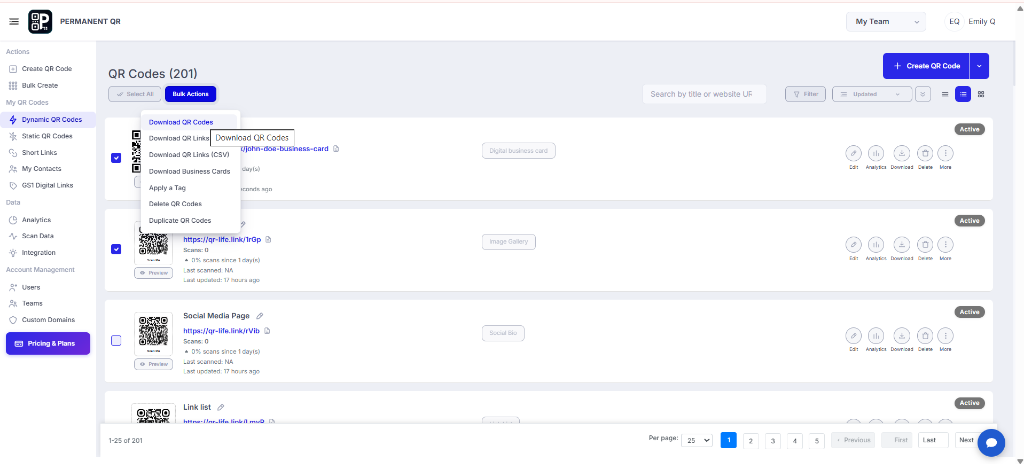
Select the generated QR codes and use Bulk Actions to download or manage them.
Step 8: Download Your Bulk Digital Business Card QR Codes
Choose the QR code size and file format, configure the available download settings, and download the selected QR codes. You can also use the Business Card (Print) option when available.
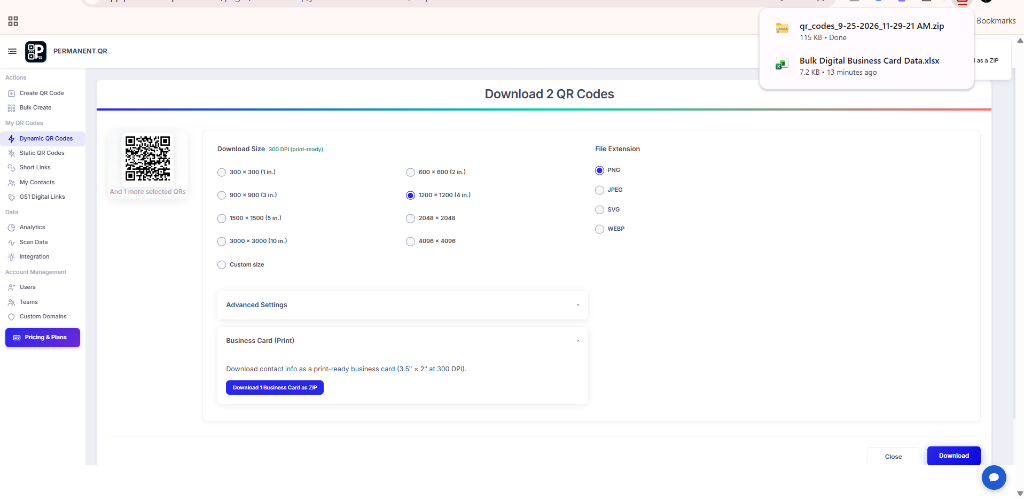
Choose the QR code size and file format, then download the selected Digital Business Card QR codes.
What Happens After You Create Bulk Digital Business Card QR Codes?
Once you upload your spreadsheet data and initiate bulk creation, the system follows this sequence:
Upload Your Data
Your Excel or CSV file is uploaded and processed.
Digital Business Cards Are Created
A Digital Business Card QR code is created for each valid row in your uploaded file.
QR Codes Are Customized
The selected template and QR code design settings are applied to the generated QR codes.
QR Codes Appear in Your Dashboard
The generated QR codes become available in the Dynamic QR Codes section.
Download Your QR Codes
Select the QR codes and use Bulk Actions to download them in your preferred format.
How to Test Your Bulk Digital Business Card QR Codes
Follow this checklist to verify your batch of Digital Business Card QR codes before sharing or printing them:
Confirm that the correct number of QR codes was generated.
Check that each QR code is associated with the correct contact.
Scan a QR code using a smartphone.
Confirm that the Digital Business Card opens correctly.
Verify the name, company, designation, phone, email, website, and other available information.
Test multiple QR codes from the generated batch.
Confirm that the downloaded QR codes scan correctly before printing or sharing.
Common Problems & Solutions
1. Excel or CSV upload fails
Solution: Check that the file format is supported and that the column structure matches the downloaded sample file.
2. Some information is missing
Solution: Check the corresponding columns and make sure the data is entered correctly in each row.
3. Incorrect information appears on a Digital Business Card
Solution: Review the row in the Excel/CSV file and confirm that each value is under the correct column.
4. QR code does not scan
Solution: Test the downloaded QR code again and make sure the QR design maintains sufficient contrast and clear scanning areas.
Common Mistakes to Avoid
❌ Changing Column Names
Changing the column names from the sample file, which causes the bulk parser to fail.
❌ Incorrect File Formatting
Uploading an incorrectly formatted Excel or CSV file that cannot be read.
❌ Misaligned Data Columns
Placing information under the wrong column, such as emails in the phone column.
❌ Incomplete Contact Details
Leaving important contact information incomplete across spreadsheet rows.
❌ Incorrect Contact or Web Details
Using incorrect website URLs or invalid phone and email contact details.
❌ Skipping Pre-Print Verification
Not checking the generated QR codes before sending them to the printer.
❌ Testing Only One Sample
Not testing multiple QR codes from the batch to ensure all entries converted properly.
Common Uses for Bulk Digital Business Card QR Codes
Sales Teams
Equip field representatives with scannable cards to connect with prospects.
Marketing Teams
Provide brand ambassadors with consistent digital contact profiles.
Employees
Deploy uniform, professional digital cards for team members across offices.
Business Development
Share comprehensive contact and partnership information at meetings.
Real Estate Teams
Provide agents with scannable profile cards for open houses and client tours.
Consultants
Distribute verified contact details and firm credentials during client engagements.
Event Teams
Enable conference hosts and organizers to exchange details instantly.
Customer Support
Give dedicated account managers direct contact channels for clients.
Recruitment Teams
Connect talent acquisition specialists with candidates at career fairs.
Company-Wide Cards
Roll out branded business cards across all departments from a single file.
Frequently Asked Questions
What is a Bulk Digital Business Card QR Code?
A Bulk Digital Business Card QR Code allows you to generate multiple digital business card QR codes at once using an Excel or CSV file, with individualized contact information for each person.
Can I create multiple Digital Business Card QR Codes at once?
Yes. The Bulk Create feature lets you upload a single spreadsheet containing multiple contacts to generate all their Digital Business Card QR codes simultaneously.
What file formats can I upload?
The Bulk Create interface supports Excel (.xlsx) and CSV (.csv) file uploads formatted according to the downloaded sample template.
What information can I include in the Digital Business Card?
You can include contact details such as first and last name, company, designation, summary, website, phone numbers (mobile and office), email addresses (personal and office), address, and optional photo URL or pronouns if supported by the template.
Can I customize the QR code design?
Yes. You can customize the theme colors and background settings for the card, and customize the QR code design using templates, logo, pattern, corners, eyes, background, frames, and QR options.
Can I download multiple Digital Business Card QR Codes at once?
Yes. After the QR codes are generated, you can select multiple QR codes and use Bulk Actions to download them in bulk in your preferred size and file format.
Can I print the Digital Business Cards?
Yes. You can download the generated QR codes for printing, and you can also use the Business Card (Print) option when available in the interface.
Create Your Bulk Digital Business Card QR Codes Today
Create multiple Digital Business Card QR Codes from one Excel or CSV file, customize their design, and download them in bulk.