Manage saved contacts
My Contacts helps you collect and manage leads from your Digital Business Card QR Codes. When someone scans your Digital Business Card and uses Exchange Contact to share their details, the information appears in your My Contacts area.
How Does My Contacts Work?
The lead collection workflow connects your Digital Business Card QR Code directly with your dashboard contacts repository:
Open My Contacts
Open My Contacts from your Permanent QR Codes account.
Share QR Code
Share your Digital Business Card QR Code with contacts.
Visitor Scans
A visitor scans the QR Code and opens your Digital Business Card.
Exchange Contact
The visitor taps Exchange Contact and submits their details.
Lead Appears
The submitted lead appears in your My Contacts / Leads area.
Before You Start
Before starting with My Contacts and lead collection, make sure you have the following:
A Permanent QR Codes account
Sign in to your Permanent QR Codes account or create an account to access your dashboard.
A Digital Business Card QR Code
Create a Digital Business Card QR Code to enable the Exchange Contact feature.
A smartphone or device for testing the Digital Business Card
Use any camera-enabled smartphone or tablet to scan and view the business card page.
Contact information to use for testing the Exchange Contact workflow
Prepare sample information (name, test email, sample phone number) for end-to-end testing.
How to Use My Contacts (5 Steps)
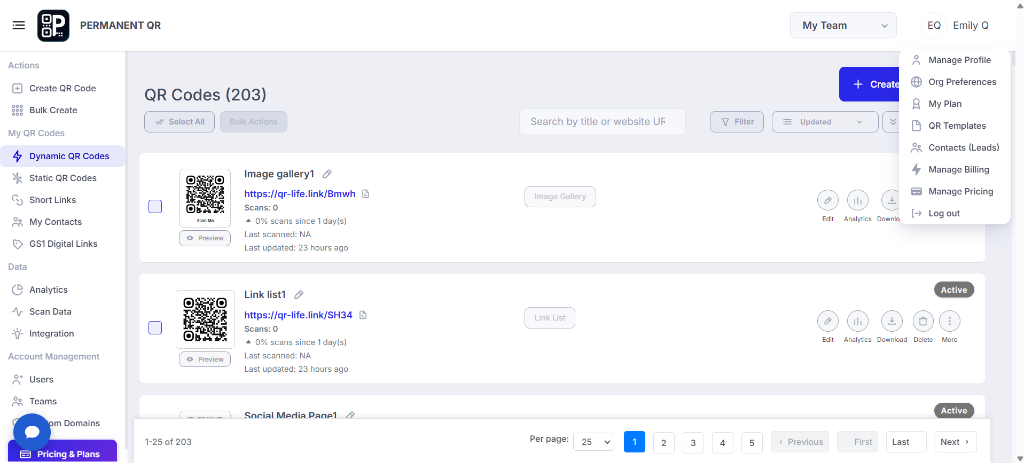
Step 1: Open My Contacts
Open your Permanent QR Codes account and select My Contacts from the account menu or the My Contacts option in the dashboard navigation.
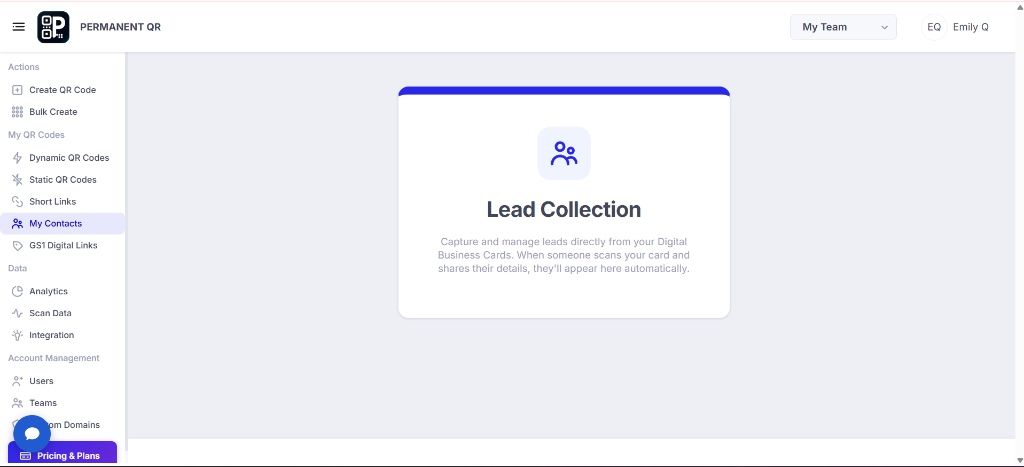
Step 2: View Your My Contacts Page
When no leads have been collected yet, the My Contacts page displays the Lead Collection empty state. Contacts will appear here after someone shares their details through your Digital Business Card.
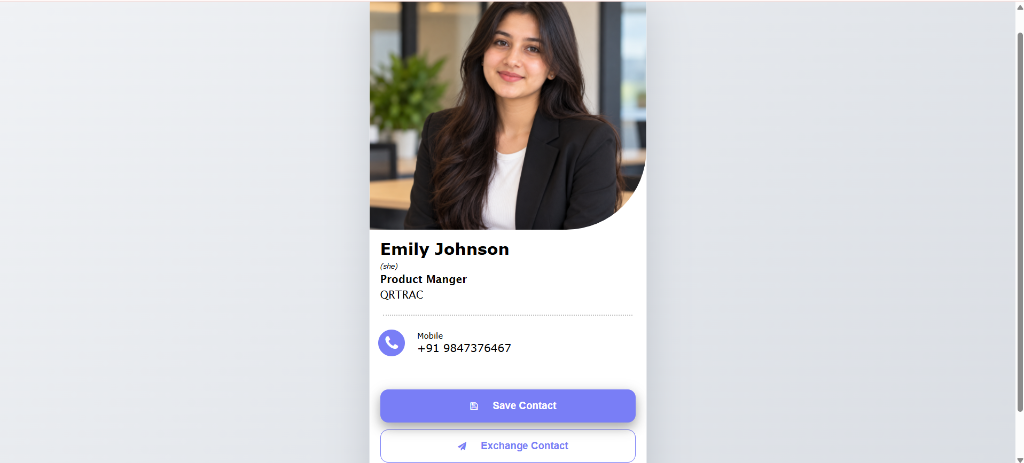
Step 3: Open the Digital Business Card
When someone scans your Digital Business Card QR Code, they can view your profile and choose how they want to interact with your contact information. They can select Save Contact or Exchange Contact.
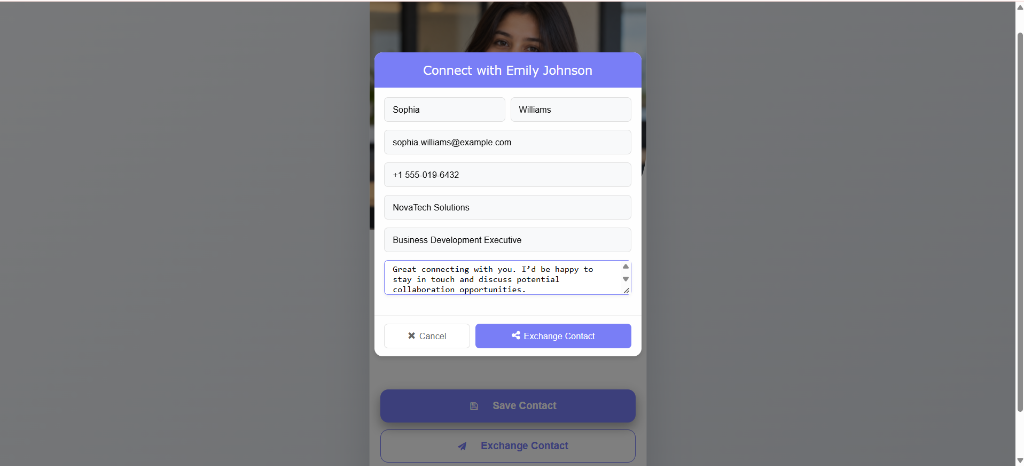
Step 4: Exchange Contact Details
After the visitor selects Exchange Contact, they can enter their contact information and submit it to the Digital Business Card owner.
Available Form Fields:
- • First name
- • Last name
- • Email address
- • Phone number
- • Company
- • Designation
- • Additional notes
The form includes two submission controls: Exchange Contact and Cancel.
Step 5: View Your Collected Leads
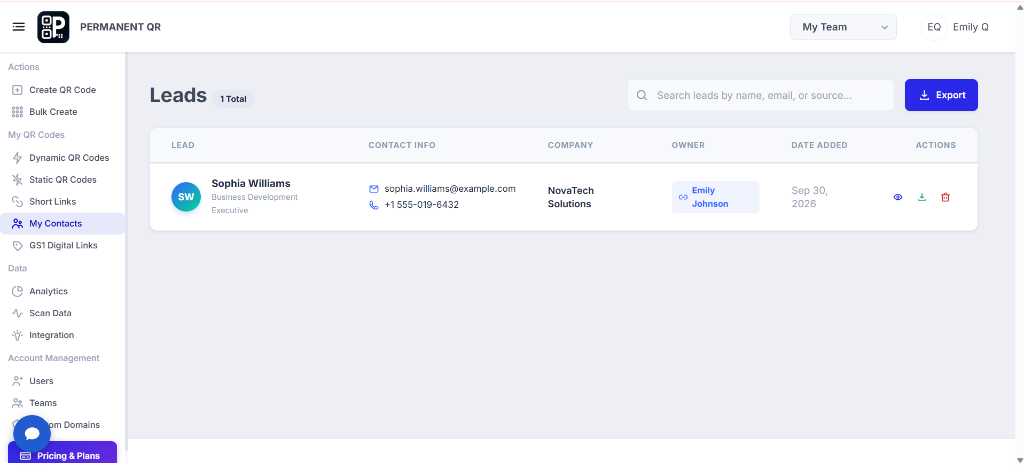
After the visitor submits the Exchange Contact form, the submitted information appears in the Leads section of My Contacts. You can review the contact information and use the available export option to manage your collected leads.
What Happens After Someone Exchanges Contact Details?
Here is the sequential progression when an individual shares their details through your Digital Business Card:
Visitor Scans Your Digital Business Card
A visitor scans your Digital Business Card QR Code and opens your profile.
Visitor Selects Exchange Contact
The visitor chooses Exchange Contact from your Digital Business Card.
Visitor Enters Their Details
The visitor enters their name, email, phone, company, designation, and available notes.
Contact Is Submitted
The visitor submits the Exchange Contact form.
Lead Appears in My Contacts
The submitted contact appears in your Leads list inside My Contacts.
My Contacts and Lead Ownership
Account-Specific Contacts
Contacts collected through the Digital Business Card workflow appear in the My Contacts / Leads area associated with the account that owns the Digital Business Card.
How to Test My Contacts
Follow these concise instructions to test and verify your lead collection workflow:
Open your Digital Business Card QR Code.
Scan the QR Code using a phone.
Select Exchange Contact.
Enter sample contact information.
Submit the Exchange Contact form.
Return to My Contacts.
Confirm that the submitted contact appears in the Leads list.
Common Problems & Solutions
Problem: No contact appears in My Contacts.
Solution: Confirm that the Exchange Contact form was submitted successfully and refresh the My Contacts / Leads page.
Problem: The Digital Business Card does not show Exchange Contact.
Solution: Confirm that you are testing the correct Digital Business Card QR Code and review the available card settings.
Problem: The contact information is incorrect.
Solution: Ask the visitor to submit the Exchange Contact form again with the correct information.
Problem: I cannot find My Contacts.
Solution: Open the Permanent QR Codes dashboard and look for My Contacts in the account navigation.
Common Mistakes to Avoid
❌ 1. Testing with incomplete contact information
Submitting without filling in required details when checking the user experience.
❌ 2. Forgetting to submit the Exchange Contact form
Closing the browser window or tapping cancel before clicking Exchange Contact.
❌ 3. Testing a different QR Code instead of the Digital Business Card
Scanning a standard URL or static QR code which does not support contact exchange.
❌ 4. Not checking the Leads page after submitting test information
Assuming the test was received without verifying its appearance in the dashboard list.
❌ 5. Using real personal information when testing
Entering sensitive personal records instead of disposable test details during initial trials.
Common Uses for My Contacts
My Contacts helps streamline contact and lead collection across varied in-person and digital settings:
Networking Events
Exchange contact details seamlessly with attendees and professionals.
Business Conferences
Gather peer connections and attendee contact details efficiently.
Sales Meetings
Capture prospect information instantly during direct conversations.
Client Networking
Receive contact info from clients and stakeholders on the spot.
Trade Shows
Collect booth visitor details without manual business card transcription.
Business Development
Build and maintain prospective partnership contacts easily.
Customer Follow-Up
Record accurate customer details for timely post-meeting engagement.
Professional Networking
Grow your professional network with structured, verifiable contact data.
Frequently Asked Questions
What is My Contacts?
My Contacts is the area where contact details submitted through the Digital Business Card Exchange Contact workflow can be viewed and managed.
How do contacts get added to My Contacts?
A visitor scans your Digital Business Card, selects Exchange Contact, enters their information, and submits the form.
Which QR Code is used for contact collection?
The workflow described on this page uses a Digital Business Card QR Code.
What information can a visitor submit?
The supplied Exchange Contact form includes first name, last name, email, phone number, company, designation, and additional notes.
Where can I see collected contacts?
Collected contacts appear in the My Contacts area under the Leads section.
Can I search my collected leads?
The Leads screen shown in the Permanent QR Codes interface includes a search field for searching leads by name, email, or source.
Can I export my contacts?
The Leads screen includes an Export option for managing the collected lead information.
Start Collecting Contacts with a Digital Business Card
Create a Digital Business Card QR Code and make it easier for people to exchange their contact details with you.