Bulk-create website URL QR codes
Create multiple Website URL QR Codes at once by uploading an Excel or CSV file containing your website URLs. Customize the QR code design and download your generated QR codes in bulk.
Bulk Website URL QR Codes:
- Create Multiple QR Codes at Once: Generate a full batch of Website URL QR codes simultaneously in a single operation.
- Upload Excel or CSV Data: Prepare and upload your spreadsheet containing labels, custom short URLs, and target website links.
- Download QR Codes in Bulk: Customize your QR designs and download all generated codes in bulk as a batch.
Before You Start
Before creating your Bulk Website URL QR codes, prepare the following items:
Excel or CSV File
An Excel or CSV file containing your website URL data.
Unique QR Label
A clear, unique QR label for each QR code to identify your codes.
Website URL
A valid destination website URL for each QR code entry.
Optional Custom Short URL
Optional custom short URL values if supported by the interface.
Permanent QR Codes Account
Access to your Permanent QR Codes account to upload and manage batches.
Smartphone for Testing
A smartphone camera for testing the generated QR codes before printing.
Prepare Your Bulk Website URL Data
The bulk workflow uses an Excel or CSV file. Based on the interface, the example file contains the following data columns:
- QR Label: The descriptive name for the QR code.
- Custom Short URL: An optional customized path slug.
- Website URL: The destination web address scanners will be directed to.
| QR Label | Custom Short URL | Website URL |
|---|---|---|
| Company Website | permanent-qrcodes | https://permanentqrcodes.com/ |
How to Create Bulk Website URL QR Codes
Step 1: Select Website URL
Open Bulk Create and select Website URL as the QR code type.
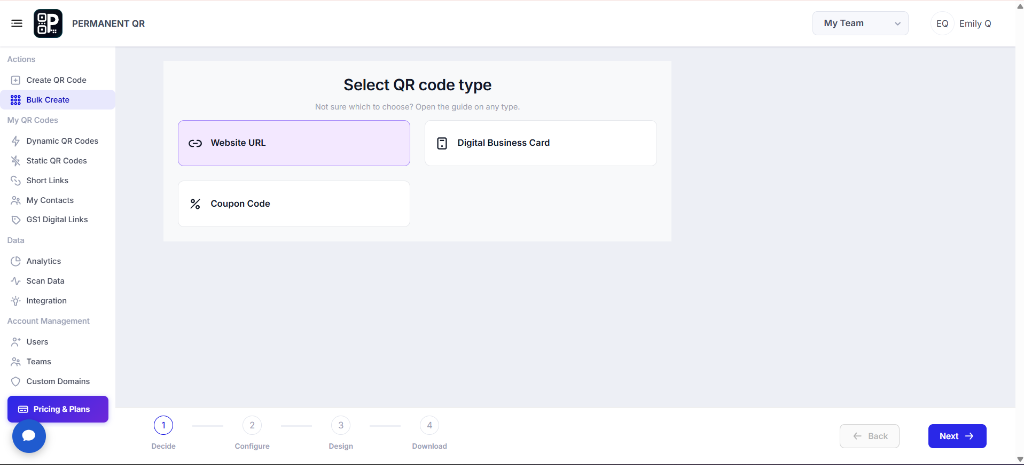
Select Website URL from the available QR code types in Bulk Create.
Step 2: Upload Your Excel or CSV File
Upload your prepared Excel or CSV file containing the website URL data. You can also select the custom domain used for your QR codes.
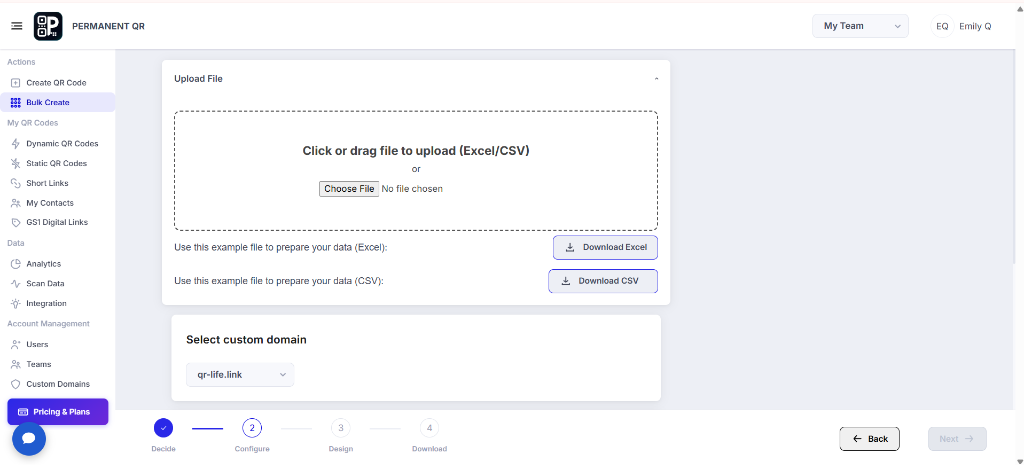
Upload your Excel or CSV file and select the available custom domain.
Step 3: Prepare Your Bulk Website URL Data
Prepare the spreadsheet with the QR label, custom short URL, and website URL for each QR code.
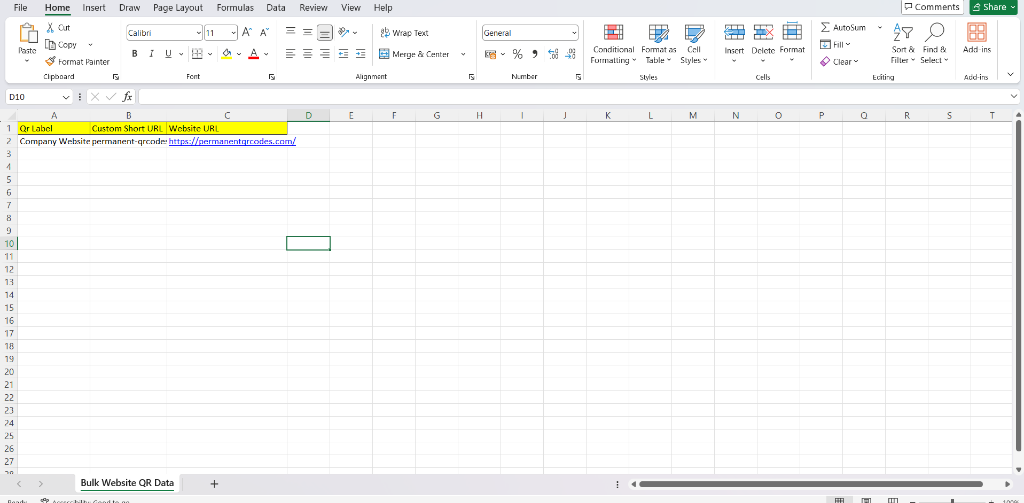
Prepare the bulk data with the QR label, custom short URL, and website URL.
Step 4: Customize Your QR Code Design
Customize the QR code design using available templates, logos, patterns, corners, eyes, backgrounds, frames, and QR options.
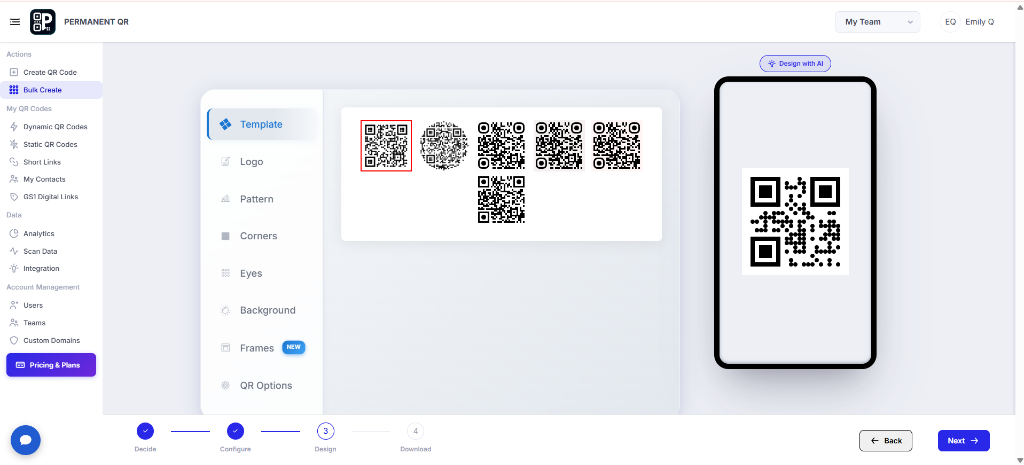
Customize the QR code design using the available design options.
Step 5: Select QR Codes and Use Bulk Actions
After the QR codes are generated, select the QR codes you want to manage and use the available Bulk Actions options.
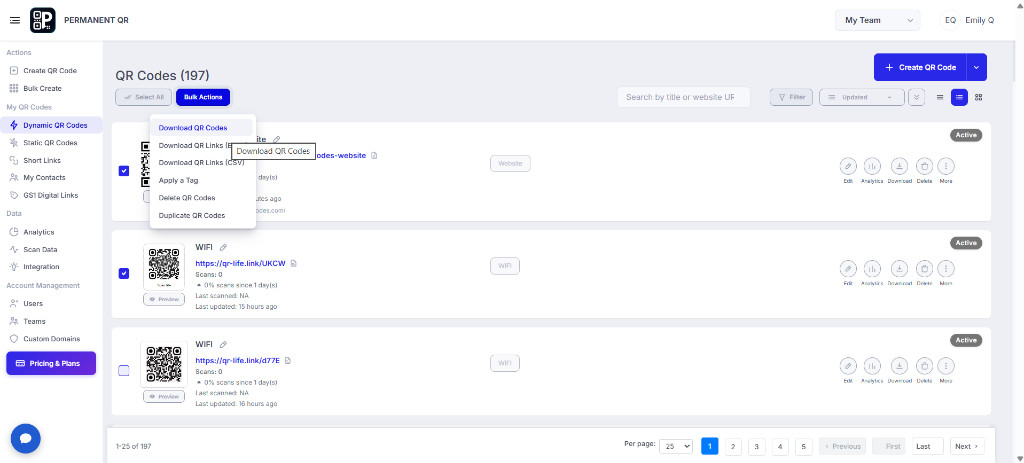
Select QR codes and use the available Bulk Actions options to manage them.
Step 6: Download Your Bulk QR Codes
Choose the QR codes you want to download, select the available download settings, and download the QR codes as a batch.
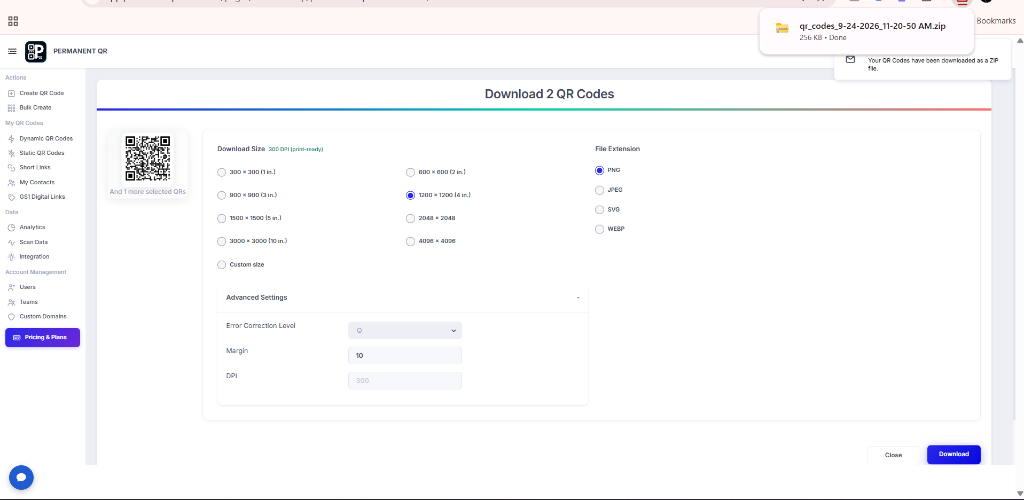
Choose the QR code size and file format, then download the selected QR codes.
What Happens After You Create Bulk Website URL QR Codes?
Once you upload your spreadsheet data and initiate bulk creation, the system follows this sequence:
Bulk Data Is Processed
The uploaded spreadsheet data is processed to create the requested Website URL QR codes.
QR Codes Are Generated
A QR code is created for each valid website URL entry.
QR Codes Are Added to Your Account
The generated QR codes become available in your QR code management area.
QR Codes Can Be Managed in Bulk
Select QR codes and use the available bulk management actions.
QR Codes Can Be Downloaded
Download selected QR codes using the available download options.
How to Test Your Bulk Website URL QR Codes
Follow these testing steps to verify your batch of Website URL QR codes before using them:
Confirm that the upload completed successfully
Verify that the expected QR codes were generated
Open the generated QR code preview
Scan each QR code with a smartphone
Confirm that the correct website opens
Check that the QR code is readable
Test the QR codes before printing or distributing them
Common Problems & Solutions
1. Excel or CSV file cannot be uploaded
Solution: Check that the file is in a supported Excel or CSV format and that the data is prepared correctly.
2. A website URL does not work
Solution: Check the URL in the spreadsheet and make sure it points to the intended website.
3. Some QR codes were not generated
Solution: Review the uploaded data for missing or invalid values and correct the affected rows.
4. Downloaded QR code does not scan
Solution: Make sure the QR code is not cropped or distorted and test it again using a smartphone.
Common Mistakes to Avoid
❌ Incorrect File Formatting
Uploading an incorrectly formatted file that the parser cannot process.
❌ Incorrect Website URLs
Entering incorrect website URLs or broken links in your spreadsheet.
❌ Empty Required Data
Leaving required data empty in individual rows of your spreadsheet.
❌ Invalid Short URL Values
Using invalid short URL values containing unsupported special characters.
❌ Skipping Code Review
Not reviewing the generated QR codes in your management area before deployment.
❌ Skipping Pre-Print Testing
Not testing the QR codes before printing or mass distributing them.
❌ Downloading Wrong QR Codes
Downloading the wrong QR codes from a large batch without verifying selections.
Common Uses for Bulk Website URL QR Codes
1. Product Packaging
Link packages to product-specific webpages.
2. Marketing Campaigns
Deploy distinct URLs across promotional channels.
3. Retail Materials
Label retail products and store shelves.
4. Business Cards
Generate individualized team business card links.
5. Event Materials
Route attendees to session and booth pages.
6. Product Catalogs
Direct readers from print catalogs to web stores.
7. Printed Advertising
Connect magazine and billboard ads to specific sites.
8. Store Displays
Provide instant website info on in-store stands.
9. Promotional Materials
Add scannable web links to flyers and brochures.
10. Multiple Website Campaigns
Manage links for multi-brand or multi-site campaigns.
Frequently Asked Questions
What are Bulk Website URL QR Codes?
Bulk Website URL QR Codes allow you to create multiple QR codes for different website URLs using a single bulk workflow.
What file formats can I upload?
The Bulk Create interface shown in this guide supports Excel and CSV file uploads.
What information should my spreadsheet contain?
Prepare the data according to the example file provided by the Bulk Create interface. The example shown includes QR Label, Custom Short URL, and Website URL.
Can I customize the QR codes?
Yes. The design step provides available QR code customization options such as templates, logos, patterns, corners, eyes, backgrounds, frames, and QR options.
Can I create multiple QR codes at once?
Yes. The bulk workflow is designed to process multiple Website URL entries together.
Can I download multiple QR codes?
Yes. After selecting the QR codes, you can use the available download workflow to download them as a batch.
Can I manage the generated QR codes later?
Yes. Generated QR codes can be accessed from the QR code management area and managed using the available actions.
Create Your Bulk Website URL QR Codes Today
Create multiple Website URL QR codes from a single Excel or CSV file and manage your QR codes from one place.