Restaurant Menu QR code setup
A Restaurant Menu QR Code allows restaurants, cafes, food businesses, and other hospitality businesses to provide customers with a mobile-friendly digital menu. Customers can scan the QR code from any smartphone camera to browse menu categories, view dishes and prices, place orders, and access restaurant contact details instantly.
Editable Permanent Restaurant Menu QR Code:
- $49 One-Time Payment: Pay once and own your QR code forever with no monthly or annual subscription fees.
- Editable Restaurant Menu: Update restaurant information, menu items, prices, contact details, and other content without reprinting the QR code.
- Unlimited Scans: No scanning limits, no scan quotas, and no expiration date.
Before You Start
Before creating your Restaurant Menu QR Code, make sure you have gathered:
- Restaurant name and short description: Your dining establishment's name and a welcoming introduction or summary.
- Restaurant logo or branding image: High-resolution logo or banner graphic to display at the top of your menu.
- Menu categories and menu items: Organized food and beverage sections (e.g., Starters, Mains, Desserts, Drinks) and item names.
- Item prices and dietary information: Item pricing and dietary tags such as Veg/Non-Veg where applicable.
- Contact information: Essential contact details including phone number, email address, website, or physical address.
- Ordering platform links: Direct URLs to ordering platforms such as Zomato or Swiggy, if applicable.
- Social media profile links: Profiles for Instagram, Facebook, or other channels, if applicable.
- Smartphone for testing: A physical mobile device to scan and verify the live digital menu before printing.
- Permanent QR Codes account: Sign in to your Permanent QR Codes account to create and manage your editable QR code.
Step 1: Select Restaurant Menu QR Code
Log in to your Permanent QR Codes account, select Create QR Code, and choose Restaurant Menu from the available QR code types.
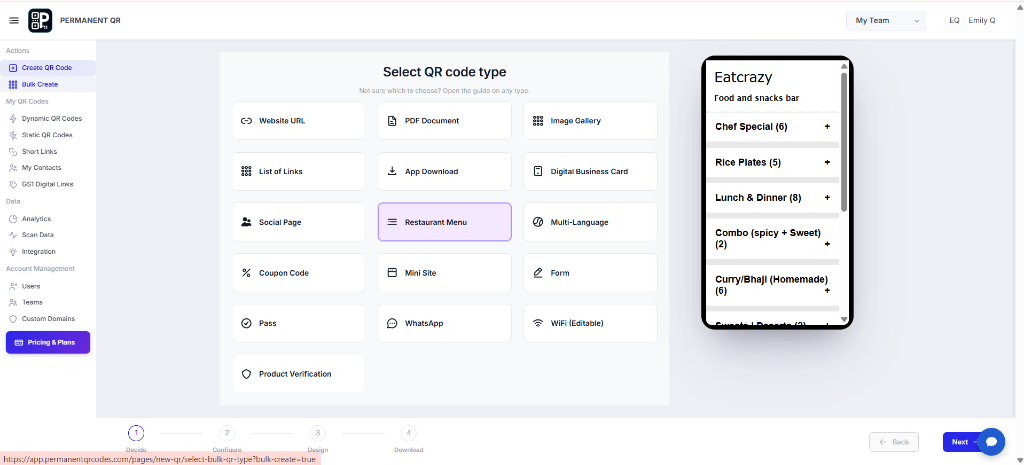
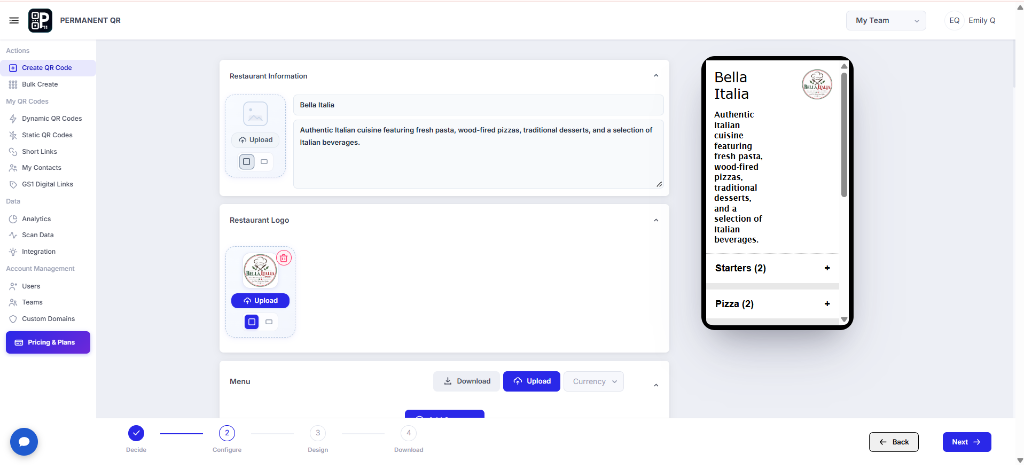
Step 2: Add Restaurant Information
Enter your restaurant name and description, then upload your restaurant logo if needed.
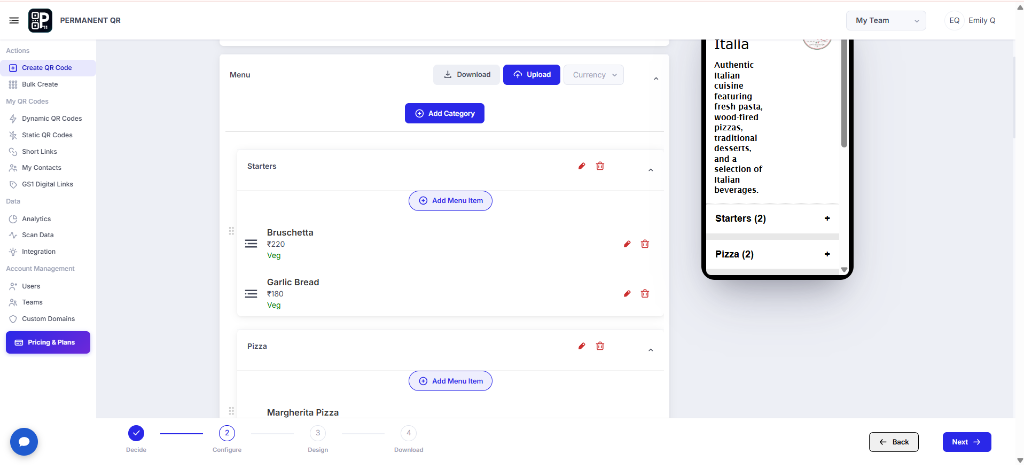
Step 3: Add Menu Items
Create menu categories and add individual items with prices and dietary information.
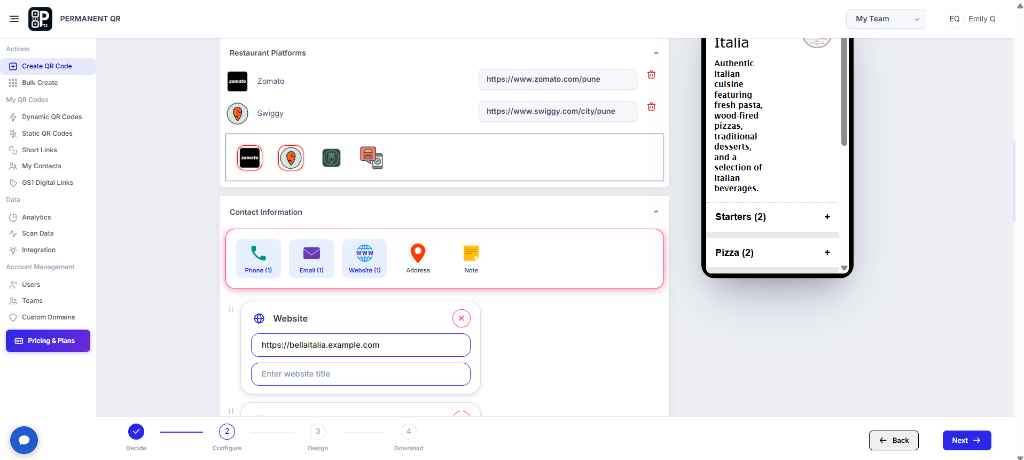
Step 4: Add Contact Information
Add your restaurant website, phone number, email, address, and other contact details.
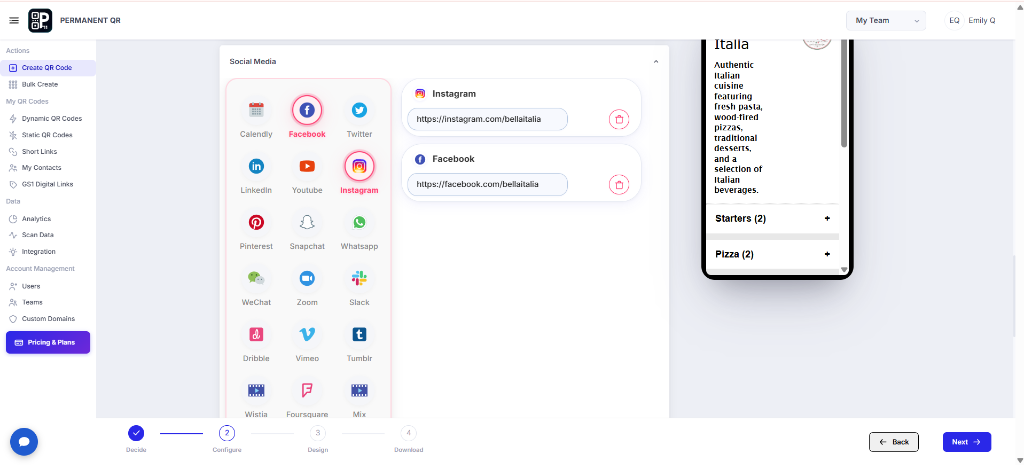
Step 5: Add Social Links
Add your restaurant's social media links, such as Instagram and Facebook, to your digital menu.
Step 6: Customize Your QR Code
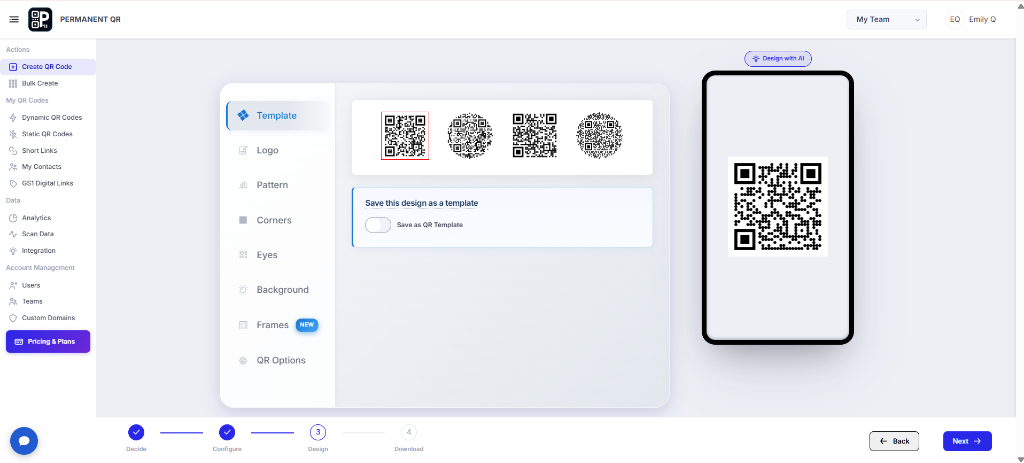
Customize the QR code using templates, logo, pattern, corners, eyes, background, frames, and QR options.
- Template
- Logo
- Pattern
- Corners
- Eyes
- Background
- Frames
- QR Options
Ensure high contrast between the QR code pattern and background for quick scanning under restaurant and ambient lighting.
Step 7: Download Your QR Code
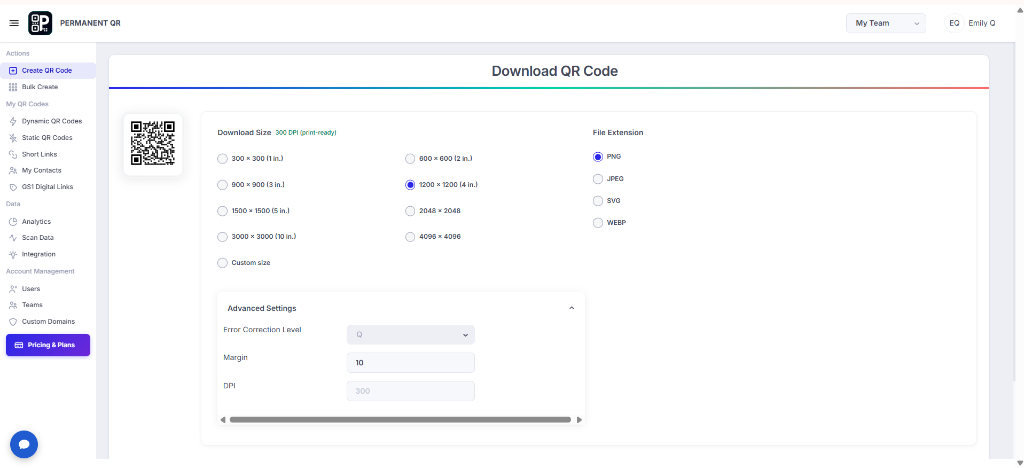
Select the required QR code size and file format, then download your QR code.
What Happens After Someone Scans a Restaurant Menu QR Code?
Scanning your Restaurant Menu QR Code gives customers an intuitive, seamless dining experience:
Scan the QR Code
Customer scans the Restaurant Menu QR Code using a smartphone.
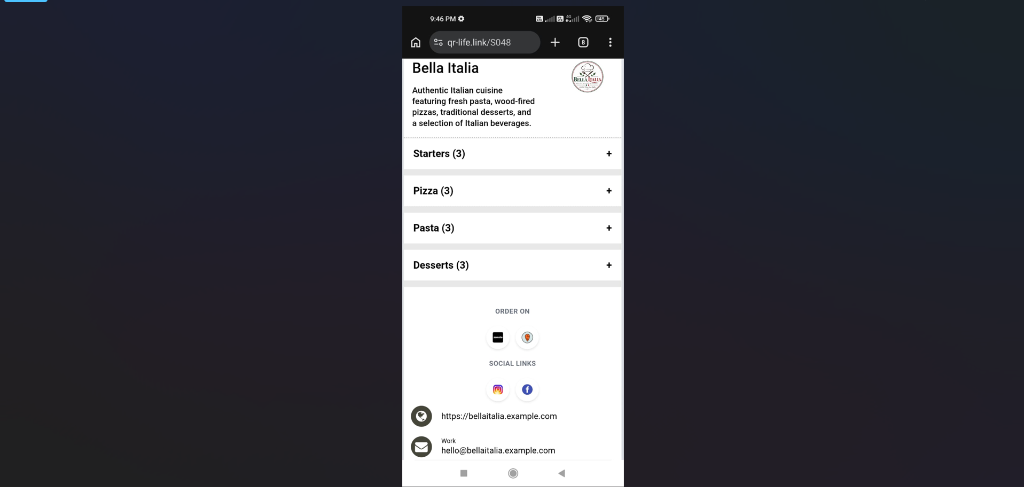
Restaurant Menu Opens
The digital restaurant menu opens in the customer's browser.
Browse Categories
Customers can view categories and menu items.
View Ordering and Contact Options
Customers can access ordering platforms, social links, website, phone, email, or address.
Choose What to Order
Customers can review the menu and use the available restaurant options to place an order or contact the restaurant.
Test Your Restaurant Menu QR Code
Ensure a frictionless ordering and browsing journey for diners with this testing checklist:
Scan the QR code with a real smartphone.
Confirm the restaurant name and description are correct.
Check all menu categories and items.
Verify prices and dietary information.
Test website, phone, email, and address links.
Test Zomato/Swiggy or other ordering links.
Check social media links.
Verify the menu displays correctly on mobile.
Common Problems & Solutions
1. Restaurant Menu Does Not Open
Solution: Check the QR code and scan it again using a smartphone camera.
2. Menu Information Is Incorrect
Solution: Open the QR code campaign and update the restaurant information.
3. Menu Items or Prices Are Missing
Solution: Check the relevant category and menu item settings.
4. Ordering or Contact Link Does Not Work
Solution: Verify the URL, phone number, email, or address entered in the contact/order section.
5. QR Code Will Not Scan
Solution: Check the QR code contrast, print quality, size, and test it on a real smartphone.
Common Mistakes to Avoid
❌ Incorrect Restaurant Information
Publishing outdated opening hours, typos in the restaurant name, or an incorrect physical address.
❌ Missing Menu Items
Forgetting popular dishes, seasonal specials, or beverage categories from your digital menu.
❌ Incorrect Prices
Displaying outdated item prices that do not match in-store billing or register totals.
❌ Broken Ordering Links
Entering incorrect or expired URLs for Zomato, Swiggy, or online ordering portals.
❌ Low QR Code Contrast
Using faint or pastel patterns on light backgrounds that camera lenses cannot detect under dining room lighting.
❌ Skipping Real-Device Testing
Printing table displays without scanning the final physical code on both iOS and Android smartphones.
Common Uses
Restaurants
Place on dining tables, counter stands, and entry hosts for dine-in guests to explore dishes easily.
Cafes
Display on counters, takeaway cups, and table tents for quick access to drinks, pastries, and snacks.
Food Trucks
Feature on order windows, curbside stands, and vehicle banners to speed up queue ordering on the go.
Hotels
Provide in-room dining menus, poolside refreshments, and lobby bar selections directly to guest devices.
Bars & Lounges
Add to drink coasters, bar tops, and booth cards so patrons can view cocktail lists and appetisers.
Takeaway & Delivery Businesses
Print on delivery bags, takeout boxes, and promo flyers to drive repeat orders and direct customer engagement.
Frequently Asked Questions
What is a Restaurant Menu QR Code?
A Restaurant Menu QR Code is an editable digital QR code that allows restaurants, cafes, and hospitality businesses to share their complete menu, prices, ordering links, and contact information with customers through a fast smartphone scan.
Can I update my restaurant menu after creating the QR code?
Yes. Because Permanent QR Codes are editable, you can update restaurant information, add or edit menu items, change prices, and adjust contact details at any time from your dashboard without reprinting the physical QR code.
Can I add prices to menu items?
Yes. You can add prices, detailed descriptions, and dietary labels such as Veg, Non-Veg, or special dietary information for every individual menu item.
Can I add ordering links such as Zomato or Swiggy?
Yes. You can include direct links to third-party ordering platforms like Zomato, Swiggy, or your own direct online ordering website.
Can I add my restaurant logo?
Yes. You can upload your restaurant logo or branding image to display on your digital menu landing page as well as embed it directly into the center of your QR code.
Does the Restaurant Menu QR Code expire?
No. Permanent QR Codes never expire. A single $49 one-time payment provides permanent hosting, unlimited scans, and zero recurring monthly or annual subscription fees.
Can customers use the QR code without installing an app?
Yes. Customers simply point their default smartphone camera at the QR code to open the digital menu immediately in their mobile browser without downloading any application.
Create Your Restaurant Menu QR Code
Create a Restaurant Menu QR Code and let customers access your digital menu with one scan.