Tag codes in bulk
Bulk tagging helps you organize multiple QR codes at once. Select the QR codes you want to manage, choose Apply a Tag from Bulk Actions, and save your tag.
Organize Your QR Codes with Bulk Tagging
Apply tags to multiple QR codes to make them easier to identify and manage.
Organize Multiple QR Codes
Group campaigns, events, products, or departments together across your list.
Apply Tags in Bulk
Assign a single tag to many QR codes simultaneously using one simple action.
Manage QR Codes Easily
Quickly filter, identify, and categorize codes in your dashboard without altering scan destinations.
Before You Start
Before using bulk tagging, ensure you have completed the following steps:
Sign In to Your Account
Sign in to your Permanent QR Codes account.
Open Your QR Codes List
Open your QR Codes list in your management dashboard.
Available QR Codes
Make sure the QR codes you want to tag are available.
Decide on a Tag
Decide which tag you want to apply across the selected codes.
How to Bulk Tag QR Codes
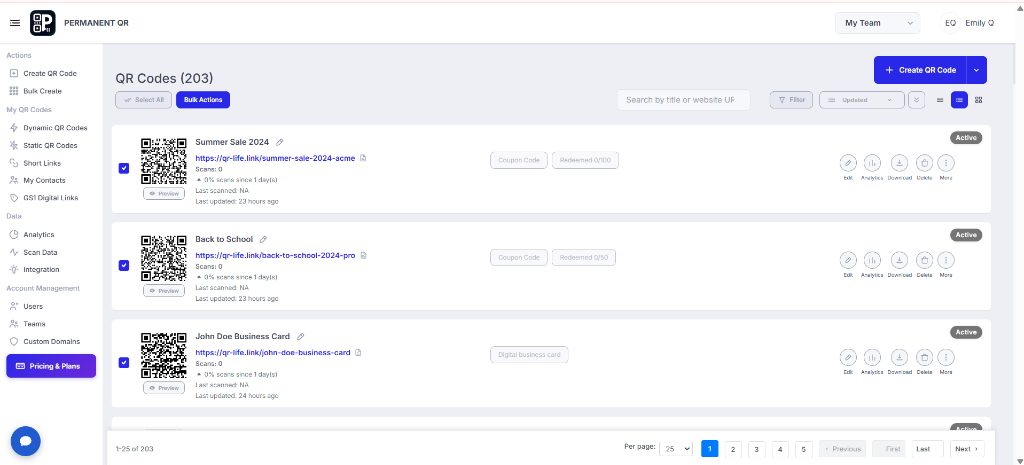
Step 1: Select the QR Codes
Open your QR Codes list and use the checkboxes to select the QR codes you want to tag.
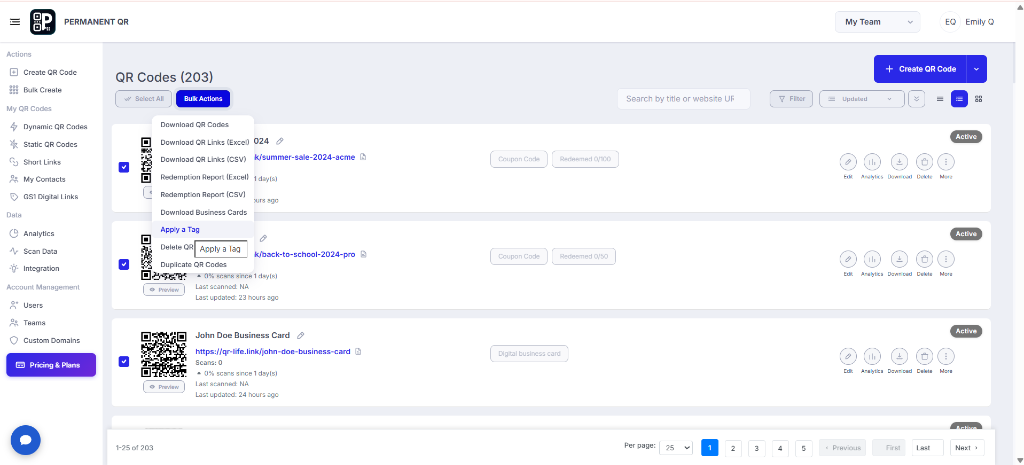
Step 2: Bulk Actions → Apply a Tag
Click Bulk Actions and select Apply a Tag from the dropdown menu.
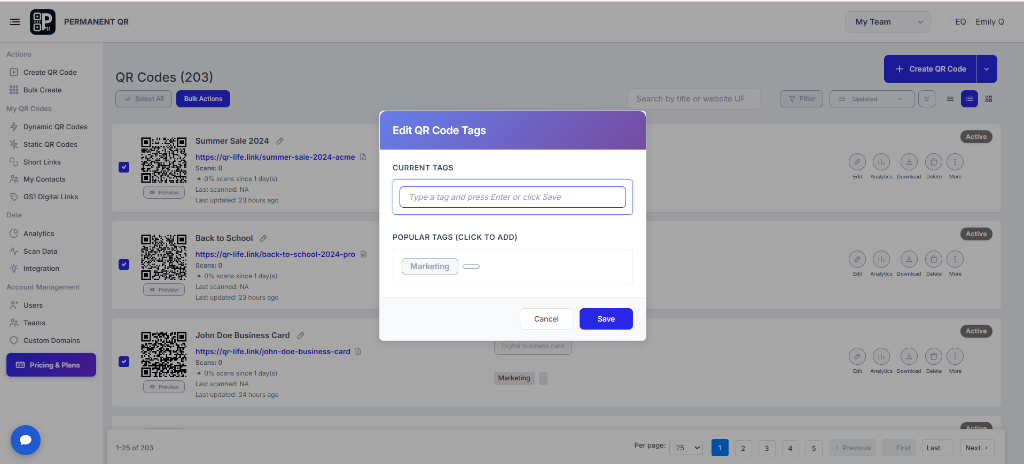
Step 3: Add or Select a Tag and Save
In the Edit QR Code Tags window, enter a new tag or select an available popular tag. Then click Save to apply it to the selected QR codes.
Edit QR Code Tags Window Elements:
- Edit QR Code Tags: The popup modal header for updating tags on your selected codes.
- CURRENT TAGS: Displays existing tags currently assigned to the selected QR codes.
- POPULAR TAGS (CLICK TO ADD): A list of frequently used tags you can click to add immediately.
- Save: Click to confirm and apply the tag to all selected QR codes.
- Cancel: Click to close the window without saving any changes.
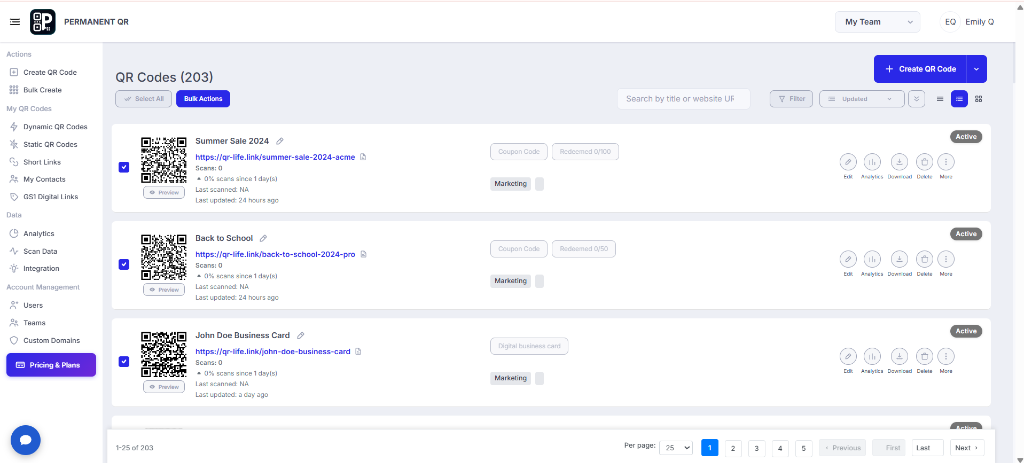
Step 4: Verify the Applied Tag
Return to the QR Codes list and confirm that the tag appears on the selected QR codes.
What Happens After You Apply a Tag?
Select QR Codes
Choose the QR codes you want to organize.
Apply a Tag
Open Bulk Actions and choose Apply a Tag.
Add and Save
Enter or select a tag and click Save.
Verify the Tag
Check that the tag appears on the selected QR codes.
Note: Tags help organize QR codes in your QR code management list. Applying a tag does not change the QR code destination.
How to Test Bulk Tagging
Follow these practical steps to test and verify bulk tagging in your account:
Open your QR Codes list.
Select two or more QR codes.
Click Bulk Actions → Apply a Tag.
Enter or select a tag and click Save.
Check that the tag appears on the selected QR codes.
Common Problems & Solutions
1. The tag does not appear.
Solution: Make sure you selected or entered a tag and clicked Save.
2. The wrong QR codes were tagged.
Solution: Review the selected QR codes before using Bulk Actions.
3. The tag is not visible after saving.
Solution: Refresh the QR Codes list and check the selected QR codes again.
4. The required tag is not listed.
Solution: Enter the tag in the tag field instead of choosing a popular tag.
Common Mistakes to Avoid
❌ Selecting the wrong QR codes.
Accidentally selecting unintended QR codes from your list before opening Bulk Actions.
❌ Forgetting to click Save.
Closing or clicking Cancel in the Edit QR Code Tags dialog before saving your changes.
❌ Using inconsistent tag names.
Mixing naming styles or casing which makes filtering and searching QR codes harder.
❌ Creating similar tags with different spellings.
Creating accidental duplicate tags instead of reusing existing popular tags.
❌ Not checking the applied tag after saving.
Failing to review the QR Codes list immediately after saving to confirm the tag appears.
Common Uses of Bulk Tagging
Bulk tagging provides a simple way to label and organize your QR code inventory for different operational needs:
Marketing Campaigns
Tag QR codes by marketing initiative to easily track and filter campaign assets.
Events
Organize QR codes by event name, conference, or trade show booth.
Product Categories
Group QR codes assigned to specific merchandise, product lines, or SKUs.
Promotional QR Codes
Label discount codes, coupons, and promotional materials for quick identification.
Seasonal Campaigns
Organize holiday sales, summer specials, or limited-time promotional codes.
Location-Based QR Codes
Group QR codes deployed across distinct stores, branches, or regional areas.
Internal QR Code Organization
Label QR codes used for internal equipment, office assets, or documentation.
Team Organization
Tag codes according to responsible team, department, or account manager.
Frequently Asked Questions
What is bulk QR code tagging?
Bulk tagging lets you apply a tag to multiple selected QR codes at once.
How do I apply a tag to multiple QR codes?
Select the QR codes, open Bulk Actions, choose Apply a Tag, enter or select a tag, and click Save.
Can I create a new tag?
You can enter a tag in the Edit QR Code Tags window and save it.
Can I use an existing tag?
You can select an available popular tag from the tag window.
Does applying a tag change my QR code destination?
No. Tags are used to organize and identify QR codes.
How can I confirm that the tag was applied?
Check the selected QR codes in your QR Codes list after saving.
What should I do if the tag does not appear?
Confirm that you clicked Save, then refresh the QR Codes list and check again.
Organize Your QR Codes with Bulk Tagging
Use Bulk Actions to apply tags to multiple QR codes and keep your QR code list organized.