Duplicate codes in bulk
Duplicate multiple existing QR codes at once using the Bulk Actions feature. Select the QR codes you want to copy, choose Duplicate QR Codes, confirm the action, and manage the newly created QR codes.
Bulk QR Code Duplication
Quickly duplicate multiple existing QR codes using the Bulk Actions feature.
Duplicate Multiple QR Codes
Select and duplicate multiple QR codes at the same time.
Use Bulk Actions
Access the duplication tool directly through the Bulk Actions menu.
Create New QR Code Copies
Quickly create independent copies of your selected QR codes.
Before You Start
Before using bulk duplication, make sure you have the following:
An active Permanent QR Codes account
Sign in to your Permanent QR Codes account to access your dashboard.
Existing QR codes that you want to duplicate
Ensure your account has existing QR codes ready to be copied.
Access to the QR Codes dashboard
Open your QR Codes list in the main dashboard view.
The QR codes should be selected before using Bulk Actions
Mark the checkboxes next to the QR codes you intend to duplicate.
How to Duplicate QR Codes in Bulk
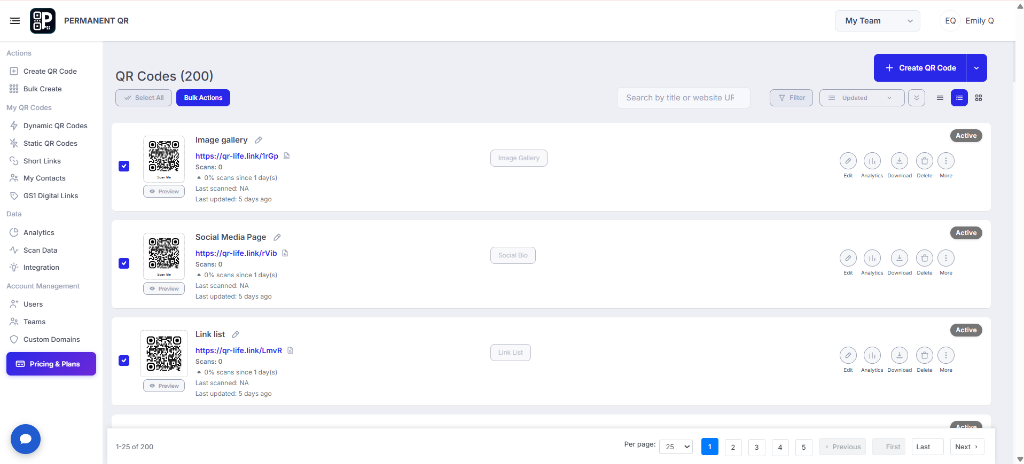
Step 1: Select the QR Codes
Go to your QR Codes dashboard and select the QR codes you want to duplicate using the checkboxes.
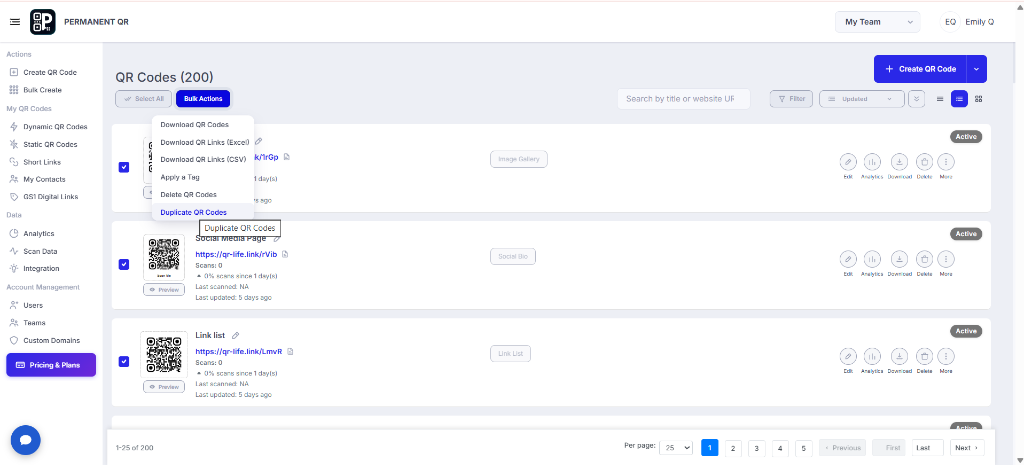
Step 2: Open Bulk Actions and Choose Duplicate QR Codes
Click the Bulk Actions button and select Duplicate QR Codes from the available options to start duplicating the selected QR codes.
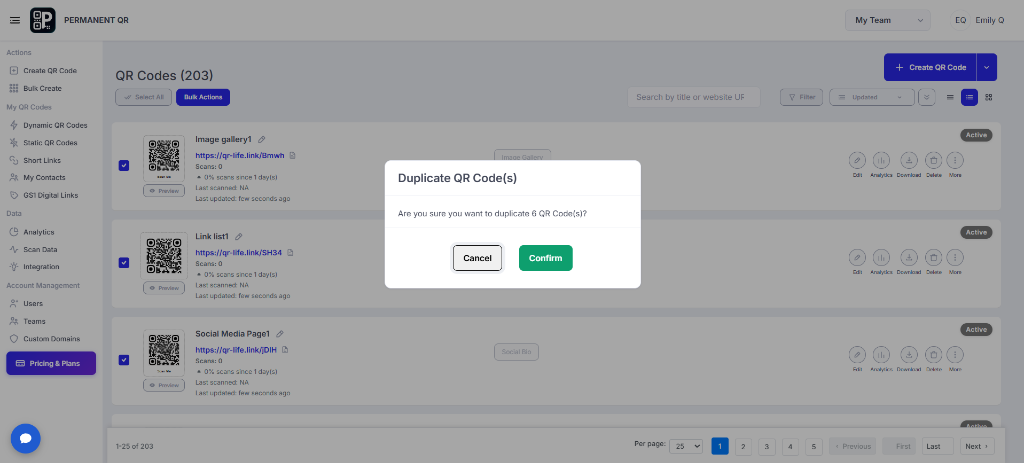
Step 3: Confirm the Duplication
Review the number of QR codes being duplicated and click Confirm to create the new QR code copies.
What Happens After You Duplicate QR Codes?
After you confirm the duplication, new QR code copies are created in your QR Codes dashboard. The duplicated QR codes can then be managed separately like other QR codes.
New QR Codes Are Created
The selected QR codes are duplicated and new QR code copies appear in your dashboard.
QR Codes Can Be Managed Separately
The new copies can be edited and managed independently.
Review Your Duplicated QR Codes
Check the newly created QR codes in your QR Codes dashboard.
How to Test Bulk QR Code Duplication
Follow this checklist to test and verify bulk QR code duplication:
Select one or more existing QR codes.
Open Bulk Actions.
Select Duplicate QR Codes.
Confirm the duplication.
Check that the new QR code copies appear in the dashboard.
Open one of the duplicated QR codes to verify it was created successfully.
Common Problems & Solutions
Problem 1: "Duplicate QR Codes" is not visible.
Solution: Make sure you have selected one or more QR codes before opening Bulk Actions.
Problem 2: Duplication was canceled.
Solution: Open Bulk Actions again, select Duplicate QR Codes, and click Confirm.
Problem 3: I cannot find the duplicated QR codes.
Solution: Refresh the QR Codes dashboard and check the QR code list again.
Problem 4: The wrong QR codes were selected.
Solution: Cancel the action and carefully select only the QR codes you want to duplicate.
Common Mistakes to Avoid
❌ 1. Selecting the wrong QR codes
Accidentally selecting unintended QR codes before opening Bulk Actions.
❌ 2. Forgetting to review the selected QR codes
Not checking the list of selected QR codes prior to initiating duplication.
❌ 3. Closing the confirmation dialog without confirming
Exiting the modal before clicking Confirm to finalize creation of copies.
❌ 4. Not checking the dashboard after duplication
Forgetting to verify the newly duplicated QR code entries in the dashboard.
❌ 5. Assuming duplication changes the original QR code
Duplicating creates new, separate copies and leaves the original QR codes completely unchanged.
Common Uses
Bulk duplication provides an efficient workflow across a variety of use cases:
Different Campaigns
Creating copies for different campaigns.
Reuse Existing Setup
Reusing an existing QR code setup.
Multiple Locations
Creating similar QR codes for multiple locations.
Marketing Materials
Preparing QR codes for different marketing materials.
Separate Business Uses
Creating copies for separate business or promotional uses.
Frequently Asked Questions
What does bulk QR code duplication do?
It allows you to create copies of multiple existing QR codes at once using the Bulk Actions feature.
How do I duplicate QR codes in bulk?
Select the QR codes, open Bulk Actions, choose Duplicate QR Codes, and confirm the action.
Can I duplicate multiple QR codes at once?
Yes. Select multiple QR codes before using the Duplicate QR Codes option.
Does duplication affect the original QR codes?
No. The duplication process creates new QR code copies while the original QR codes remain available.
Where can I find the duplicated QR codes?
The newly duplicated QR codes appear in your QR Codes dashboard after the duplication is completed.
Can I manage the duplicated QR codes separately?
Yes. After duplication, the new QR codes can be managed from the QR Codes dashboard.
What should I do if I accidentally select the wrong QR codes?
Cancel the duplication and select the correct QR codes before starting the Bulk Actions process again.
Duplicate Your QR Codes in Bulk
Save time by duplicating multiple existing QR codes at once using Bulk Actions.