Download code images in bulk
Download multiple QR code images at once instead of downloading them individually. Select your QR codes, choose the image size and file format, review the available settings, and download the QR images in bulk.
Bulk QR Image Download
Quickly export multiple QR code images in one batch with flexible resolution, formatting, and sizing controls.
Download Multiple QR Images
Select and download multiple QR code images at the same time.
Choose Your Download Size
Select from predefined resolutions or configure a custom dimension.
Select PNG, JPEG, SVG, or WEBP
Export your QR code images in the exact file format needed for printing or digital use.
Before You Start
Before starting the bulk image download process, make sure you have the following:
A Permanent QR Codes account
Sign in to your Permanent QR Codes account to access your dashboard.
QR codes available in your account
Ensure your account has QR codes ready to download.
The QR codes you want to download
Identify which QR codes from your dashboard list need image exports.
Your preferred QR image size
Determine the required dimensions for your print collateral or web layout.
Your preferred file format
Decide whether you need PNG, JPEG, SVG vector, or WEBP image files.
Looking to download QR data in spreadsheet format instead? See our Bulk Download guide for Excel and CSV options.
How to Download QR Images in Bulk
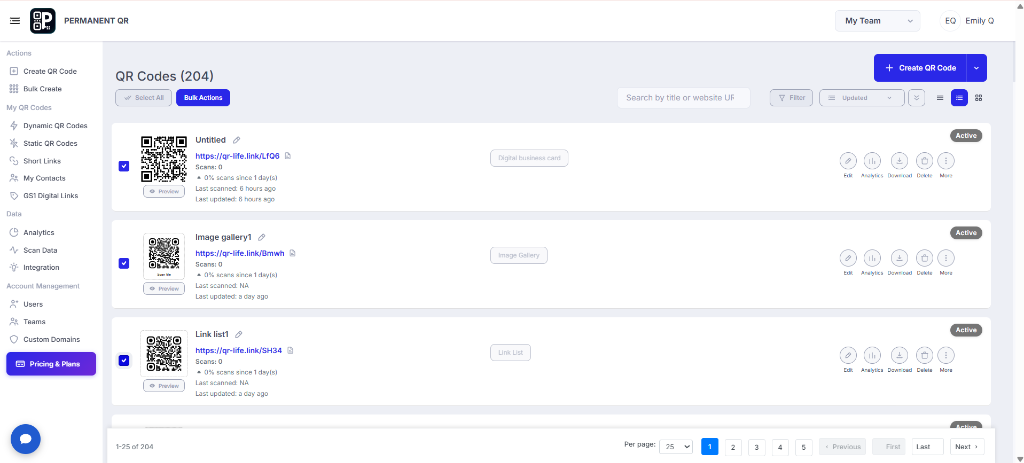
Step 1: Select the QR Codes
Go to your QR Codes dashboard and select the QR codes you want to download using the checkboxes. You can select multiple QR codes before opening the bulk actions menu.
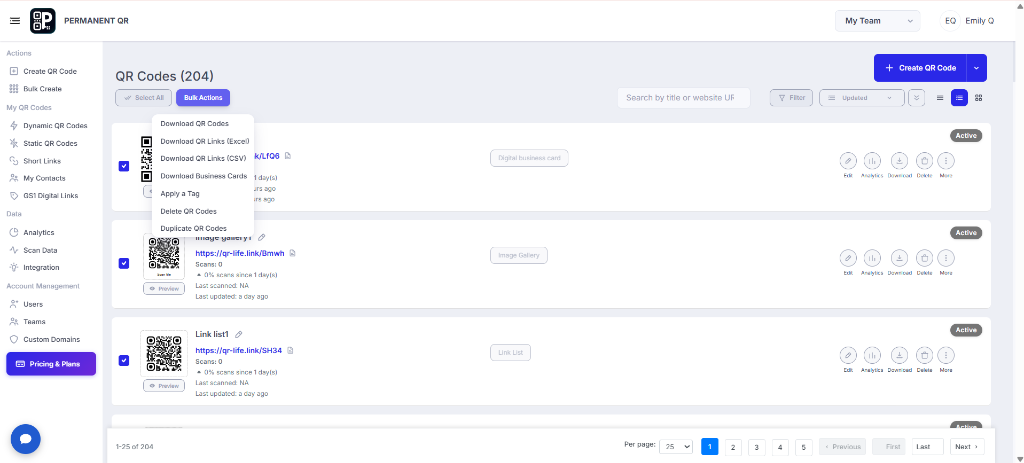
Step 2: Open Bulk Actions
After selecting the QR codes, click Bulk Actions to view the available options. From the menu, choose Download QR Codes to open the bulk QR image download settings.
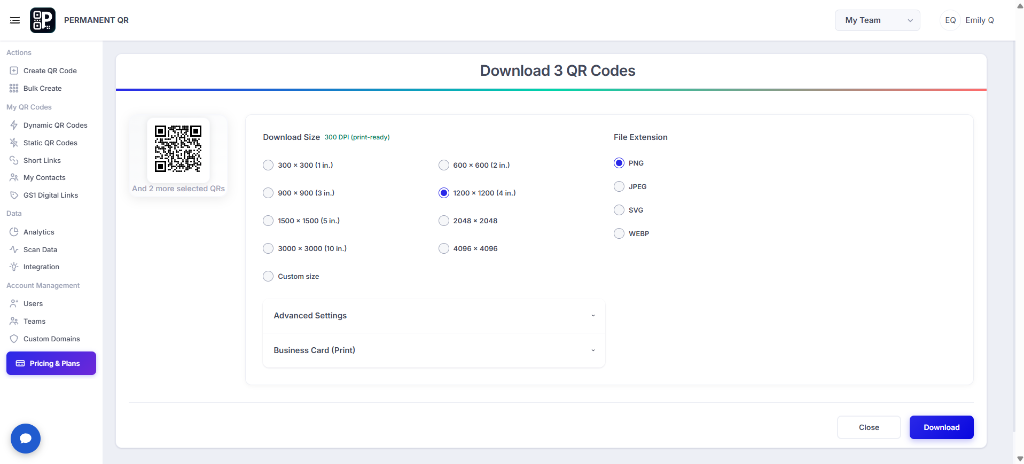
Step 3: Choose Your Download Options
The Download QR Codes screen lets you choose the image size and file extension for the selected QR codes. Select the size and format that match your intended use.
Available Download Sizes
- • 300 × 300 (1 in.)
- • 600 × 600 (2 in.)
- • 900 × 900 (3 in.)
- • 1200 × 1200 (4 in.)
- • 1500 × 1500 (5 in.)
- • 2048 × 2048
- • 3000 × 3000 (10 in.)
- • 4096 × 4096
- • Custom size
Available File Extensions
- • PNG
- • JPEG
- • SVG
- • WEBP
Additional Controls
The screen also provides access to Advanced Settings, Business Card (Print), Close, and the Download button.
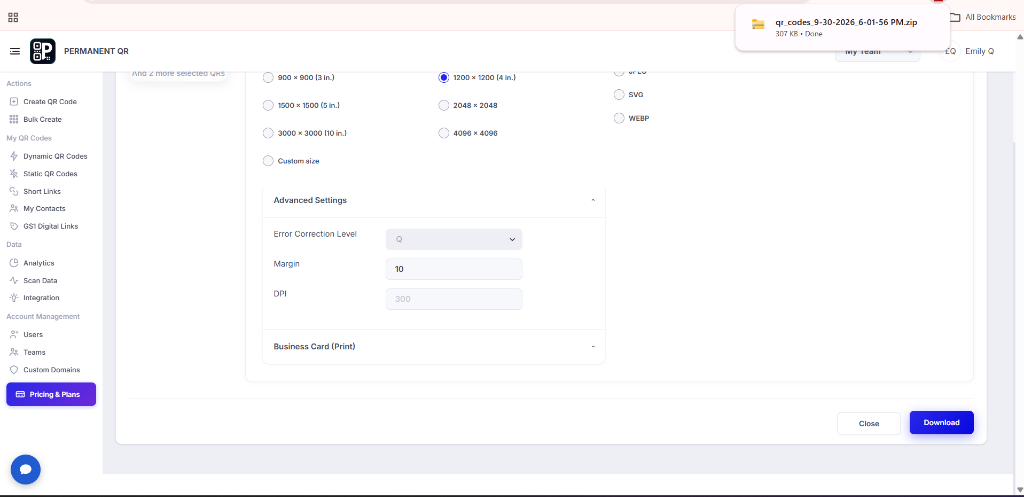
Step 4: Review Advanced Settings and Download
Expand Advanced Settings to review the available QR image settings before downloading. The available settings shown in the interface include Error Correction Level, Margin, and DPI. After reviewing the settings, click the Download button to start downloading the selected QR images.
Settings Visible in Interface
- • Error Correction Level: Adjust the error correction redundancy for your QR codes.
- • Margin: Set the quiet zone border space around the QR code graphic.
- • DPI: Review print resolution settings (e.g., 300 DPI print-ready).
- • Business Card (Print): Access card printing layout options.
Step 5: Access Your QR Images
After the download is complete, open the downloaded ZIP file and extract it to access the individual QR code image files.
QR Image Download Options
The bulk image download interface provides several customization settings to adapt QR code graphics to your exact design and printing specifications.
Download Sizes
Choose from predefined dimensions or set a custom size:
- • 300 × 300 (1 in.)
- • 600 × 600 (2 in.)
- • 900 × 900 (3 in.)
- • 1200 × 1200 (4 in.)
- • 1500 × 1500 (5 in.)
- • 2048 × 2048
- • 3000 × 3000 (10 in.)
- • 4096 × 4096
- • Custom size
File Extensions
Select the image format that matches your intended workflow:
- • PNG: Standard high-quality raster format with transparency.
- • JPEG: Compact file size for general digital viewing.
- • SVG: Infinitely scalable vector graphic for commercial printing.
- • WEBP: Optimized lightweight image format for modern web layouts.
Advanced Settings
Expand Advanced Settings on the download modal to configure:
- • Error Correction Level: Adjust redundancy tolerance.
- • Margin: Adjust outer quiet zone border spacing.
- • DPI: Configure dots per inch print resolution.
What Happens After You Download Your QR Images?
After clicking Download, the batch image generation process takes place in the following order:
Download Starts
The selected QR images are prepared using the settings you selected.
ZIP File Is Downloaded
The QR images are provided as a ZIP file.
Extract the ZIP File
Open the downloaded ZIP file and extract its contents.
Access Your QR Images
The individual QR image files are available after extraction.
How to Test Your Downloaded QR Images
Follow these steps to download and test your batch QR code image files:
Select one or more QR codes.
Open Bulk Actions.
Select Download QR Codes.
Choose an image size.
Select a file extension.
Review Advanced Settings if required.
Click Download.
Open the downloaded ZIP file.
Extract the QR images.
Scan one of the downloaded QR images with a smartphone.
Make sure the QR code works correctly before using it in printed or digital materials.
Common Problems & Solutions
Problem 1: No QR codes are available for download.
Solution: Make sure you have selected one or more QR codes before opening Bulk Actions.
Problem 2: The Download QR Codes option is not visible.
Solution: Open Bulk Actions after selecting the QR codes.
Problem 3: The downloaded file is a ZIP file.
Solution: Extract the ZIP file to access the individual QR image files.
Problem 4: The QR image size is not suitable for your intended use.
Solution: Return to the Download QR Codes settings and select another available size or Custom size.
Common Mistakes to Avoid
❌ 1. Forgetting to select QR codes before opening Bulk Actions
Bulk Actions requires at least one active QR code selection to show the download option.
❌ 2. Selecting the wrong download format
Choosing a raster format when vector SVG is required for large signage, or vice versa.
❌ 3. Choosing an unsuitable image size
Selecting a resolution that is too small for large physical print pieces.
❌ 4. Not reviewing Advanced Settings when needed
Overlooking margin or error correction settings needed for high-density scanning environments.
❌ 5. Forgetting that the downloaded images are provided in a ZIP file
Attempting to upload or import the archive directly before extracting the individual image files.
❌ 6. Not testing a downloaded QR image before using it
Deploying the images into print runs or live campaigns without first doing a sample scan test.
Common Uses for Bulk QR Image Downloads
Bulk image downloads provide high-resolution files ready for both physical printing and digital distribution:
Business Cards
Export images for team business cards.
Flyers
Add high-res QR codes to promotional flyers.
Posters
Scale QR images for large event posters.
Product Packaging
Incorporate images into box and carton design.
Product Labels
Print crisp QR codes on small item labels.
Event Materials
Place QR images on badges, programs, and passes.
Marketing Materials
Supply marketing teams with brand assets.
Signage
Prepare graphics for floor and storefront signs.
Printed Documents
Embed QR codes in invoices and brochures.
Digital Documents
Include QR images in PDF guides and presentations.
Frequently Asked Questions
Can I download multiple QR images at once?
Yes. Select multiple QR codes and use the Download QR Codes option from Bulk Actions.
Which image formats are available?
The download interface provides PNG, JPEG, SVG, and WEBP options.
Which QR image sizes can I choose?
The interface provides several preset sizes from 300 × 300 through 4096 × 4096, along with a Custom size option.
Can I download only selected QR codes?
Yes. Select the QR codes you want to download before opening Bulk Actions.
What happens when I click Download?
The selected QR images are prepared for download and provided as a ZIP file.
Can I choose a custom image size?
Yes. The download settings include a Custom size option.
What Advanced Settings are available?
The interface shows Error Correction Level, Margin, and DPI under Advanced Settings.
Which file format should I choose?
Choose from the available PNG, JPEG, SVG, or WEBP options based on how you plan to use the downloaded QR images.
Download Your QR Images in Bulk
Select your QR codes, configure the download settings, and download your QR images in one batch.