Export code links to Excel
Export QR link information for multiple QR codes at once using the Bulk Actions menu. Select the QR codes you need, choose Download QR Links (Excel), and download the QR link data as an Excel file.
Bulk QR Links Excel Export
Quickly export QR link information for multiple QR codes to a single spreadsheet file.
Export Multiple QR Links
Select and export link information for multiple QR codes at the same time.
Download as Excel
Save the exported QR link data directly to your device as an Excel file.
Manage QR Link Data Easily
Open and review your exported QR code links in any spreadsheet application.
Before You Start
Before exporting your QR links to Excel, ensure you have the following:
A Permanent QR Codes account
A Permanent QR Codes account to access your dashboard.
QR codes already created
QR codes already created in your account.
Multiple QR codes available
Multiple QR codes available for selection.
Access to the QR Codes page
Access to the QR Codes page in your management dashboard.
Excel-Compatible Device
A device where you can download and open Excel files.
What Is QR Links Excel Export?
QR Links Excel Export allows you to download the link information for multiple QR codes in an Excel file. Select the QR codes you need and use the Bulk Actions menu to export their QR link data together.
Note: This article specifically covers the Download QR Links (Excel) option in the Bulk Actions menu. This export provides QR link data in an Excel file and does not download QR code image files.
How to Export QR Links to Excel in Bulk
Step 1: Select the QR Codes
Open the QR Codes page and select the QR codes you want to include in the Excel export. You can select multiple QR codes using the checkboxes.

Step 2: Open Bulk Actions and Select Download QR Links (Excel)
Click Bulk Actions and select Download QR Links (Excel) from the available options.
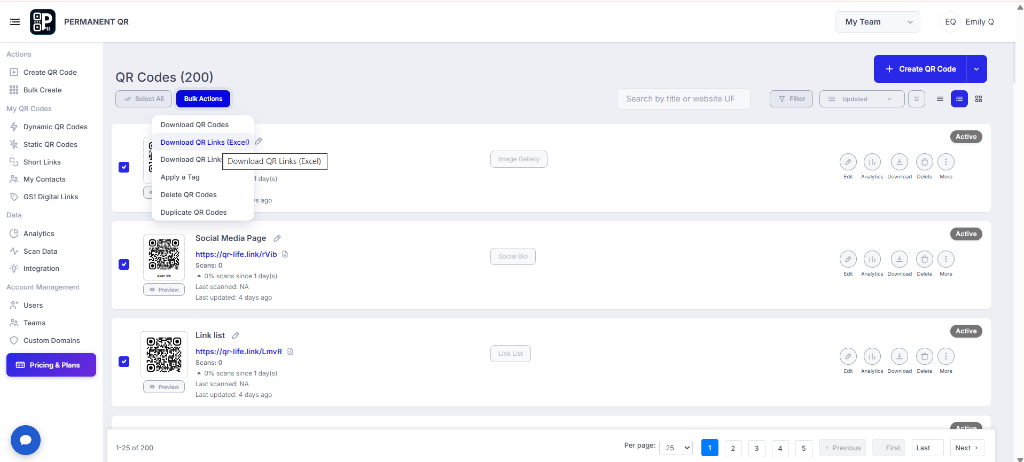
Step 3: Download the Excel File
After selecting Download QR Links (Excel), the Excel file is downloaded to your device. Open the downloaded file to view the exported QR link information.

What Happens After You Export the QR Links?
QR Links Are Exported
The selected QR codes are included in the Excel export.
Excel File Is Downloaded
The QR link data is downloaded as an Excel file.
Open the Excel File
Open the downloaded Excel file using a compatible spreadsheet application.
Use the Exported Data
Use the exported QR link information for data management and processing.
How to Verify the Excel Export
Follow this checklist to verify that your QR links were exported properly:
Confirm the Excel file was downloaded successfully.
Open the downloaded Excel file.
Check that the QR link information is present.
Verify that the selected QR codes are included.
Confirm that the file opens correctly in your spreadsheet application.
Common Problems & Solutions
1. No QR codes are selected
Solution: Select the QR codes you want to export before opening Bulk Actions.
2. Bulk Actions is not available
Solution: Make sure you are on the QR Codes page and have selected the QR codes you want to manage.
3. The Excel file was not downloaded
Solution: Check your browser's download area and make sure downloads are allowed.
4. The Excel file does not open correctly
Solution: Try opening the downloaded file with a spreadsheet application that supports Excel files.
Common Mistakes to Avoid
❌ Not selecting QR codes first
Not selecting the QR codes before opening Bulk Actions.
❌ Selecting Download QR Codes
Selecting Download QR Codes instead of Download QR Links (Excel).
❌ Selecting CSV instead of Excel
Selecting Download QR Links (CSV) when an Excel file is required.
❌ Closing browser too soon
Closing the browser before the download completes.
❌ Looking in wrong folder
Looking for the Excel file in the wrong download location.
❌ Not checking exported file
Not checking the exported Excel file after downloading.
❌ Assuming download contains images
Assuming the Excel export contains QR code image files.
Common Uses for QR Links Excel Export
Bulk Excel export provides an efficient way to manage and analyze your QR link data across multiple use cases:
Data Management
Organize and manage your QR link records in structured tabular formats.
QR Link Backup
Maintain offline backup copies of your QR codes and their corresponding links.
Spreadsheet Analysis
Examine QR link data using standard spreadsheet tools and formulas.
Campaign Management
Track and review links associated with specific marketing campaigns.
Record Keeping
Keep detailed administrative records of deployed QR code links over time.
Link Management
Audit and verify destination URLs across your QR code inventory.
Internal Reporting
Share exported link summaries with team members and stakeholders.
Data Processing
Prepare QR link data for batch workflows and external file processing.
Frequently Asked Questions
What is QR Links Excel Export?
QR Links Excel Export allows you to download QR link information for multiple selected QR codes as an Excel file.
How do I export QR links to Excel in bulk?
Select the QR codes you want to export, open Bulk Actions, and choose Download QR Links (Excel).
Can I export multiple QR codes at once?
Yes. Select multiple QR codes before using the Bulk Actions menu.
Where can I find Download QR Links (Excel)?
Select the QR codes on the QR Codes page and open the Bulk Actions menu to find Download QR Links (Excel).
Is this the same as downloading QR code images?
No. Download QR Links (Excel) exports QR link information as an Excel file. It does not download QR code image files.
What is the difference between QR Links Excel and QR Links CSV?
Both are export options available in Bulk Actions. Choose Download QR Links (Excel) when you need the QR link data in Excel format.
What should I do after downloading the Excel file?
Open the downloaded Excel file using a compatible spreadsheet application and verify the exported QR link information.
Export Your QR Links in Bulk
Select your QR codes and export their link information as an Excel file using Bulk Actions.