Product Verification QR code setup
Create Product Verification QR Codes that help customers verify product information and authenticity. Add product details, secure verification with authentication settings, collect customer information, customize the QR code, and generate QR codes in batches.
Editable Permanent Product Verification QR Code:
- $49 One-Time Payment: Pay once and own your QR code forever with no monthly or annual subscription fees.
- Editable Product Information: Update product information and verification details without reprinting the physical QR codes.
- Unlimited Scans: No scanning limits, no scan quotas, and no expiration date.
Before You Start
Before creating your Product Verification QR Code, ensure you have gathered:
- Product name: The official name or title of your product.
- Batch number or product identifier: The specific lot or batch designation.
- Manufacturing date: The official production or bottling date.
- Expiry date, if applicable: The expiration or best-by date for time-sensitive goods.
- Product quantity: The unit volume, net weight, or pack count.
- Product information and verification details: Core product attributes, description, or origin details.
- Customer information fields, if required: Desired customer fields such as email address collection.
- Number of QR codes to generate: The total quantity of unique verification QR codes needed in the batch.
- QR code design preferences: Selected theme, colors, patterns, and background styling.
- Smartphone for testing: A smartphone camera to test authentication and verification flow.
- Permanent QR Codes account: Sign in to your Permanent QR Codes account to create and manage your editable product verification codes.
Product Verification Details
Configure the product information that customers will see when they scan and verify the product.
Authentication & Customer Information
Configure authentication settings and optional customer information collection for the verification process.
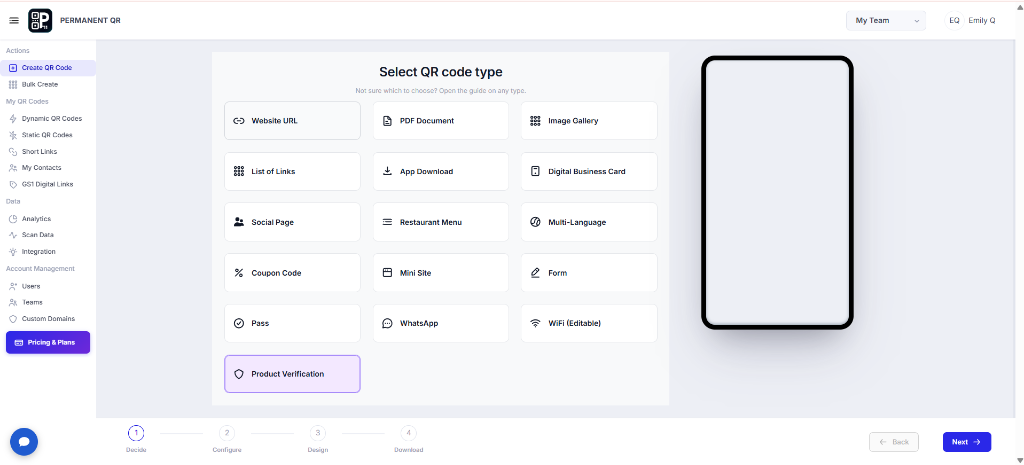
Step 1: Select Product Verification
Select "Product Verification" from the QR code type options to start creating product verification QR codes.
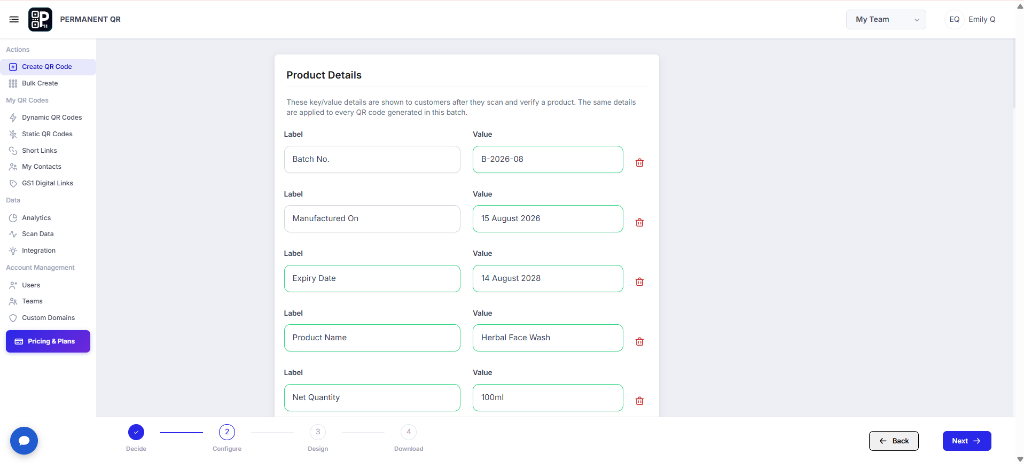
Step 2: Add Product Details
Add the product information that customers will see after scanning and verifying the product.
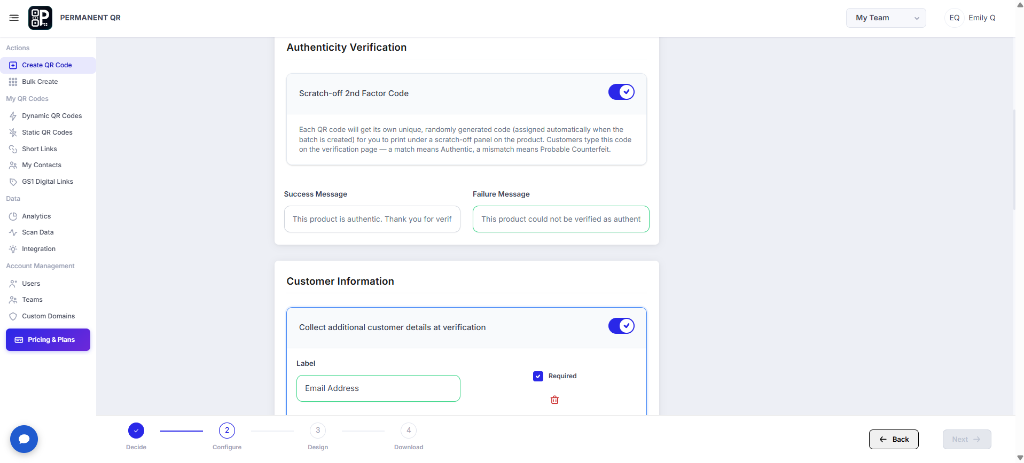
Step 3: Configure Authentication and Customer Information
Configure the authentication options and choose whether to collect additional customer information during verification.
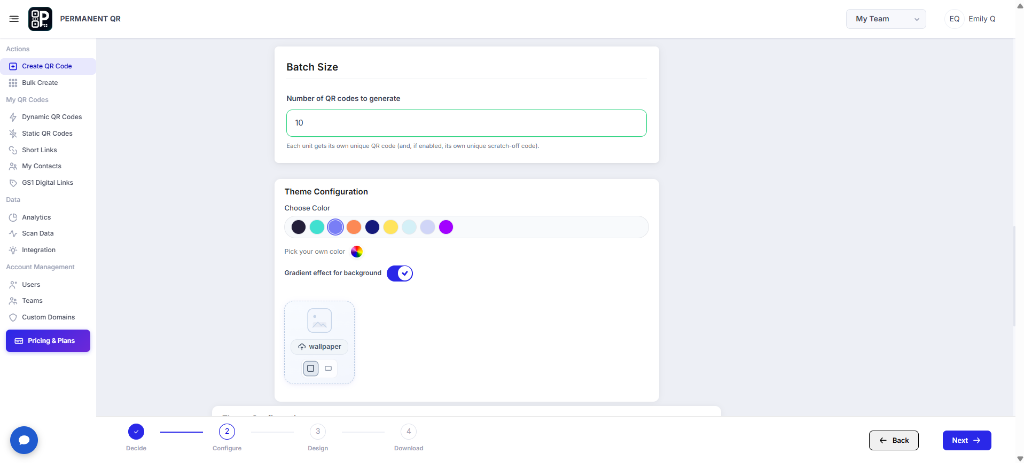
Step 4: Set the Batch Size
Enter the number of Product Verification QR Codes you want to generate.
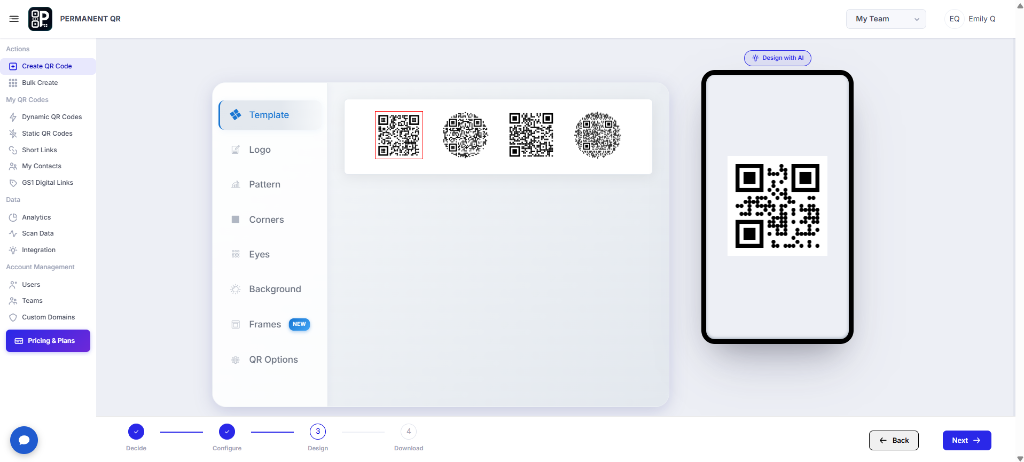
Step 5: Customize the QR Code Design
Customize the appearance of the generated QR codes using the available theme and design options.
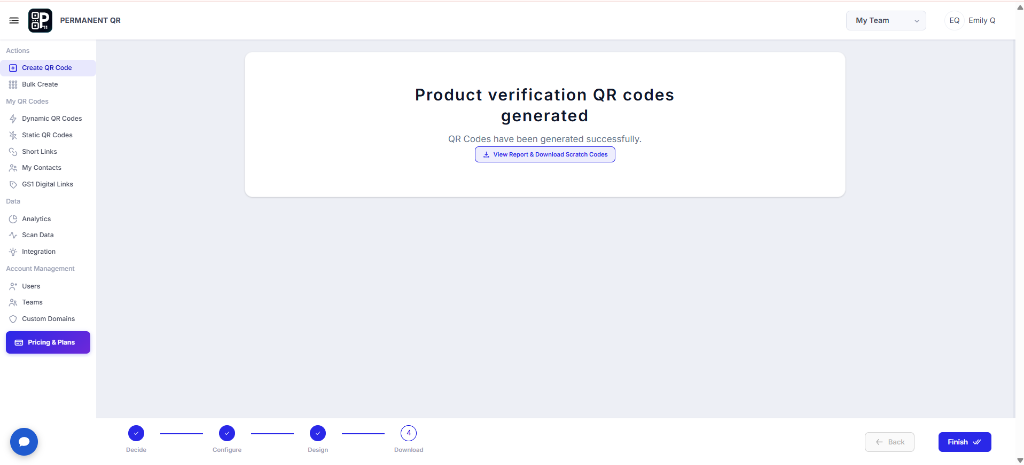
Step 6: Generate Product Verification QR Codes
Review your settings and generate the Product Verification QR Codes. After generation, you can view the report and download the generated scratch codes.
What Happens After Someone Scans a Product Verification QR Code?
When a customer scans a Product Verification QR Code, they can access the configured product information and verification experience.
Scan the QR Code
The customer scans the Product Verification QR Code with a smartphone.
Product Verification Opens
The configured product verification page opens.
Complete Authentication
If authentication is enabled, the customer completes the required verification step.
Product Information Is Displayed
The configured product information is displayed after successful verification.
Verification Result Is Shown
The customer sees the configured verification result.
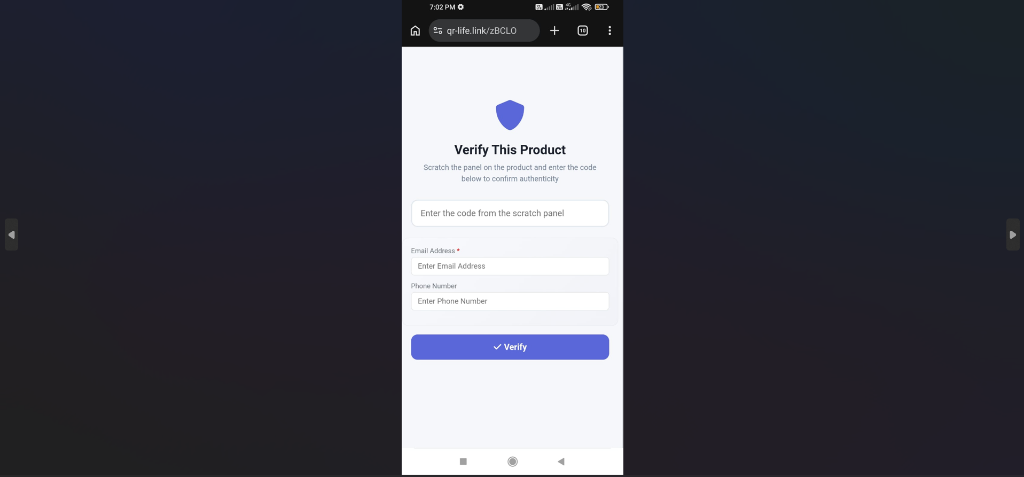
Complete Product Authentication
After scanning the Product Verification QR Code, the customer is prompted to enter the code from the scratch panel to verify the product.
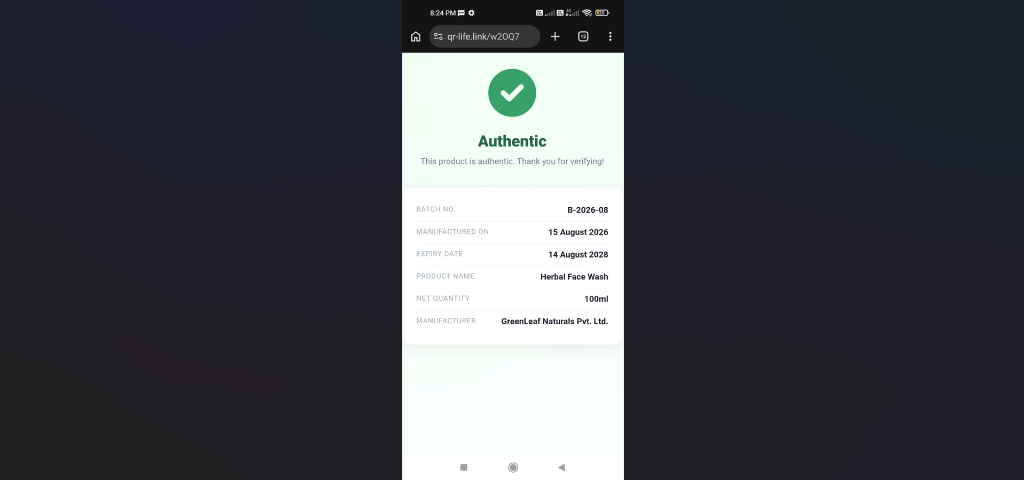
View Product Information
After successful verification, the product information is displayed to the customer.
How to Test Your Product Verification QR Code
Complete this testing checklist before applying QR codes to product packaging:
Scan the generated QR code with a smartphone.
Confirm the verification page opens correctly.
Verify the product information.
Test authentication if enabled.
Verify the success message.
Test the failure message or invalid authentication behavior.
Verify customer information collection if enabled.
Test more than one generated QR code.
Verify the generated scratch-code/report functionality.
Common Problems & Solutions
1. QR Code Does Not Scan
Make sure the QR code is clear, correctly sized, and has sufficient contrast.
2. Product Information Is Incorrect
Review the configured product details before generating the QR codes.
3. Authentication Does Not Work
Check the authentication configuration and test the verification process again.
4. Customer Information Is Not Collected
Confirm that customer information collection is enabled and that the required fields are configured.
5. Generated QR Codes Are Not Available
Complete the generation process and use the report/download option on the successful generation screen.
Common Mistakes to Avoid
❌ Incorrect product information
Review all batch identifiers, dates, product names, and quantity specifications carefully before generating codes.
❌ Incorrect batch size
Verify packaging run counts and enter the exact number of required QR codes before generating the batch.
❌ Authentication not configured
Ensure scratch-off 2nd factor authentication settings are enabled if the verification process requires protected verification.
❌ Customer information not configured when needed
Enable customer data collection and define required input fields such as email before publishing the codes.
❌ QR codes not tested
Scan sample codes across multiple smartphone cameras to verify verification flows before printing on labels or boxes.
❌ QR code printed too small
Print QR codes at adequate dimensions with clear quiet zone margins to ensure reliable customer scanning.
❌ Generated report or scratch codes not checked
Confirm the batch generation report and download scratch codes immediately from the completion screen.
Common Uses for Product Verification QR Codes
Consumer Products
Allow consumers to verify authentic goods, view production details, and confirm product specifications upon purchase.
Cosmetics
Provide shoppers with batch verification, manufacturing dates, and ingredient authenticity checks on beauty products.
Personal Care Products
Enable buyers to verify packaging integrity, lot details, and expiration periods for personal hygiene and care items.
Food Products
Display batch codes, manufacturing timelines, freshness parameters, and lot details directly to consumers.
Electronics
Allow customers to authenticate serial batches, model identifiers, and production lots on electronic devices.
Pharmaceuticals
Offer batch identification, lot details, and manufacturing verification for packaged over-the-counter and wellness goods.
Manufacturing
Facilitate lot tracking and verification for manufactured parts, components, assemblies, and wholesale shipments.
Retail Products
Equip packaged retail merchandise with consumer-accessible product information and authenticity confirmation.
Premium Products
Reinforce buyer confidence by providing luxury and high-value items with dedicated verification access.
Brand Authentication
Support brand integrity by giving buyers an official channel to verify genuine merchandise and batch information.
Frequently Asked Questions
What does a product verification code do?
A Product Verification QR Code lets customers access configured product information and verification functionality by scanning a QR code.
What product information can I add?
You can configure product details such as batch number, manufacturing date, expiry date, product name, and quantity.
Can I enable authentication?
Yes. Product Verification includes authentication settings such as the Scratch-off 2nd Factor Code shown in the configuration.
Can I collect customer information?
Yes. Customer information collection can be enabled and configured with fields such as an email address.
Can I generate multiple Product Verification QR Codes?
Yes. You can specify the number of QR codes to generate using the Batch Size setting.
Can I customize the QR code design?
Yes. You can customize available theme and design options before generating the QR codes.
Can I download the generated scratch codes?
Yes. After successful generation, the report and scratch-code download option are available from the generation result screen.
Create Your Product Verification QR Code Today
Create Product Verification QR Codes with product information, authentication settings, customer information, and customizable designs.