Change a code's type
Learn how to switch an existing QR Code to a different format, confirm the change, update destination details, customize styling, and apply your updates seamlessly.
Quick Answer
To change an existing QR Code type, open your dashboard, select the campaign you want to update, and enter the editor. Choose your new destination format, confirm the switch, configure required details, customize styling, and click Finish.
Change QR Code Workflow
Important Note: Available configuration settings depend on your chosen format. Always review the updated destination fields and live preview before saving.
What Does Changing a QR Code Type Mean?
Changing a QR Code type allows you to convert an existing campaign into a different destination format through the editing workflow without creating a new code.
When switching formats—for example, moving from a Digital Business Card to a Website URL or PDF Document—the editor replaces previous input fields with options tailored to your new selection. You simply enter the updated information, personalize the design if desired, and finish the update.
Before You Start
Before changing your campaign format, make sure you have the following:
An active campaign in your dashboard
Locate the Dynamic code in your account list that you wish to modify.
The new format you want to select
Decide on your target destination format, such as Website URL, PDF, Form, or Social Page.
Updated information for the new format
Have the required details ready, such as the destination link, uploaded file, or profile data.
Your preferred visual styling
Choose your aesthetic preferences including templates, brand colors, patterns, and logo files.
A smartphone or camera app for testing
Keep a mobile device ready to scan and verify the updated destination before publishing.
How to Change a QR Code Type
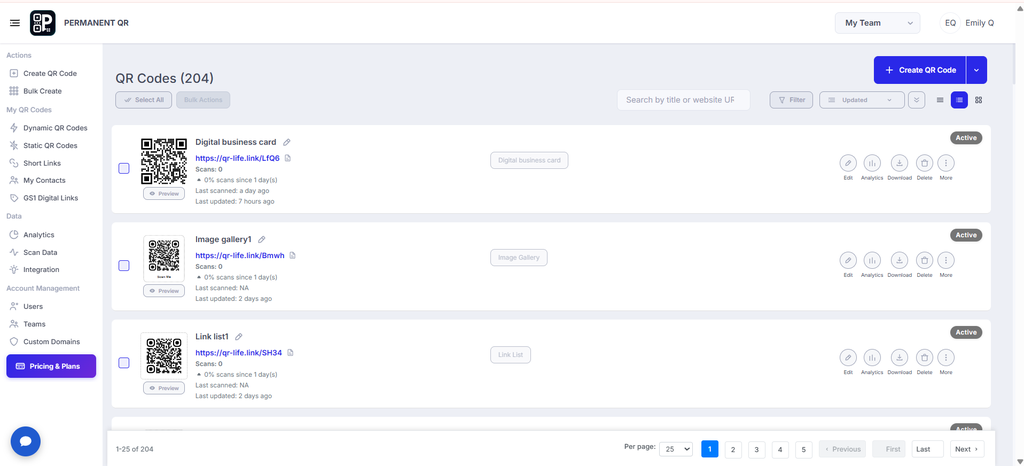
Step 1: Open Your QR Codes Dashboard
Sign in to your Permanent QR Codes account and open the Dynamic QR Codes dashboard. Locate the campaign you want to update and click its Edit option.
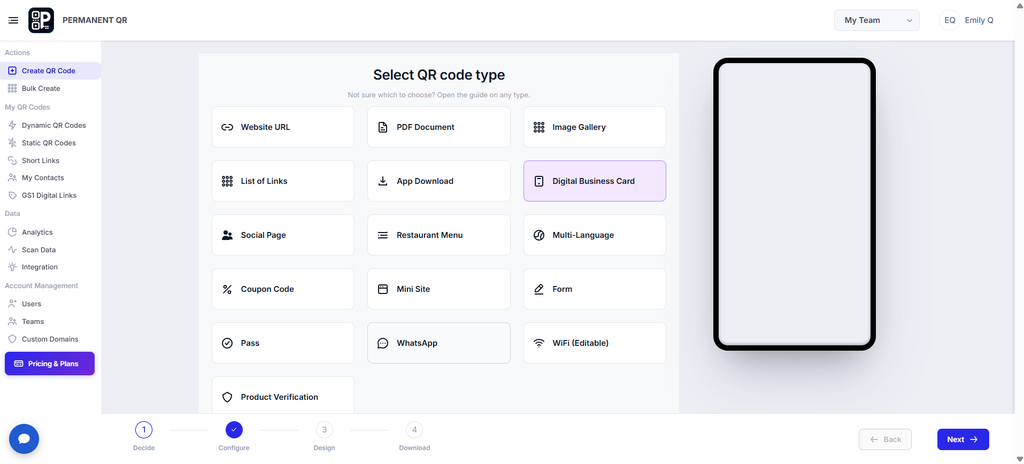
Step 2: Open the QR Code Type Selection
In the creation workflow, navigate to Step 1 (Decide) to view the type selection screen. Choose the new destination format you want to use.
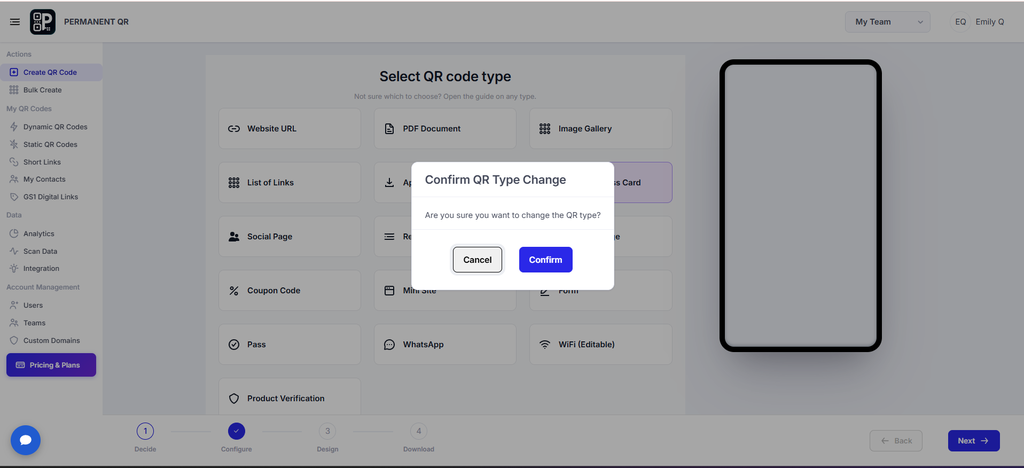
Step 3: Confirm the QR Code Type Change
After selecting a different format, review the confirmation message. Click Confirm to proceed with the selected layout, or Cancel if you do not want to continue.
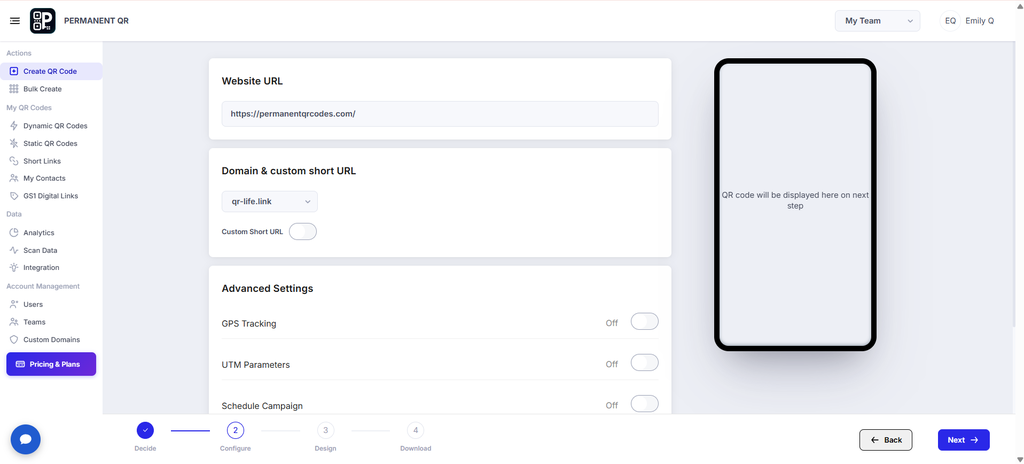
Step 4: Update the QR Code Information
Enter or update the information required for the selected destination. For example, a Website URL requires a valid destination link. Review domain settings and advanced options before continuing.
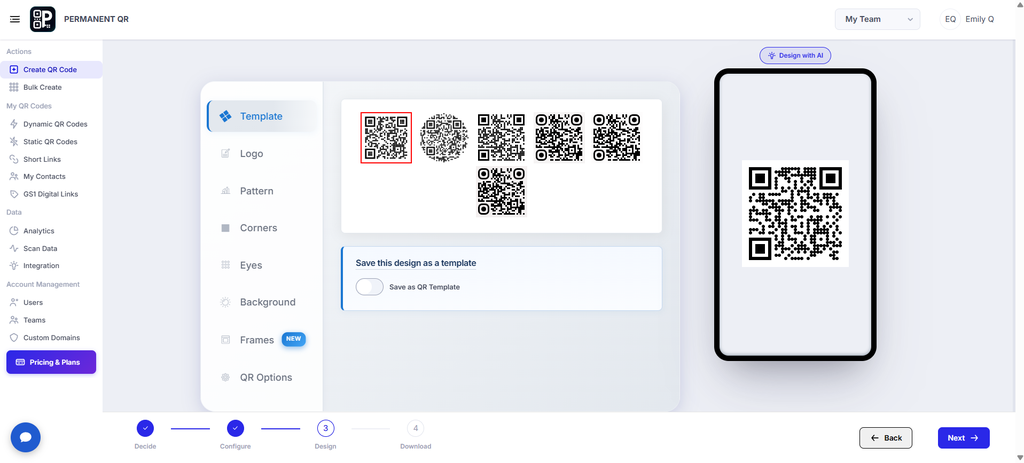
Step 5: Customize the QR Code Design
Open the Design stage and customize the appearance of your code using the available options, such as templates, logo, pattern, corners, eyes, background, frames, and display settings.
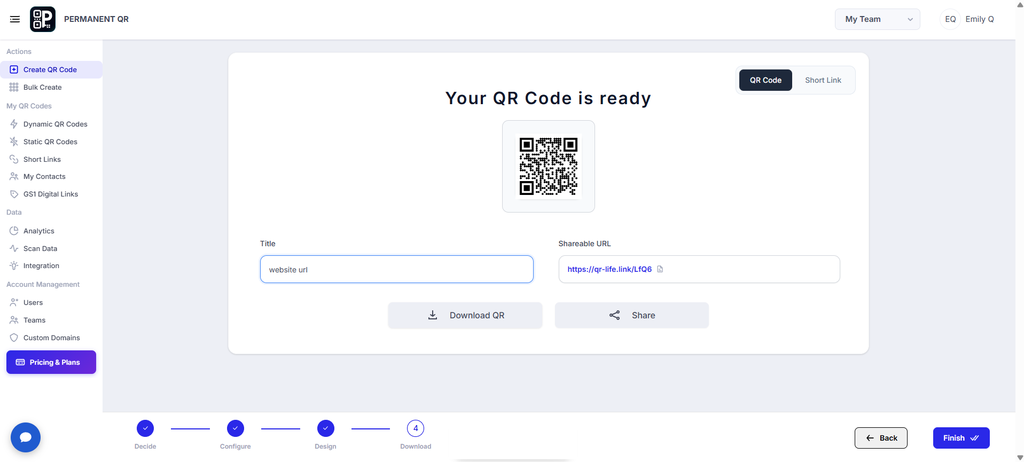
Step 6: Review the Updated QR Code
Review the generated preview, title, and shareable URL. Check that the information and design are correct before completing the process.
Step 7: Finish the QR Code Update
Once you have reviewed the code, click Finish to complete the workflow. Open your dashboard and verify that the updated campaign appears as expected.
Click Finish to Apply Changes
Click the blue Finish button located at the bottom-right corner of the confirmation screen. Your account will automatically save the new configuration and apply it to the existing code.
What Happens After Changing a QR Code Type?
New Format Assigned
The campaign is configured using the selected destination format.
Updated Information
The available fields and settings reflect the newly chosen category.
Refreshed Design
The visual preview reflects the design choices made during the workflow.
Dashboard Overview
Return to your dashboard and verify that the updated entry displays properly.
*Note: Switching to a new format replaces previous configuration fields. Prior destination links or form inputs are not automatically preserved across different types.
How to Test Your Updated QR Code
Always verify your changes before widespread sharing or physical deployment:
Open the updated entry from your dashboard.
Check its title and shareable short URL.
Scan the code using a smartphone camera.
Confirm that the expected destination or content opens.
Verify that the displayed information is correct.
Common Problems and Solutions
Problem: Cannot find the Edit option
Solution: Confirm that you are viewing the Dynamic QR Codes tab in your dashboard.
Problem: Format selection is not opening
Solution: Click Step 1 (Decide) in the lower progress bar or refresh your browser tab.
Problem: Confirmation modal appears
Solution: Review the selected format before confirming to ensure you are ready to replace previous fields.
Problem: Required information is missing
Solution: Complete all mandatory fields for the newly chosen format before advancing.
Problem: Preview is incorrect
Solution: Return to the relevant configuration or design stage and review your selections.
Frequently Asked Questions
Can I switch a code to a different type?
Yes, you can modify the format of an existing Dynamic campaign through the editor without needing to generate a replacement code or alter printed materials.
Where can I find the QR code type selection?
In the editor, navigate back to the Decide stage (Step 1) to access the complete grid of available formats.
Why do I see a confirmation message when changing the type?
The prompt alerts you that switching formats replaces previous input fields with configuration options designed specifically for the new selection.
Do I need to enter the information again after changing the QR code type?
Yes. Because each format requires distinct data—such as a web link versus contact card details—you must complete the required fields for your new selection in the Configure stage.
Can I restyle the code after switching its type?
Yes. Once you configure your new content, proceed to the Design stage to select templates, patterns, colors, logos, and frame styles.
How do I verify that my updated QR code works?
Inspect the live preview and perform a test scan using a smartphone camera to ensure visitors are routed to the intended destination.
Can I change the QR code type again later?
Yes. You can return to the editor from your dashboard at any time to switch categories or adjust configuration settings whenever needed.
Need to Update Your QR Code?
Sign in to Permanent QR Codes to manage your campaigns and update their available settings.