PDF Document QR code setup
A PDF QR Code lets users share documents such as product guides, menus, brochures, catalogs, manuals, reports, and other PDF files by scanning a QR code with their smartphone.
Visitors scan the QR code with their mobile phone camera and instantly view the hosted PDF document in their browser without manually typing a URL or installing third-party reader applications.
Editable Permanent PDF QR Code:
- $49 One-Time Payment: Pay once and own your QR code forever with no monthly or annual subscription fees.
- Permanent QR Code: Reliable permanent hosting and non-expiring dynamic QR code redirection.
- Editable PDF Destination: Update or replace the hosted PDF file anytime from your dashboard.
- No Need to Reprint: Keep printed product packaging, signs, and brochures active even when document content changes.
- Unlimited Scans: No monthly scan limits, bandwidth caps, or throttling.
- Easy Document Sharing: Distribute multi-page documents to thousands of customers effortlessly.
- Mobile-Friendly PDF Viewing: Fast-loading browser preview with pinch-to-zoom, download, and bookmark capabilities.
Before You Start
Before creating your PDF QR code, ensure you have gathered:
- PDF document ready for upload: The finalized PDF document saved on your computer or smartphone (up to 20MB, e.g., product guide, brochure, manual, or catalog).
- PDF title and description: A clear, descriptive document title and summary so scanners understand what document they are opening.
- Optional branding/logo: A high-resolution company logo or cover photo to display on the mobile landing screen.
- Permanent QR Codes account: Sign in to your Permanent QR Codes account to generate and manage your permanent code.
- Smartphone for testing: An iPhone or Android device to test the real-world scanning and document loading experience.
PDF Optimization & Preparation
Compress large images within your PDF before uploading so readers on mobile cellular connections experience near-instant load times.
Paperless Document Delivery
Replace bulky printed booklets with a compact QR code sticker or print block. Customers always receive the most up-to-date documentation on their personal device.
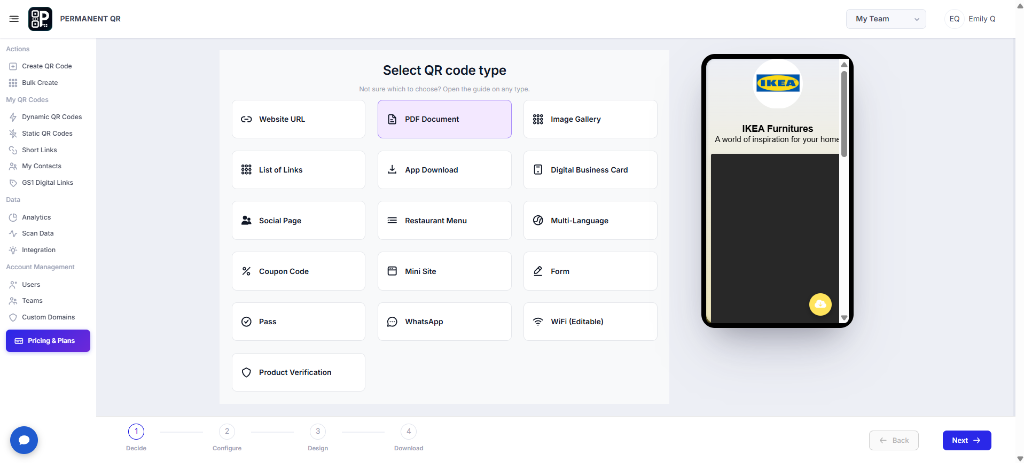
Step 1: Select "PDF Document" QR Code
Log in to your Permanent QR Codes dashboard and start creating a new QR code. From the QR code type selection screen, choose "PDF Document".
Step 2: Upload Your PDF File
Upload the PDF document you want to share. Click "Browse File" and select the PDF from your device. After uploading, verify that the correct file appears in the upload section.
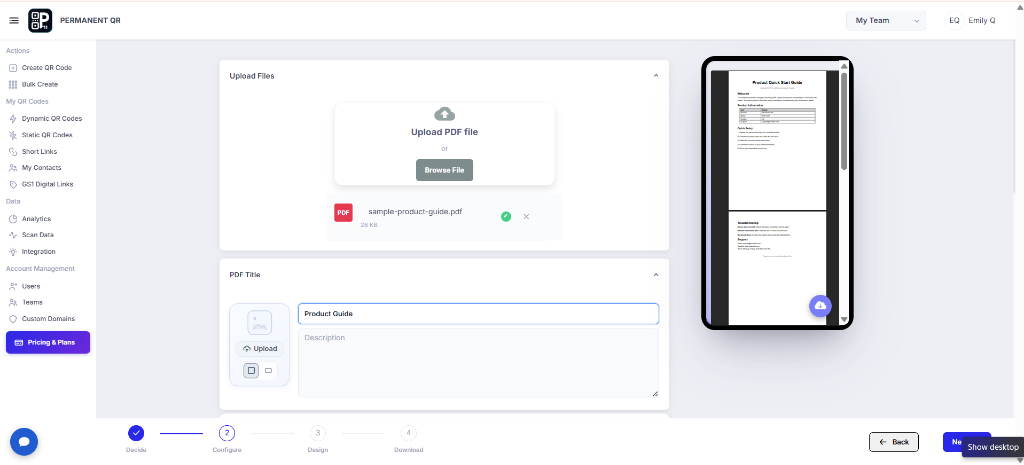
Step 3: Add PDF Title and Description
Enter a clear title for your PDF and add an optional description. You can also upload an image or branding element where available. The title and description help visitors understand the document when they open it.
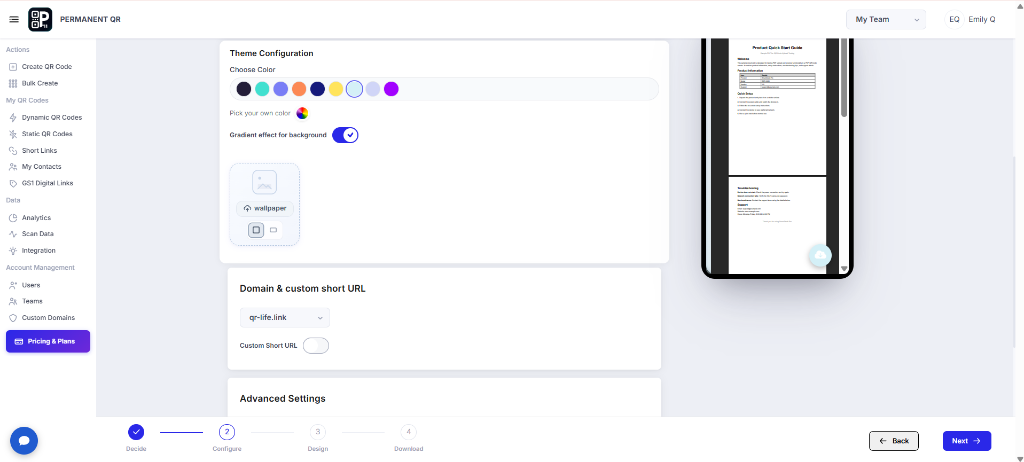
Step 4: Customize the PDF QR Code
Customize the appearance of your PDF QR Code landing page. Choose a background color, enable the gradient effect if desired, upload a wallpaper/background, and configure the domain or custom short URL.
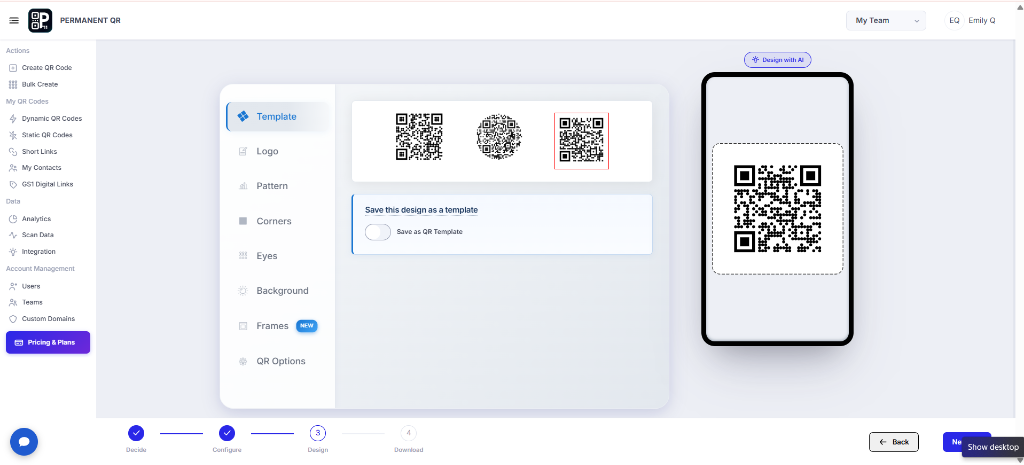
Step 5: Design Your QR Code
Customize the QR code appearance before publishing it. Use the available design options such as:
- Template
- Logo
- Pattern
- Corners
- Eyes
- Background
- Frames
- QR Options
Always maintain sufficient visual contrast between the foreground QR pattern and the background to guarantee rapid, reliable scanning under any ambient lighting condition.
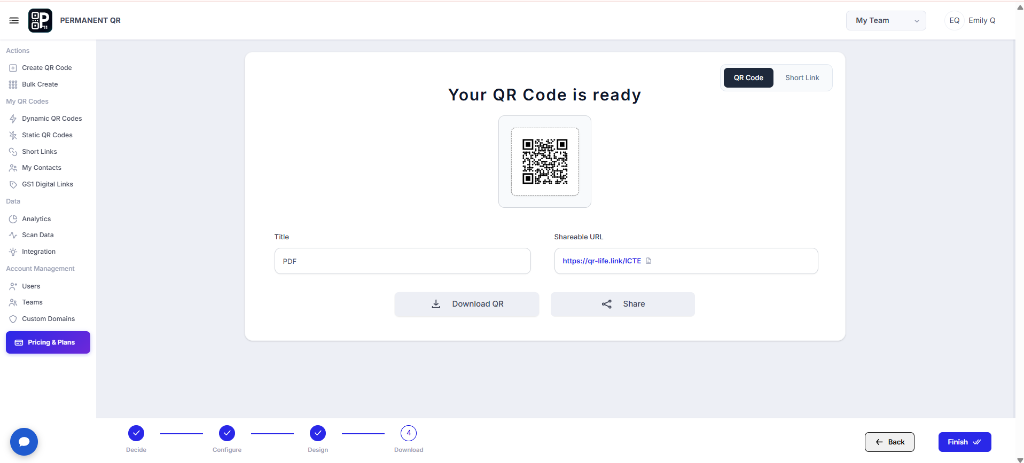
Step 6: Download Your QR Code
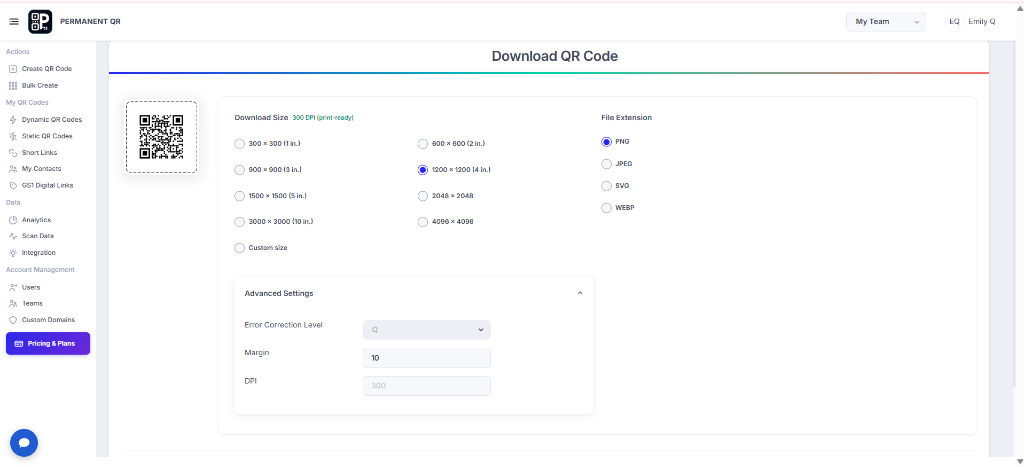
After completing the design, proceed to the Download step and select the required QR code format and size. You can choose from high-resolution formats including PNG, JPEG, SVG, or WEBP, select resolutions from 300 × 300 px up to 4096 × 4096 px or set a custom size, and configure print-ready settings like error correction level, margin, and 300 DPI.
What Happens After Someone Scans a PDF QR Code?
When a visitor scans your PDF QR Code, they experience a frictionless document viewing journey:
Scan the QR Code
The user points their mobile phone camera or scanner at the printed code.
Landing Page Opens
A fast, mobile-optimized branded preview page opens instantly in the browser.
Document Info Displayed
The document title, description, and cover branding provide immediate context.
PDF Opens in Browser
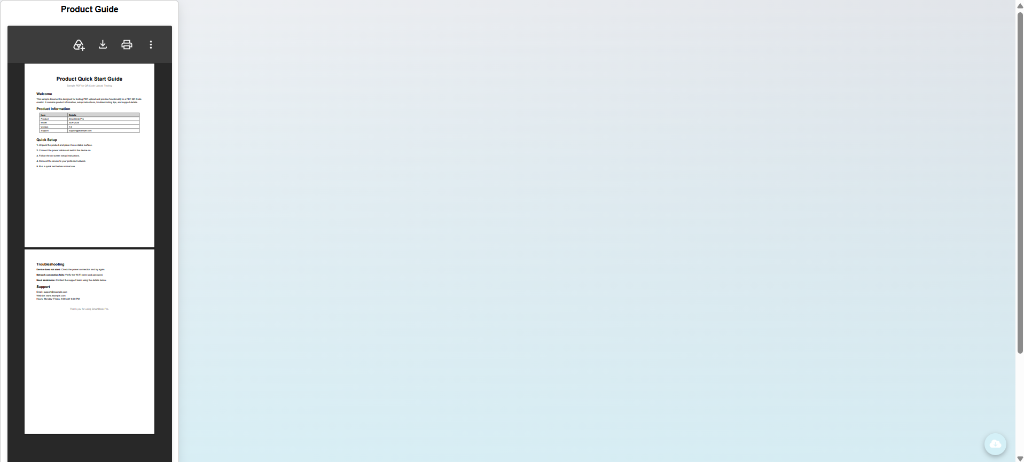
The PDF document loads smoothly without requiring extra software or apps.
Read, Download, Share
The user can read, pinch-to-zoom, download the PDF file, or share it immediately.
Test Your PDF QR Code
Before sending your QR code to print or publishing on marketing collateral, verify these 7 testing checkpoints:
Scan using iPhone: Scan with an iPhone camera and confirm the landing page and PDF render correctly in mobile Safari.
Scan using Android: Scan with an Android phone camera or Google Lens and confirm the PDF opens smoothly in Google Chrome.
Confirm the correct PDF opens: Verify that the uploaded file matches the intended product guide, manual, menu, or catalog revision.
Check PDF loading speed: Test the page over cellular 4G/5G data to verify that the file loads quickly without stalling.
Verify the document is readable on mobile: Ensure small fonts, diagrams, and technical schematics can be easily zoomed and read on compact phone screens.
Test the QR code from different distances: Test scanning at close range and from standard reading distances (1–3 feet) under different lighting conditions.
Verify the QR code still works after updating the PDF: Upload a new test PDF from your dashboard and verify the live QR code serves the new file without reprinting.
Common Problems
1. QR code does not scan
Cause: Low contrast between the QR code pattern and background, insufficient margin (quiet zone), or the printed QR code is too small for the camera sensor to focus.
Fix: Use sufficient contrast (dark pattern on light background), maintain the QR quiet zone border, and print at least 1 × 1 inch (25 × 25 mm) for handheld materials.
2. PDF does not open
Cause: The upload failed during configuration, an unsupported file type was chosen, or the PDF document configuration was incomplete.
Fix: Re-upload the PDF file in your dashboard, confirm the upload progress completes 100%, and verify the QR destination link opens the document.
3. PDF looks incorrect on mobile
Cause: PDF formatting issues such as non-embedded fonts, oversized landscape layouts, or unsupported interactive scripts.
Fix: Export your PDF with standard embedded fonts, use portrait orientation for mobile reading, and test the original PDF across multiple mobile browsers.
4. PDF was updated but QR code still needs to work
Cause & Solution: With static QR codes, you would have to reprint all physical materials when a document changes. However, Permanent QR Codes are editable dynamic codes—allowing you to update the destination PDF file in your dashboard at any time without reprinting the physical QR code.
Fix: Log in to your Permanent QR Codes dashboard, edit your existing PDF QR Code, upload the replacement PDF, and save. Scanners will immediately see the new document.
5. PDF takes too long to load
Cause: The uploaded PDF file size is excessively large due to uncompressed 300+ DPI images, causing slow download speeds on cellular networks.
Fix: Compress and optimize large PDF files using standard PDF compression tools before uploading, keeping the total file size below 10MB for instantaneous mobile loading.
Common Mistakes to Avoid
❌ Uploading the Wrong PDF
Uploading an outdated draft, unedited document, or confidential internal revision by mistake.
❌ Using a Very Large Unoptimized PDF
Uploading 50MB+ print files with raw image data, forcing mobile users to wait on long downloads.
❌ Poor QR Code Contrast
Using faint, pastel, or low-contrast patterns that smartphone cameras struggle to detect.
❌ Removing the QR Quiet Zone
Cropping away the empty margin border around the QR pattern, causing scanner decoding failures.
❌ Not Testing the QR Code on a Real Phone
Relying solely on desktop previews instead of testing real smartphone camera focus and scanning.
❌ Not Checking the PDF on Mobile
Failing to verify how tables, small text, diagrams, and pages actually render on 6-inch phone screens.
❌ Using Unclear PDF Titles
Leaving generic filenames like "document_final_v2.pdf" instead of user-friendly titles like "Model X-500 Product Guide".
❌ Printing the QR Code Too Small
Printing smaller than 1 × 1 inch (25 × 25 mm) on flyers, or too small for readers to scan from a distance.
Common Use Cases
Product Guides
Print on electronic packaging, consumer goods, and setup kits so users can immediately access full product guides.
User Manuals
Place on quick-start insert cards and warranty slips to provide comprehensive step-by-step operating guidelines.
Brochures
Distribute digital sales brochures at trade shows, showrooms, and real estate open houses without wasting paper.
Restaurant Menus
Display on dining tables, bar tops, and outdoor kiosks so diners can view daily specials, wine lists, and food menus.
Catalogs
Enable retail buyers and wholesale clients to browse 100+ page product catalogs directly on their tablets or phones.
Event Programs
Print on registration badges, conference lanyards, and event posters so attendees can download schedules and speaker bios.
Reports
Share annual reports, market studies, and financial summaries on corporate presentations and printed stakeholder letters.
Educational Materials
Print on course syllabi, classroom boards, and textbooks so students can download reading packets and homework assignments.
Product Documentation
Supply compliance certificates, technical datasheets, and engineering specs on industrial products.
Safety Instructions
Post emergency protocols, hazard warnings, and safety data sheets (SDS) on construction sites and laboratory walls.
Installation Guides
Include with hardware kits, furniture assembly packs, and plumbing parts for instant diagram access.
Company Documents
Distribute employee handbooks, onboarding guides, and internal policy binders seamlessly across distributed teams.
Frequently Asked Questions
What is a PDF Document QR Code?
A PDF Document QR Code is a scannable dynamic QR code that instantly delivers a hosted PDF document (such as a product guide, manual, menu, brochure, or catalog) to a visitor's smartphone browser without requiring them to type a web address or search manually.
Can I update the PDF after printing the QR code?
Yes. Because Permanent QR Codes are editable dynamic codes, you can upload a new PDF revision or modify page details anytime from your dashboard. The physical printed QR code remains unchanged and immediately points to the newly updated document.
Can users open the PDF on mobile devices?
Yes. The PDF Document landing page is fully optimized for mobile devices, opening seamlessly on iOS Safari, Android Chrome, and all standard mobile browsers with options to read, pinch-to-zoom, download, or share.
Can I customize the QR code?
Yes. You can customize the QR code design with tailored templates, custom brand logos, custom pattern styles, eye shapes, corner frames, brand colors, and custom call-to-action frames.
What PDF file can I upload?
You can upload standard PDF documents up to 20MB, including single-page flyers, multi-page technical user manuals, product catalogs, restaurant menus, architectural sheets, and annual reports.
Can I download the QR code in SVG format?
Yes. Permanent QR Codes provides lossless vector SVG downloads in addition to high-resolution PNG, JPEG, and WEBP formats, making it easy to scale your QR code for massive billboards, product packaging, or fine print without pixelation.
Can I track scans?
Yes. Your dashboard provides comprehensive analytics on QR code scans, including total scan count, unique scanners, operating system breakdown, device types, and geographic locations over time.
Does the QR code expire?
No. Permanent QR Codes operate on a one-time $49 payment model with no recurring monthly or annual subscriptions. Your QR code and document hosting remain active permanently with unlimited scans.
Do I need to reprint the QR code when I update the PDF?
No. You never need to reprint the physical QR code. When you update the PDF in your dashboard, all existing printed QR codes automatically display the newly uploaded document.