How to Create a Website URL QR Code
Create a QR code that instantly opens your website when scanned. You can use a Website URL QR Code on business cards, product packaging, posters, menus, flyers, advertisements, signage, brochures, and other printed materials.
Editable Permanent Website URL QR Code:
- $49 One-Time Payment: Pay once and own the QR code forever with no monthly subscription fees.
- Editable Destination URL: Change the destination URL anytime after printing without reprinting or changing the physical QR code.
- Unlimited Scans: No scanning limits, no expiration.
Before You Start
Before creating your QR code, ensure you have:
- The complete website URL
- A publicly accessible webpage
- A working HTTPS URL
- A mobile-friendly destination page
- Access to your Permanent QR Codes account if creating an editable QR code
Check Your Website URL
Open the URL in a browser before creating the QR code to ensure it loads correctly.
Mobile First
Most QR scans happen on smartphones. Always verify that your destination page is responsive, easy to read, and works perfectly on mobile devices.
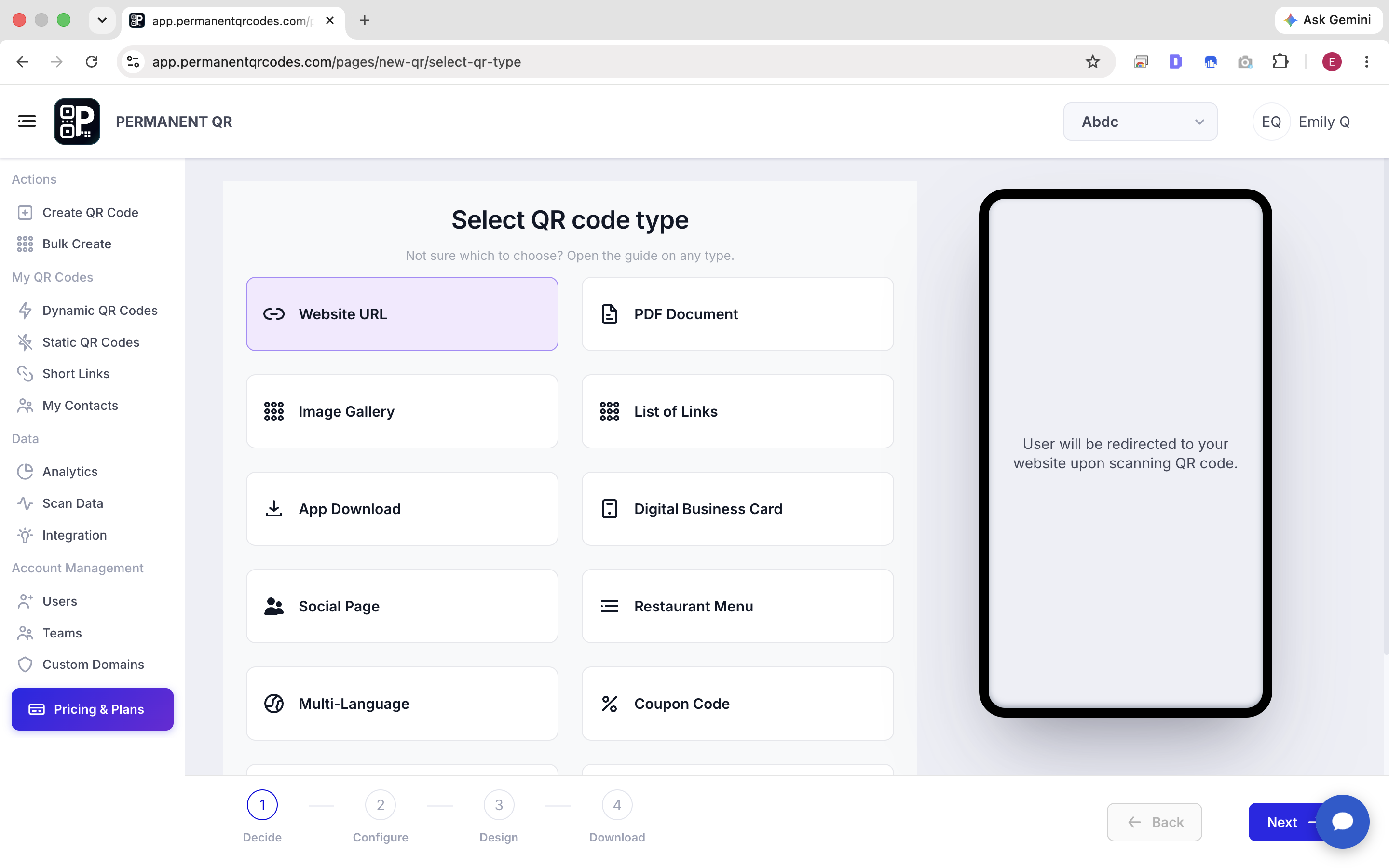
Step 1: Select "Website URL"
From the available QR code types, select Website URL and continue to the next step.
The Website URL option is designed for directing scanners to an existing webpage, such as:
- Homepage
- Product page
- Landing page
- Portfolio
- Booking page
- Campaign page
- Online store
- Blog article
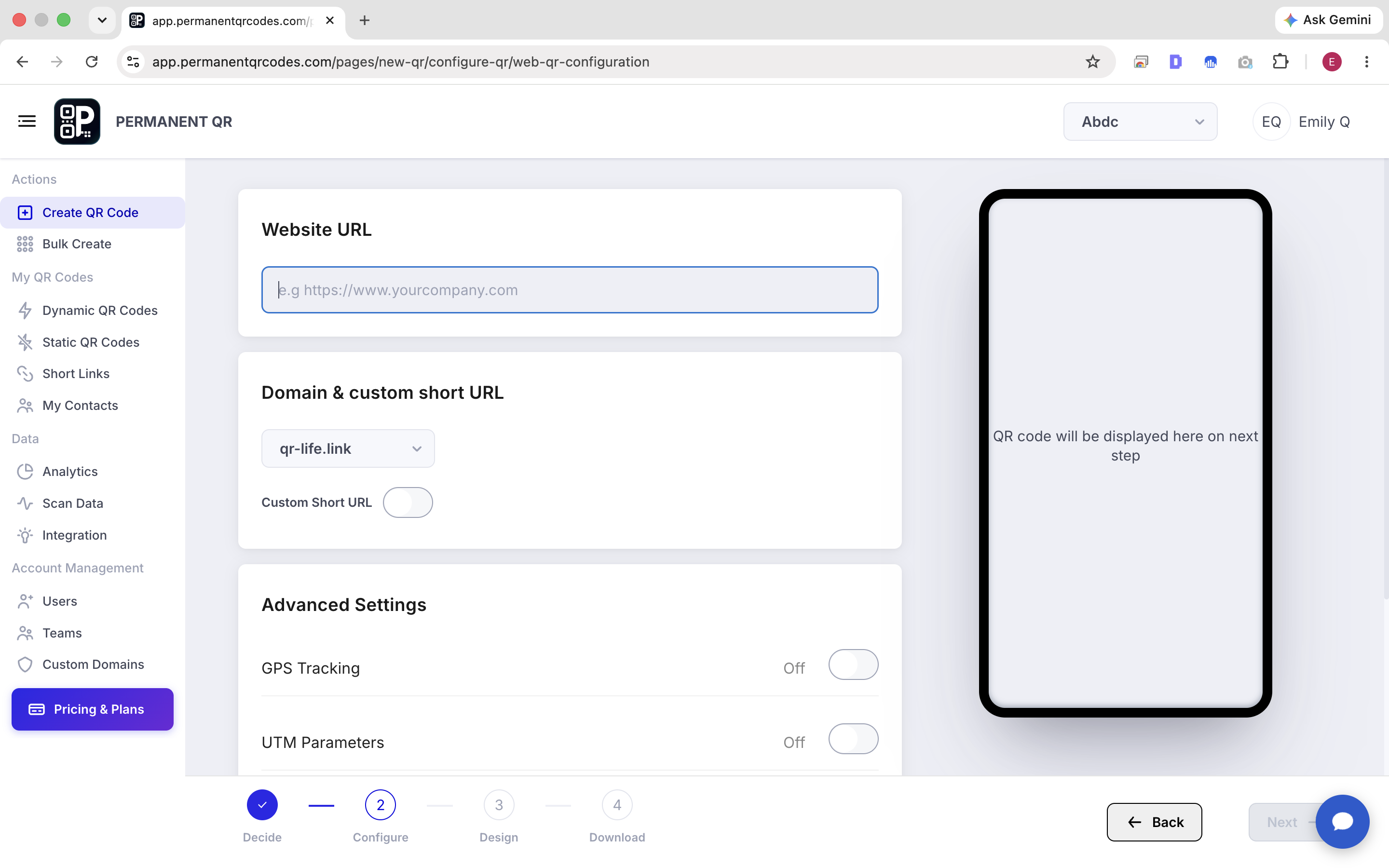
Step 2: Enter Your Website URL
Paste the complete URL of the page you want people to open after scanning. The QR code can point directly to a specific webpage and does not have to point only to your homepage.
Correct Format:
Example: https://yourwebsite.com/products/example
Incorrect Format:
Common Problems at This Step
"My QR Code does not open the website"
Possible reasons: The URL was entered incorrectly, the https:// prefix was missing from the URL, the destination website is unavailable, the page was deleted, the URL requires login, or the destination is not publicly accessible.
Fix: Open the URL directly in a browser first. If it does not work there, fix the destination URL before creating or printing the QR code.
"The QR Code opens, but the page shows an error"
Possible causes: Incorrect URL, deleted webpage, expired domain, server error, or login-protected page.
"The website looks bad on mobile"
QR codes are commonly scanned using smartphones. Make sure the destination page is responsive and easy to use on mobile devices.
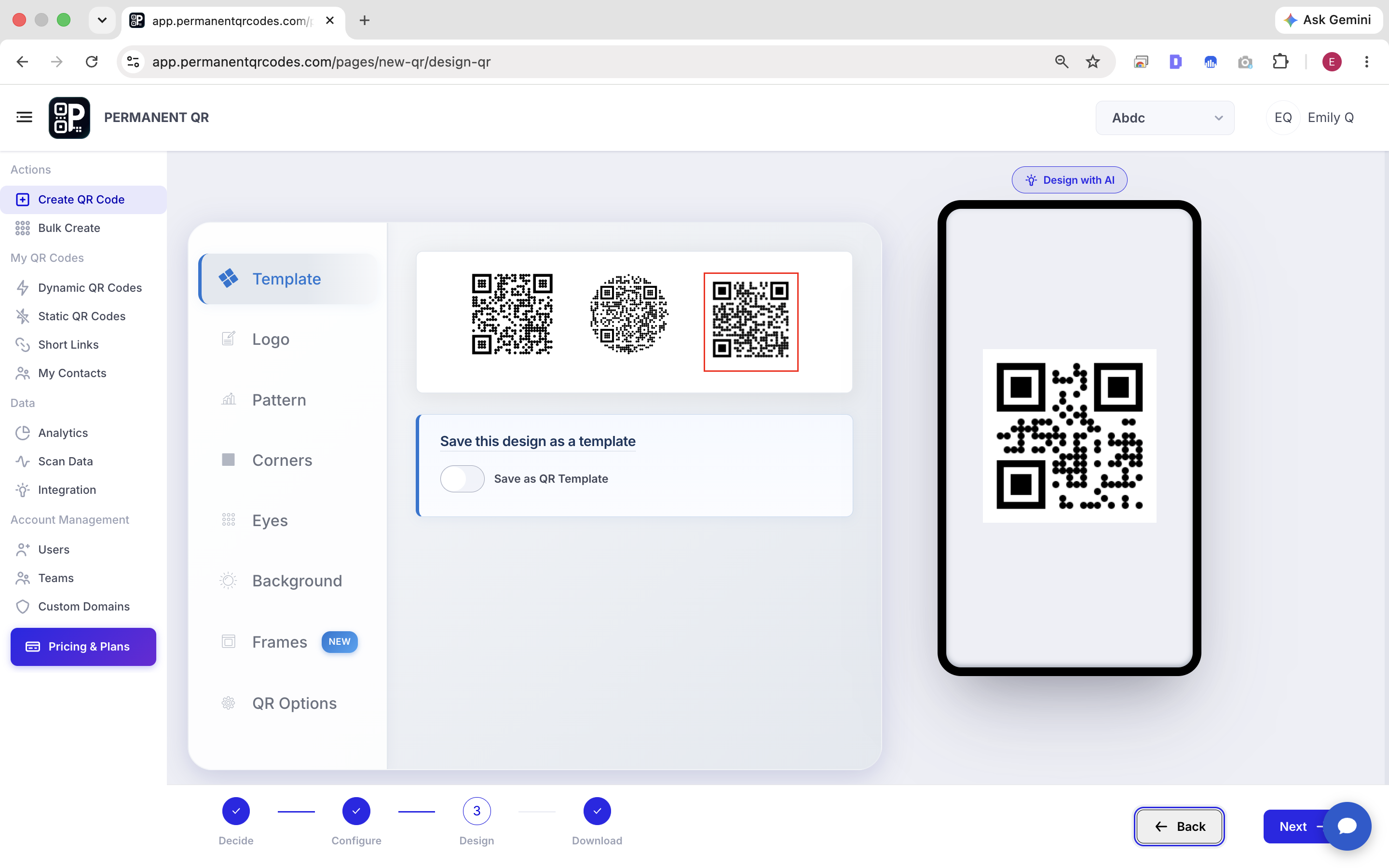
Step 3: Customize Your QR Code
You can customize the QR code before downloading it to match your brand identity. Available options include foreground color, background color, logo/branding, and QR pattern appearance.
QR Code Design Best Practices
Use High Contrast
A dark QR pattern on a light background is highly recommended for reliable scanning.
Keep the Quiet Zone
Leave sufficient empty space (padding) around the QR code so scanners can detect the edges.
Do Not Over-Customize
Avoid overly complex designs, low contrast, or large logos that make the QR pattern difficult to scan.
Use High-Resolution Formats
For best quality, export as SVG, PNG, JPEG, or WEBP.
Step 4: Review Your QR Code
- Preview the QR code inside the generator.
- Verify the destination URL is exactly correct.
- Check the QR design and contrast.
- Confirm that the QR pattern is clearly visible.
- Scan the QR code on your screen using a smartphone before downloading.
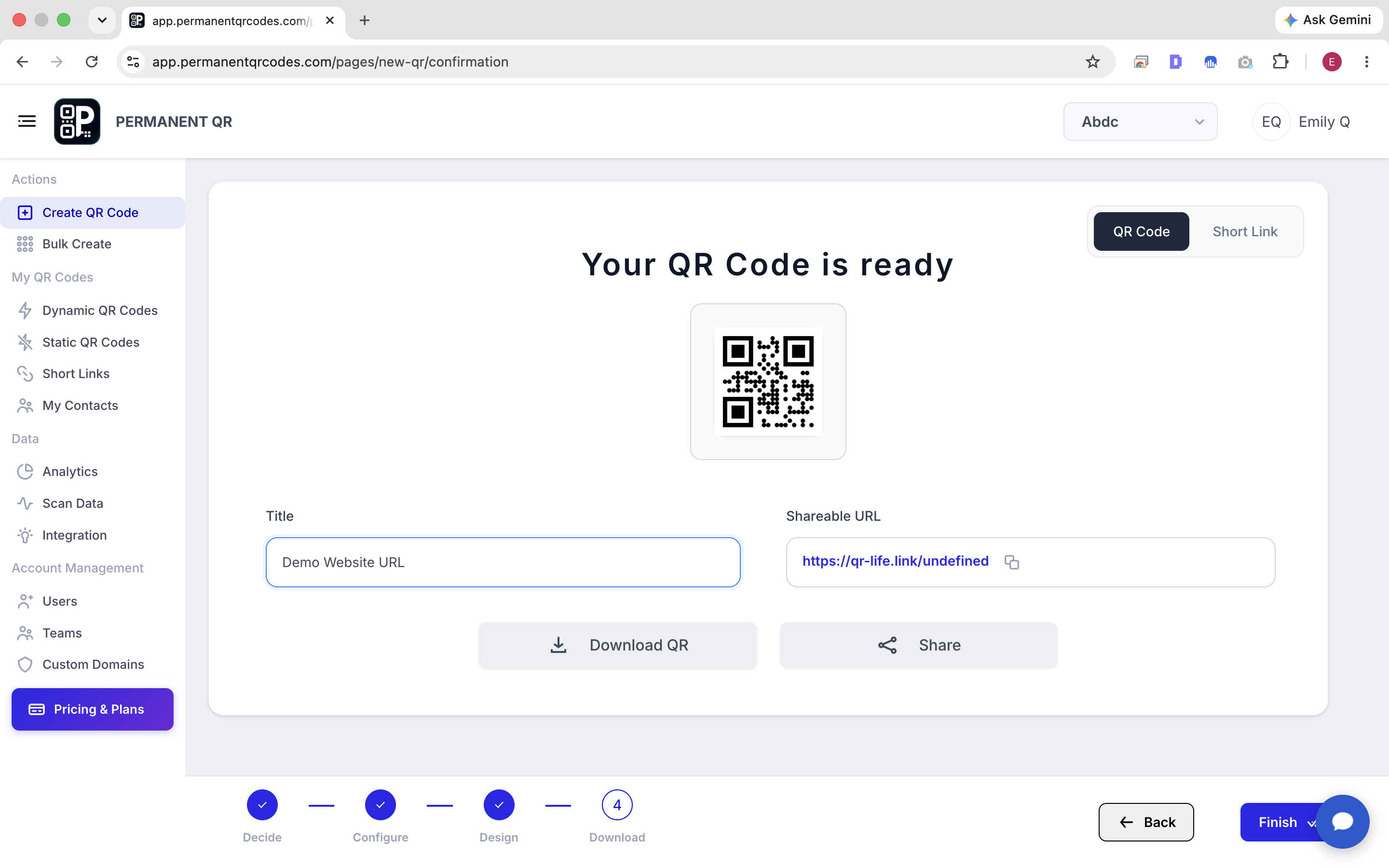
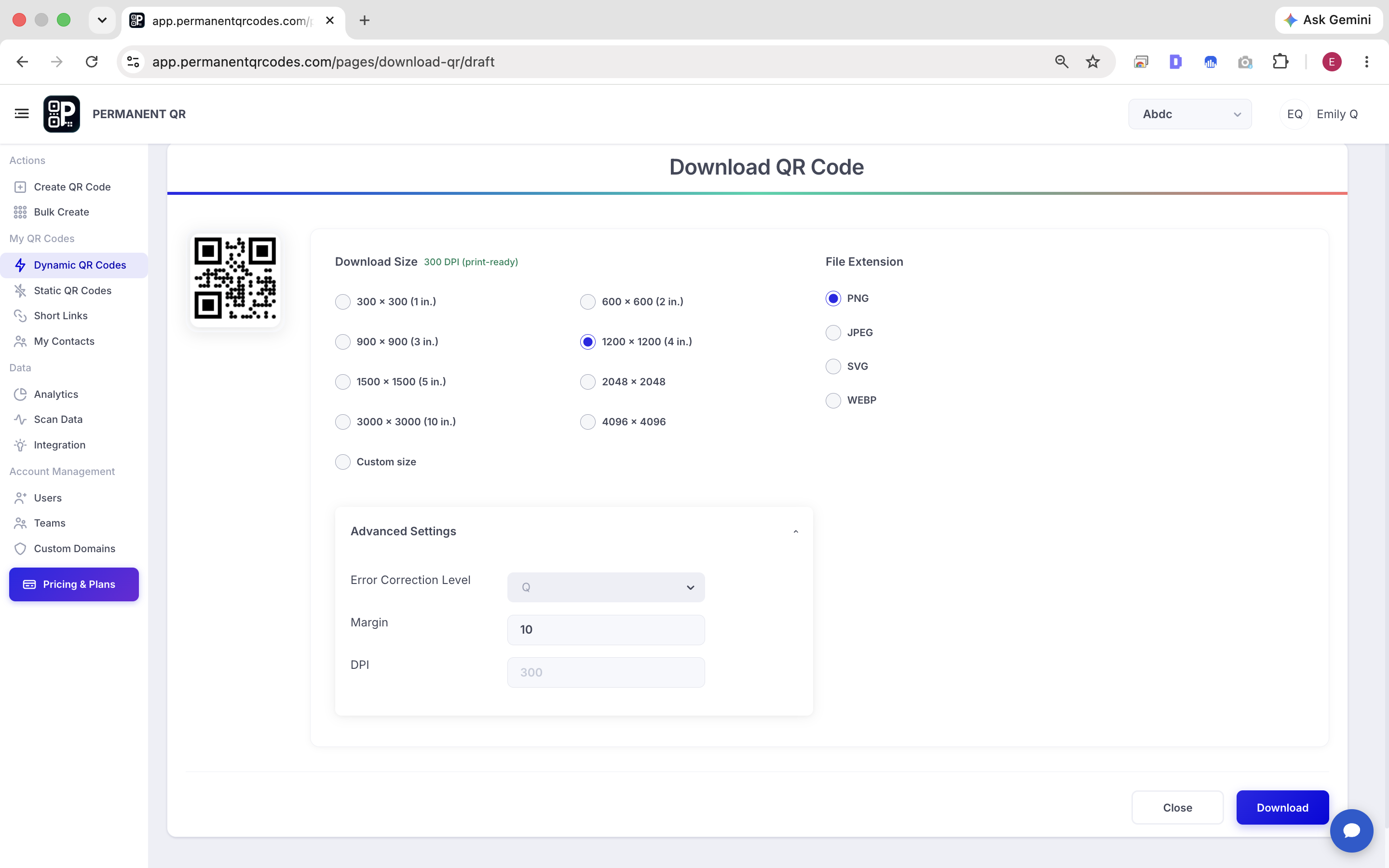
Step 5: Download Your QR Code
After reviewing, download the QR code in the format appropriate for your project. Permanent QR Codes provides high-resolution exports suitable for professional printing.
Recommended Formats:
- PNG
Best for websites, digital use, and basic document printing.
- SVG
Best for professional printing and scalable designs.
- JPEG
Standard image format for sharing and basic printing.
- WEBP
Optimized image format for fast web loading.
Track Your QR Code Scans
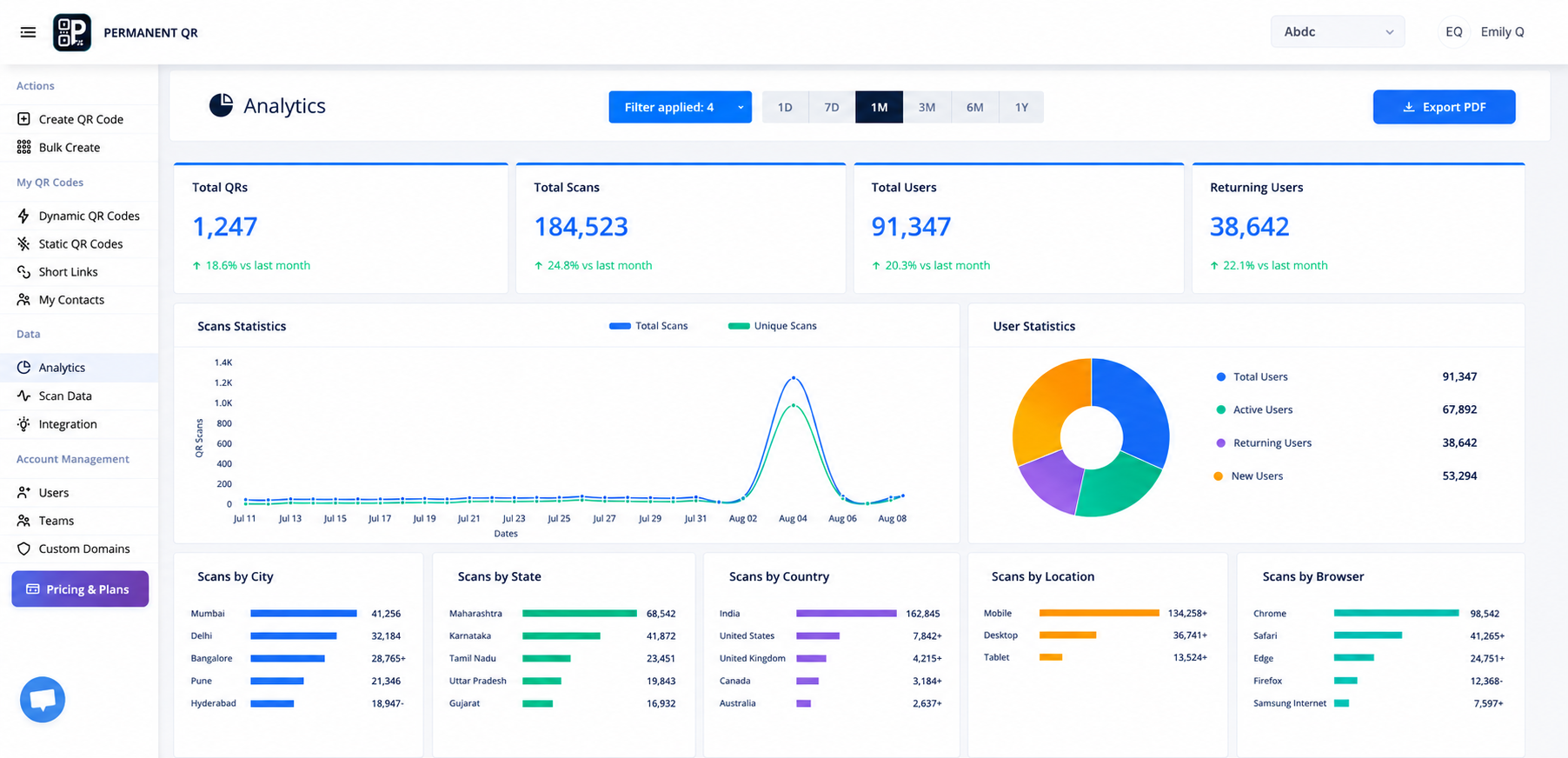
Editable Permanent QR Codes automatically provide detailed scan analytics to help you understand how your printed materials are performing.
- Total Scans
- Unique Visitors
- Device Type
- Operating System
- Geographic Data
- Scan Timing
Popular Use Cases
Because editable Permanent QR Codes can remain active and be updated after printing, they are particularly useful for physical materials that are expected to remain in circulation for months or years:
- Business Cards
- Product Packaging
- Product Labels
- Flyers
- Posters
- Brochures
- Restaurant Materials
- Event Signage
- Trade Show Displays
- Print Advertisements
- Direct Mail
- Retail Displays
Frequently Asked Questions
Can I change the website URL after printing?
Is a Website URL QR Code permanent?
How much does an editable Permanent QR Code cost?
Are there scan limits?
Can I use a specific webpage instead of my homepage?
Do I need an app to scan the QR code?
Can I add my logo?
What file formats are available?
Can I track scans?
Can I use the QR code on packaging?
Common Mistakes to Avoid
- ❌ Entering a URL without
https:// - ❌ Using a broken or deleted webpage
- ❌ Linking to a login-only page
- ❌ Printing without testing
- ❌ Using insufficient QR contrast
- ❌ Removing the QR quiet zone
- ❌ Printing at a size that is too small for the intended scanning distance
- ❌ Assuming standard QR codes from other generators can be edited after printing
- ❌ Forgetting to double-check the final printed layout before bulk printing
Website URL QR Code Launch Checklist
- Website URL includes
https:// - Destination page opens correctly
- Destination page works on mobile
- Correct QR type selected
- Lifetime editable features confirmed
- QR design has sufficient contrast
- Logo does not interfere with scanning
- Quiet zone is preserved
- QR code has been scanned and tested
- Correct download format selected
- Final QR code is ready for printing
Ready to Create Your Website URL QR Code?
Create a QR code that can stay with your printed materials for the long term.